

Connecting with loved ones becomes even more special when you can see their faces and hear their voices in real time. Video calling makes this possible, bridging distances with technology that is simpler to use than you might think. Whether your family lives across the country or just down the street, video calls offer a wonderful way to feel closer, share moments, and keep those important relationships strong. This guide empowers you to confidently use video calling, making it a regular part of your senior communication toolkit.
For a broader look at digital communication, check out our guide on staying connected with technology to discover other helpful tools.
Many people find new technology a bit daunting at first. Remember, every expert began as a beginner. You simply need clear instructions and a little practice. We will walk you through everything you need to know, from understanding the basics to making your first call and troubleshooting common issues. Get ready to embrace this powerful tool for family connection.

Why Video Calling Matters for Staying Connected
Video calling transforms how you interact with friends and family. It offers far more than a simple phone call, bringing visual cues, expressions, and shared experiences directly to you. Consider the benefits of seeing your grandchild’s smile as they tell you about their day or watching your adult child open a birthday gift you sent.
If you ever find yourself struggling with the emotional distance from loved ones, learning positive strategies for coping with loneliness can help you build deeper connections.
In addition to video chats, exploring social media platforms for seniors can be another wonderful way to keep up with family photo sharing and daily updates.
Engaging in video chats regularly plays a huge role in preventing social isolation by keeping your personal network active.
Studies show regular social interaction contributes to overall well-being. Video calls provide a powerful tool to maintain these vital connections, especially when physical visits are not possible. You stay informed about family news, participate in celebrations, and simply enjoy seeing the faces of those you care about. This technology truly enhances senior communication and strengthens family connection.
You can use video calls for many purposes. Catch up with friends, participate in online family gatherings, or even attend virtual appointments with doctors using telehealth services. The convenience and emotional benefits make it an invaluable skill to learn. It empowers you to reach out and stay an active part of your loved ones’ lives.
Technology is just a tool. It empowers you to do amazing things, like connecting face-to-face with loved ones, no matter the distance.

What You Need to Get Started with Video Calling
Before you make your first video call, you need a few basic things. Gathering these items and understanding their role simplifies the entire process. Do not worry; you likely already possess most of what you need.
For the ultimate convenience, you might consider utilizing senior-friendly smart home devices like smart displays that make hands-free video calling incredibly simple.
Your Device
You need a device with a camera and a microphone. Most modern smartphones, tablets, laptops, and even some desktop computers come equipped with both. If you have an iPhone or an Android phone, you already hold a powerful video calling tool in your hand.
If you plan to use a desktop or laptop for your calls, learning to troubleshoot simple computer issues can prevent minor glitches from interrupting your chat.
If you find the screen text or buttons too small on your device, consider customizing your setup with smartphone accessibility features to make calling much easier.
- Smartphone: Both iPhones and Android phones work perfectly for video calls. They have built-in cameras and microphones.
- Tablet: Devices like iPads or Android tablets also offer excellent video calling experiences, often with a larger screen than a phone.
- Laptop or Desktop Computer: Most newer laptops have built-in cameras and microphones. If you use a desktop computer, you might need an external webcam and microphone, which you can purchase separately and connect via a USB port.
An Internet Connection
Video calls transmit a lot of information, including live video and audio. This requires a stable internet connection. You generally have two main options for connecting to the internet:
Once you have high-speed internet set up, you can also use it to enjoy the top entertainment streaming platforms right from your favorite device.
If you plan to use mobile networks often, make sure you are on one of the best cell phone plans for seniors on a budget to avoid unexpected overage charges.
- Wi-Fi: This is your wireless internet connection at home. Most people connect their phones, tablets, and laptops to their home Wi-Fi network. This uses your home internet service and typically offers a strong, reliable connection without using up your phone’s cellular data.
- Cellular Data: Your smartphone can also use its cellular data connection (like 4G or 5G) if you have a data plan. However, video calls consume a lot of data, and using cellular data can quickly deplete your monthly allowance or incur extra charges. We recommend using Wi-Fi whenever possible for video calls.
Ensure your device connects to a strong Wi-Fi signal for the best call quality. If your signal is weak, your video might look blurry or cut out.
A Video Calling Account
Most video calling apps require you to create an account. This typically involves using your email address or phone number to sign up and create a password. Once you have an account, the app identifies you, allowing you to connect with others.
A Quiet, Well-Lit Space
While not strictly a technical requirement, choosing a good location enhances your video call experience. Find a spot with good lighting, preferably facing a window, so your face appears clear. Try to choose a quiet area to minimize background noise and distractions. This helps your family connection remain the focus of the conversation.

Choosing the Right Video Calling App for You
Many excellent video calling applications are available, and most are free to use. The best choice often depends on what your friends and family already use. You might even find yourself using a few different apps depending on who you want to call. Here are some of the most popular and senior-friendly options:
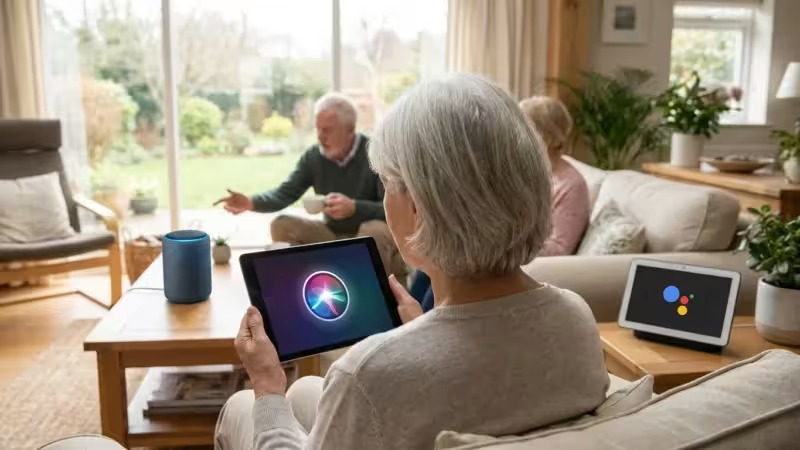
To make calling even easier, you can also set up smart voice assistants for seniors to start a video call using simple verbal commands.
- FaceTime (Apple Devices Only):
- What it is: Apple’s built-in video calling app for iPhones, iPads, and Mac computers.
- Pros: Extremely simple to use if everyone has an Apple device. No app download or separate account creation needed beyond your Apple ID. High-quality video and audio.
- Cons: Only works between Apple devices. You cannot call an Android phone or a Windows computer user with FaceTime.
- Best for: Seniors with iPhones or iPads whose family and friends also primarily use Apple products.
- Zoom (Universal):
- What it is: A popular video conferencing service, widely used for both personal and professional calls.
- Pros: Works across all devices (iPhones, Android phones, tablets, computers). Easy to join a call with a link. Excellent for group calls with multiple people.
- Cons: Requires an app download and account creation for hosts (those who start meetings). Participants can often join without an account.
- Best for: Group calls with diverse devices, family gatherings, or when someone sends you a Zoom link to join.
- Google Meet/Duo (Universal, Google Account Integration):
- What it is: Google’s primary video calling services. Google Duo is merging into Google Meet, so you might see either name. They are deeply integrated with Google accounts.
- Pros: Works on iPhones, Android phones, tablets, and computers. Simple interface, especially if you or your contacts already use Gmail.
- Cons: Can be confusing with the merging of Duo and Meet.
- Best for: Android phone users, or anyone with a Google (Gmail) account. Good for one-on-one and group calls.
- WhatsApp (Universal, Messaging Focused):
- What it is: A very popular messaging app that also includes voice and video calling features.
- Pros: If your family already uses WhatsApp for text messaging, the video call feature is seamlessly integrated. Works on all devices.
- Cons: Requires a phone number to sign up and links to your contacts.
- Best for: Seniors whose family members already use WhatsApp extensively for international communication or group chats.
- Skype (Universal):
- What it is: One of the original video calling apps, owned by Microsoft.
- Pros: Works on all devices. Offers features like call recording and translation.
- Cons: Interface can feel a bit dated compared to newer apps.
- Best for: If your contacts primarily use Skype, or for making international calls to landlines/mobiles (which often costs money).
Talk to your family and friends. Ask them which app they use most often. This makes getting started much easier for you, as they can guide you through their preferred app.
Downloading and Setting Up Your Chosen App
Most video calling apps require you to download them to your device. FaceTime is an exception for Apple users, as it comes pre-installed. Here are the general steps:
Step-by-Step: Downloading an App (e.g., Zoom, Google Meet, WhatsApp, Skype)
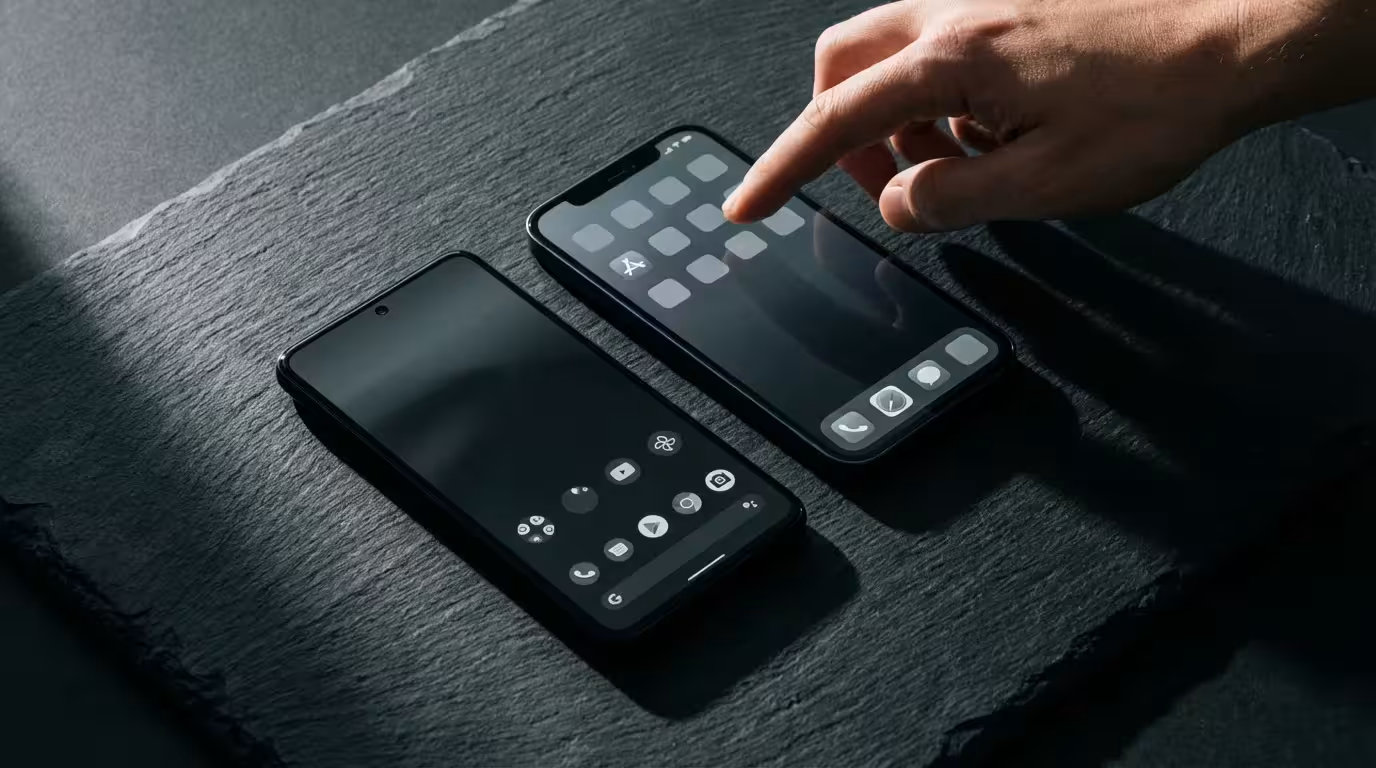
These steps apply to both iPhones and Android phones. The app store names and icons may look slightly different, but the process is similar.
- Find your App Store:
- On an iPhone or iPad: Look for the “App Store” icon, which often looks like a blue square with a white ‘A’ or triangle symbol.
- On an Android phone or tablet: Look for the “Play Store” icon, which often looks like a colorful triangle.
- Tap the App Store icon to open it.
- Find the Search Bar: At the bottom or top of the screen, you will see a search bar or a magnifying glass icon. Tap on it.
- Type the App Name: Type the name of the app you want (e.g., “Zoom,” “Google Meet,” “WhatsApp”).
- Tap “Search” or the magnifying glass icon on your keyboard.
- Locate the App: You will see a list of results. Find the correct app, usually with its official logo.
- Tap “Get” or “Install”:
- On an iPhone: Tap the “Get” button. You might need to confirm with your fingerprint, face ID, or by entering your Apple ID password.
- On an Android phone: Tap the “Install” button.
- Wait for Download: The app will download and install on your device. This might take a few moments depending on your internet speed.
- Find the App Icon: Once installed, you will see the new app icon appear on your home screen or in your app list.
Step-by-Step: Setting Up Your Account
After downloading, you typically need to set up an account. (FaceTime users can skip this, as it uses your Apple ID.)
While downloading communication apps is generally safe, it is always a good practice to familiarize yourself with tips for avoiding online scams to keep your device secure.
- Open the App: Tap the new app icon on your home screen to open it.
- Choose “Sign Up” or “Create Account”: If you are new, you need to create an account. If you already have one, tap “Sign In” and enter your details.
- Enter Information: The app will ask for information like your email address or phone number. Follow the on-screen prompts. You may need to verify your phone number with a code sent via text message.
- Create a Password: Choose a strong password that you will remember.
- Grant Permissions: The app will ask for permission to access your camera and microphone. This is crucial for video calling, so always tap “Allow” or “Accept.” It may also ask for access to your contacts to help you find friends; allowing this makes it easier.
- Add Contacts: Most apps have a way to add contacts. You can often import them from your phone’s address book or add them manually using their email address or username within the app.
You have now successfully set up your video calling app. You are ready to connect!

Making Your First Video Call: Step-by-Step
This is where the excitement truly begins! Let’s walk through how to initiate a video call. While app interfaces vary, the core steps remain quite similar across most platforms.
General Steps to Make a Video Call
- Open Your Video Calling App: Tap the icon for the app you want to use (e.g., Zoom, FaceTime, Google Meet).
- Find Your Contact:
- In apps like FaceTime or WhatsApp: You usually go to your contacts list within the app, or to a chat you already have with the person.
- In apps like Zoom or Google Meet: You might start a “New Meeting” or “New Call” and then invite someone, or join a call using a link someone sent you. For a direct call, you will find an option to “Call” or “Meet” a contact.
- Locate the Video Call Button: Once you have found your contact or started a new meeting, look for an icon that looks like a video camera (🎥) or a phone with a camera on it. Tap this icon to start a video call. Sometimes, there is also a regular phone icon (📞) for an audio-only call; make sure you tap the video camera one.
- Wait for Connection: Your device will try to connect to the other person. You will hear a ringing sound, similar to a phone call.
- Talk and Enjoy: Once they answer, you will see their face on your screen, and they will see yours! You can now talk to each other.
During the Call: Essential Controls
While on a video call, you will typically see several buttons on your screen. These help you manage your call. Do not worry if you accidentally tap one; you can usually tap it again to revert the action.
- Mute Microphone (🎤 or Mute): Tap this button to turn off your microphone so the other person cannot hear you. This is useful if you have background noise or need to speak to someone in your room privately. Tap it again to unmute yourself.
- Turn Off Camera (📹 or Stop Video): Tap this to turn off your video, so the other person only sees your name or a profile picture. This is helpful if you need to walk away from the screen for a moment or if your internet connection is weak. Tap it again to turn your camera back on.
- End Call (紅色電話圖標 or Leave): When you are ready to finish the call, tap the red phone icon, which usually says “End” or “Leave.”
Receiving a Video Call
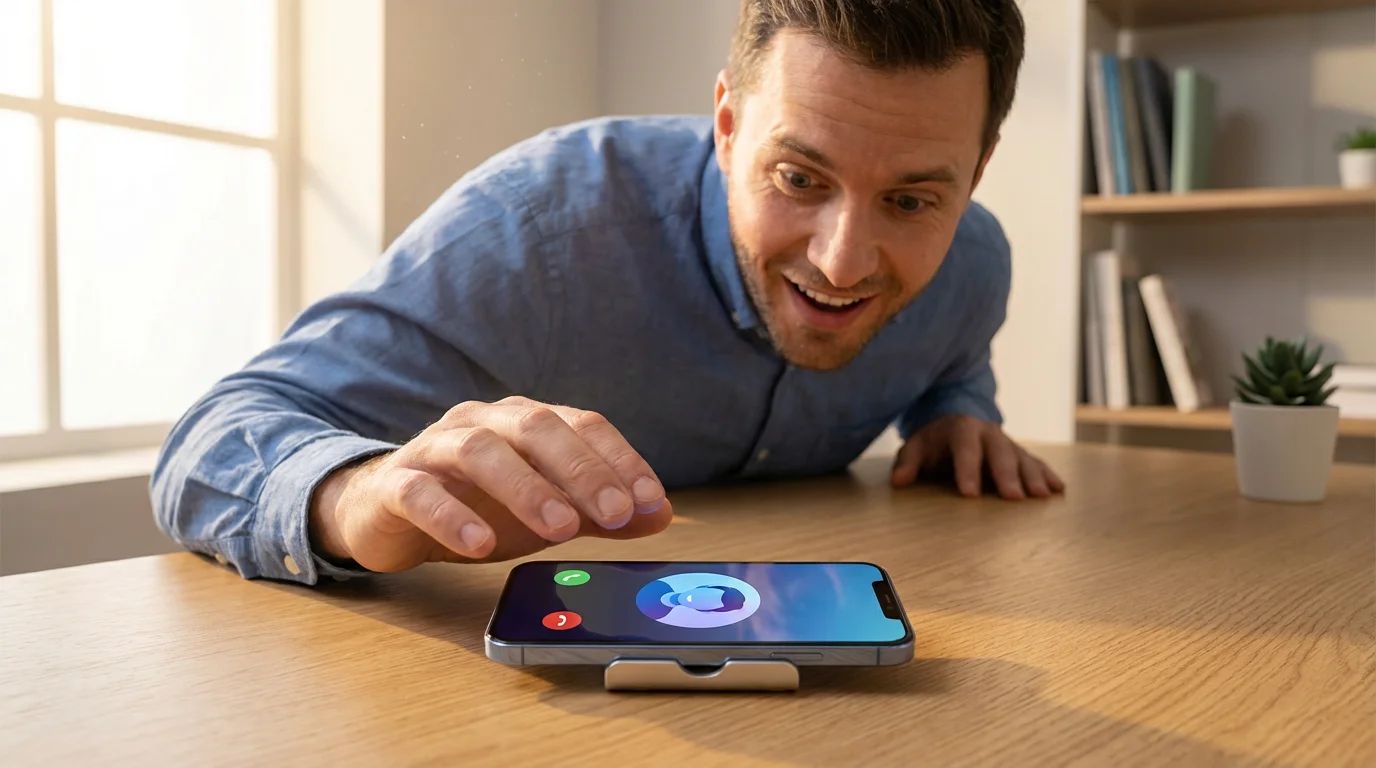
Answering a video call is even simpler than making one. When someone calls you, your device will usually ring, and you will see a notification on your screen. This notification typically shows who is calling and gives you options to answer or decline.
Step-by-Step: Answering a Video Call
- See the Incoming Call Notification: Your phone or tablet screen will light up, showing a notification that a video call is coming in. It will often display the caller’s name.
- Look for “Accept” or “Answer”: You will usually see a green button labeled “Accept” or “Answer,” often accompanied by a green phone icon (📞) or video camera icon (🎥). There will also be a red “Decline” or “End” button to reject the call.
- Tap “Accept” or “Answer”: Tap the green button to join the call.
- Start Talking: Once connected, you will see and hear the person who called you.
If you miss a call, most apps notify you of the missed video call, and you can often tap the notification to call them back.

Video Call Etiquette and Best Practices
Following a few simple guidelines helps ensure a pleasant experience for everyone on the call.
- Find Good Lighting: Sit in a well-lit area, ideally with a light source (like a window or lamp) in front of you, not behind you. Backlighting can make your face appear dark.
- Choose a Simple Background: A plain wall or a tidy room works best. Avoid cluttered areas or distracting objects behind you.
- Be Mindful of Noise: Try to find a quiet space. If there is unavoidable background noise, use the “Mute” button on your microphone when you are not speaking.
- Look at the Camera: Try to look at your device’s camera occasionally, rather than only at the screen. This helps you make “eye contact” with the person you are talking to.
- Position Your Device: Elevate your phone or tablet slightly so the camera is at eye level. This prevents an unflattering “up-the-nose” angle.
- Speak Clearly: Speak at a normal volume, just as you would in person. Your device’s microphone should pick up your voice well.
- Manage Notifications: If possible, set your phone to “Do Not Disturb” during calls to avoid interruptions from other apps.
- End the Call Clearly: Say your goodbyes and make sure to tap the “End Call” or “Leave” button to properly disconnect.

Troubleshooting Common Video Calling Problems
Sometimes, things do not go perfectly on a video call. Do not get discouraged! Many common issues have simple solutions. Here are some problems you might encounter and how to fix them. Remember, patience and practice make all the difference.
Problem 1: No Sound or Can’t Hear Anyone
- Check Your Volume: First, ensure your device’s volume is turned up. Look for the volume buttons on the side of your phone or tablet, or the keyboard shortcuts on a computer.
- Check Mute Button: Make sure you have not accidentally pressed the “Mute” button for your microphone or speaker within the video calling app.
- Restart the App: Close the video calling app completely and then reopen it.
- Restart Your Device: Sometimes, a simple restart of your phone or computer resolves audio glitches.
Problem 2: No Video or Can’t See Anyone
- Check Camera Button: Ensure you have not accidentally turned off your camera within the app (look for the camera icon).
- Check Permissions: Go into your device’s settings (look for the gear icon ⚙️) and ensure the video calling app has permission to access your camera.
- Check for Blockage: Make sure nothing physically covers your device’s camera lens.
- Check Internet Connection: Poor internet speed can prevent video from loading clearly.
Problem 3: Choppy Video or Frozen Screen
- Check Wi-Fi Signal: Your internet connection might be weak. Try moving closer to your Wi-Fi router.
- Close Other Apps: Other apps running in the background might be consuming your device’s resources or internet bandwidth. Close any apps you do not need.
- Restart Your Router: Unplug your Wi-Fi router from its power source, wait 30 seconds, then plug it back in. This often resolves internet connection issues.
- Reduce Bandwidth Use: If possible, ask others in your home to pause activities like streaming movies or downloading large files during your call.
Problem 4: Cannot Connect to a Call
- Check Internet Connection: Confirm your device is connected to Wi-Fi or has cellular data enabled.
- Re-enter Meeting ID/Link: If joining a meeting, double-check that you have the correct meeting ID or link.
- Update the App: Go to your device’s App Store or Play Store and check if the video calling app has an update available. Outdated apps can sometimes cause connection problems.
- Try Another App: If one app consistently fails, try using a different one if your contact supports it.
If you continue to experience problems, do not hesitate to ask a trusted family member or a SavvySeniorLife.com expert for help. Many issues are easily fixable with a little guidance.
Quick Reference: Your Video Calling Checklist
Use this simple checklist before or during a call to ensure a smooth experience. This list helps reinforce what you have learned about how to use video call effectively.
- Device Ready: Is your smartphone, tablet, or computer charged and turned on?
- Internet Connected: Are you connected to Wi-Fi? Is your signal strong?
- App Downloaded & Account Set Up: Have you installed the app and logged into your account?
- Camera & Mic Permissions: Has the app been granted access to your camera and microphone?
- Good Environment: Are you in a quiet, well-lit place with a clean background?
- Volume Checked: Is your device’s volume turned up so you can hear?
- Mute/Video Off Check: Are your microphone and camera turned on (not muted or off) within the app?
- End Call Clearly: Remember to tap the red “End” or “Leave” button when you finish.
Frequently Asked Questions
Can I make a video call to someone who does not have the same type of phone as me?
Yes, absolutely! Most popular video calling apps like Zoom, Google Meet, WhatsApp, and Skype work across different types of devices and operating systems (like iPhone and Android). FaceTime is the main exception, as it only works between Apple devices. The key is that both you and the person you are calling use the same video calling app.
Do video calls cost money?
The video calling apps themselves are generally free to download and use for calls over the internet. However, video calls use your internet connection. If you are using your phone’s cellular data connection (not Wi-Fi), it will consume data from your monthly plan, which could incur charges if you exceed your allowance. We recommend using Wi-Fi whenever possible to avoid data usage charges and ensure a more reliable connection.
What if I accidentally hang up?
If you accidentally tap the “End Call” button, do not worry. You can simply call the person back using the same steps you used to initiate the first call. Most apps also provide an option to quickly “Redial” or “Call Back” the last person you spoke with. Your contact can also call you back if they wish.
How many people can be on a video call at once?
The number of participants depends on the app you use. Most apps allow one-on-one calls and small group calls. Apps like Zoom and Google Meet are specifically designed for larger group meetings, often supporting dozens of participants at once. For most family connection purposes, you will find these apps more than sufficient for group gatherings. For example, Zoom’s free plan allows up to 100 participants for up to 40 minutes.
How do I know if my camera and microphone are working?
When you start a video call, you usually see a small preview of yourself in a corner of the screen. If you see yourself, your camera works. To check your microphone, watch for a fluctuating audio indicator next to your mute button while you speak. You can also simply ask the person you are calling, “Can you see and hear me?” Many apps also have a test feature in their settings where you can check your audio and video before a call. Google’s Android Help offers guidance on managing app permissions, including camera and microphone access, for Android devices.
Is video calling secure?
Reputable video calling apps employ encryption to protect your conversations, making them private between you and your contacts. However, always exercise caution with links from unknown senders, just as you would with emails. Stick to trusted apps and only join calls from people you know. For more information on staying safe online, the FTC offers valuable resources on online security.
You have taken a significant step towards mastering a valuable skill that keeps you connected to those who matter most. With these simple steps and a bit of practice, video calling will become a comfortable and enjoyable part of your routine. Keep practicing, and enjoy seeing your loved ones’ faces anytime, anywhere. You are doing great!
Disclaimer: This article is for informational purposes only. Device interfaces and features may vary depending on your device model and software version. Screenshots and steps are based on common versions but your experience may differ slightly. When in doubt, consult your device manufacturer’s official support resources.








Leave a Reply