
Discovering the world of digital entertainment opens up a treasure trove of movies, TV shows, and documentaries right in your living room. You no longer depend on traditional cable schedules. Instead, you choose exactly what you want to watch, whenever you want to watch it, with a few simple clicks.
Many households are now cutting the cord and switching to digital options to save on monthly expenses.
Many seniors find joy and convenience in streaming services. These platforms offer a vast array of content, from classic films to modern series, often at a lower cost than cable television. This guide helps you understand how streaming works and which options best suit your preferences for senior entertainment.
Understanding Streaming Services: Your New Entertainment Hub
You hear the term “streaming” often, but what does it really mean? Streaming refers to watching content directly over the internet. Imagine a continuous flow of data delivering movies and shows to your device without needing to download them first. This process gives you instant access to a massive library of entertainment.
Beyond watching movies, using social media for seniors can help you find groups that discuss your favorite documentaries.
Learning these new platforms is a great way to stay current with broader technology tips for senior citizens that help you stay engaged.
Instead of scheduled TV programs, you select what to watch from a catalog. This flexibility is a major benefit. You can pause, rewind, or fast-forward any program at your leisure, tailoring your viewing experience completely to your schedule.
What Are Streaming Services?
Streaming services are online platforms that host a library of video content. They make this content available to you through an internet connection, usually for a monthly subscription fee. Think of them as on-demand movie rentals and TV channels, all rolled into one convenient service.
Popular examples include Netflix, Max, and Disney+. Each service offers its own unique collection of movies, TV shows, documentaries, and original programming. This variety means you find content tailored to almost any interest, from nature documentaries to classic sitcoms.
How Streaming Benefits You
Streaming offers several distinct advantages, especially for older adults. You gain more control, access a wider selection, and often save money compared to traditional cable packages. These services bring entertainment directly to your fingertips.
- Convenience: Watch what you want, when you want, from the comfort of your home. You eliminate waiting for specific showtimes.
- Variety: Access thousands of titles across many genres. Services update their libraries regularly, ensuring new content is always available.
- Cost Savings: Many streaming services cost significantly less per month than a typical cable bill. You often pay for only the services you use, avoiding bundled channels you never watch. According to recent data, the average cable TV bill can exceed $80 per month, while a popular streaming service might cost around $15 per month.
- Personalization: Most services learn your preferences and suggest content you might enjoy. You also create individual profiles for family members, each with their own watch lists and recommendations.
Technology is just a tool. It’s how you use it that matters.
Getting Started: What You Need to Stream
Before you dive into a world of endless entertainment, ensure you have a few essential components in place. You likely already possess most of these items. Understanding what you need simplifies the setup process.
It is also helpful to manage your finances online to stay on top of your digital entertainment budget and monthly subscription costs.
If you plan to watch on a smartphone while away from home, look for the best cell phone plans for seniors to ensure you have plenty of data.
To simplify your experience, you might consider using voice assistants for seniors to find and play your favorite shows.
When setting up your accounts and payment methods, always prioritize protecting yourself from online scams to keep your data safe.
Essential Requirements for Streaming
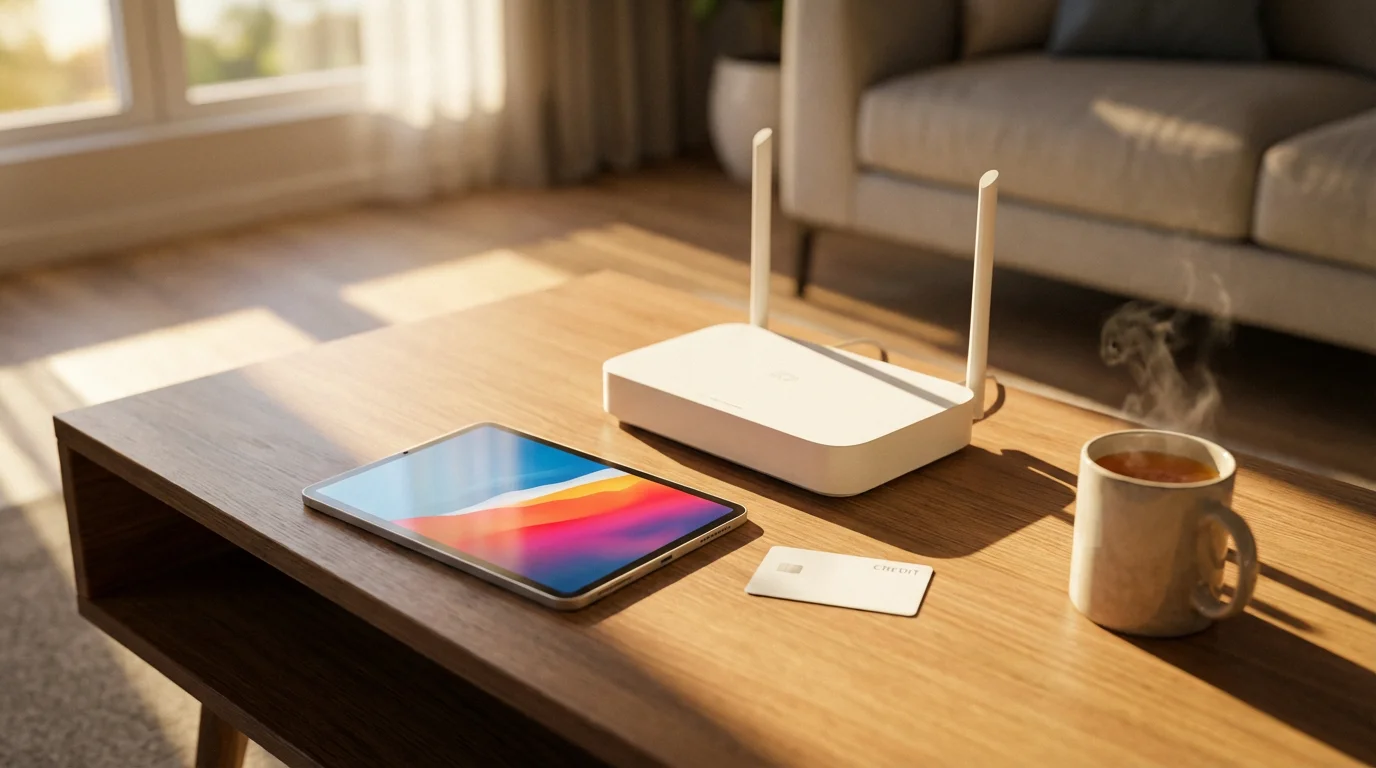
You need three main things to enjoy streaming services. These include a reliable internet connection, a compatible device, and a way to pay for subscriptions. Each plays a critical role in your viewing experience.
- An Internet Connection: You need an internet connection, typically Wi-Fi, which is your wireless internet connection in your home. A reliable connection ensures smooth playback without frustrating interruptions or “buffering,” which happens when your video pauses to load more content. A speed of at least 5-10 megabits per second (Mbps) for standard definition or 25 Mbps for high definition ensures a good experience for watching movies.
- A Streaming Device: You need a device capable of connecting to the internet and displaying video. Common options include:
- Smart TVs: Many newer televisions have streaming apps built right in.
- Streaming Sticks or Boxes: Devices like Roku, Amazon Fire TV Stick, or Apple TV plug into your TV’s HDMI port and connect to your Wi-Fi. They provide access to various streaming apps.
- Computers and Laptops: You can watch streaming content directly through a web browser.
- Tablets and Smartphones: Download the streaming service’s app and watch on the go.
- A Payment Method: Most subscription-based streaming services require a credit card or debit card. Some also accept digital payment options like PayPal. For free services, a payment method is not required.
Understanding Wi-Fi
Wi-Fi, short for Wireless Fidelity, creates a local wireless network in your home. Your internet router broadcasts a signal, allowing your devices to connect to the internet without cables. You usually connect your streaming device to your home Wi-Fi network during its initial setup.
You typically find your Wi-Fi network name and password on a sticker on your router. Keep this information handy when setting up new devices. If you encounter issues, restarting your router by unplugging it for 30 seconds and plugging it back in often resolves connection problems.

Popular Streaming Services: A Closer Look
Choosing from the many available streaming services can feel overwhelming. Focus on what kind of content you enjoy most and which services offer it. Here, we highlight some of the best streaming services for older adults, considering ease of use, content variety, and cost.
The portability of these services makes them excellent for those who enjoy solo senior travel and want to watch their favorites on the road.
Each service has its unique strengths, helping you find exactly what you need for senior entertainment. Many offer free trials, allowing you to explore before committing to a subscription.
Netflix: The Pioneer
- What it offers: A vast library of movies, TV shows, and award-winning original series. Netflix is known for its wide variety of genres, from documentaries to comedies and dramas.
- Ease of Use: The interface is very intuitive, featuring large images and clear categories. You easily navigate with a remote or touch screen.
- Cost: Offers several subscription tiers, typically ranging from about $7 to $23 per month, depending on video quality and number of simultaneous screens.
- Great for: General entertainment, discovering new shows, watching movies, and enjoying critically acclaimed original content.
Max (formerly HBO Max): Premium Content
- What it offers: Home to HBO’s extensive library, blockbuster movies, and shows from Warner Bros. You find popular series like “Game of Thrones” and a strong collection of films.
- Ease of Use: Features a clean, straightforward interface. Searching for content and creating watchlists is simple.
- Cost: Typically costs around $10 to $20 per month, with options for ad-supported or ad-free viewing.
- Great for: High-quality dramas, recent movies, and exclusive series.
Disney+: Family Favorites and More
- What it offers: Disney classics, Pixar films, Marvel movies, Star Wars sagas, National Geographic documentaries, and content from 20th Century Studios. It’s a treasure trove of beloved stories.
- Ease of Use: Its family-friendly design translates to an easy-to-understand layout for all users. Categories are clear, making content discovery simple.
- Cost: Typically around $8 to $14 per month. Bundles with Hulu and ESPN+ are also available for additional savings.
- Great for: Families, classic movie lovers, and fans of iconic franchises.
Hulu: Current TV and Originals
- What it offers: Many current season TV shows from major networks, a library of older series, and Hulu Original content. You often catch up on episodes shortly after they air.
- Ease of Use: The interface organizes content well, separating live TV from on-demand. It might have a slight learning curve if you are completely new to streaming due to its breadth of content options.
- Cost: Plans start around $8 per month with ads, or about $15 per month for an ad-free experience. Live TV bundles are also available at a higher price.
- Great for: Staying current with TV series, accessing a wide range of network shows, and finding engaging original content.
Amazon Prime Video: Included with Prime Membership
- What it offers: A large collection of movies and TV shows, including Amazon Originals. If you already have an Amazon Prime membership for shopping, you receive Prime Video access at no additional cost. You also rent or buy thousands of additional titles.
- Ease of Use: Integrates seamlessly with the Amazon ecosystem. The interface is generally user-friendly, although it can sometimes highlight content available for purchase alongside included content.
- Cost: Included with an Amazon Prime membership (about $15 per month or $139 per year). You can also subscribe to Prime Video only for about $9 per month.
- Great for: Prime members looking for added value, those who enjoy a mix of movies and unique original series.
YouTube: Free and Vast
- What it offers: A colossal library of free videos, including tutorials, news clips, music, documentaries, and user-created content. You find almost anything you want to learn or watch, often for free.
- Ease of Use: Very simple to navigate. You search for topics, subscribe to channels, and create playlists.
- Cost: Primarily free, supported by ads. YouTube Premium offers an ad-free experience and background playback for a monthly fee.
- Great for: Educational content, hobbies, music, news, and finding specific clips or tutorials. It is an excellent resource for senior entertainment without a subscription fee.

Choosing the Best Streaming Service for You
Selecting the right streaming service involves considering your personal interests, your budget, and how easily you navigate the platform. You want a service that provides the most enjoyment with the least frustration. Think about your viewing habits and preferences before making a decision.
Curating a list of shows is a wonderful way to prepare when planning a staycation for a relaxing break at home.
Factors to Consider
These questions guide you toward the ideal choice among the many excellent streaming services. Your answers help narrow down the best fit for your lifestyle and preferences for watching movies.
- What kind of content do you enjoy?
- If you love classic movies and popular TV shows, Netflix or Amazon Prime Video might suit you.
- For premium dramas and recent blockbusters, Max is a strong contender.
- If you want family-friendly animation and iconic franchises, Disney+ is excellent.
- For current TV series shortly after they air, Hulu is ideal.
- For free educational content, news, and specific interest videos, YouTube is unbeatable.
- What is your budget?
- Determine how much you want to spend each month. Some services, like YouTube’s free tier or Peacock’s free tier, offer content without a subscription fee.
- Consider what streaming service is cheapest if budget is a primary concern. Services with ad-supported tiers offer lower monthly costs.
- Bundles, such as the Disney Bundle, combine multiple services for a slightly reduced overall price.
- How many people will use the service?
- Most services allow multiple user profiles, which helps track individual preferences. Some plans allow for watching on multiple devices simultaneously, which is useful for households with varying tastes.
- Do you already have an Amazon Prime membership?
- If yes, you already have access to Amazon Prime Video. This makes it a cost-effective option for senior entertainment.
- How tech-savvy do you feel?
- All listed services strive for user-friendliness. Netflix and YouTube are often cited for their particularly intuitive interfaces, making them strong choices for first-time streamers.
Setting Up a Streaming Service Account: A Step-by-Step Example
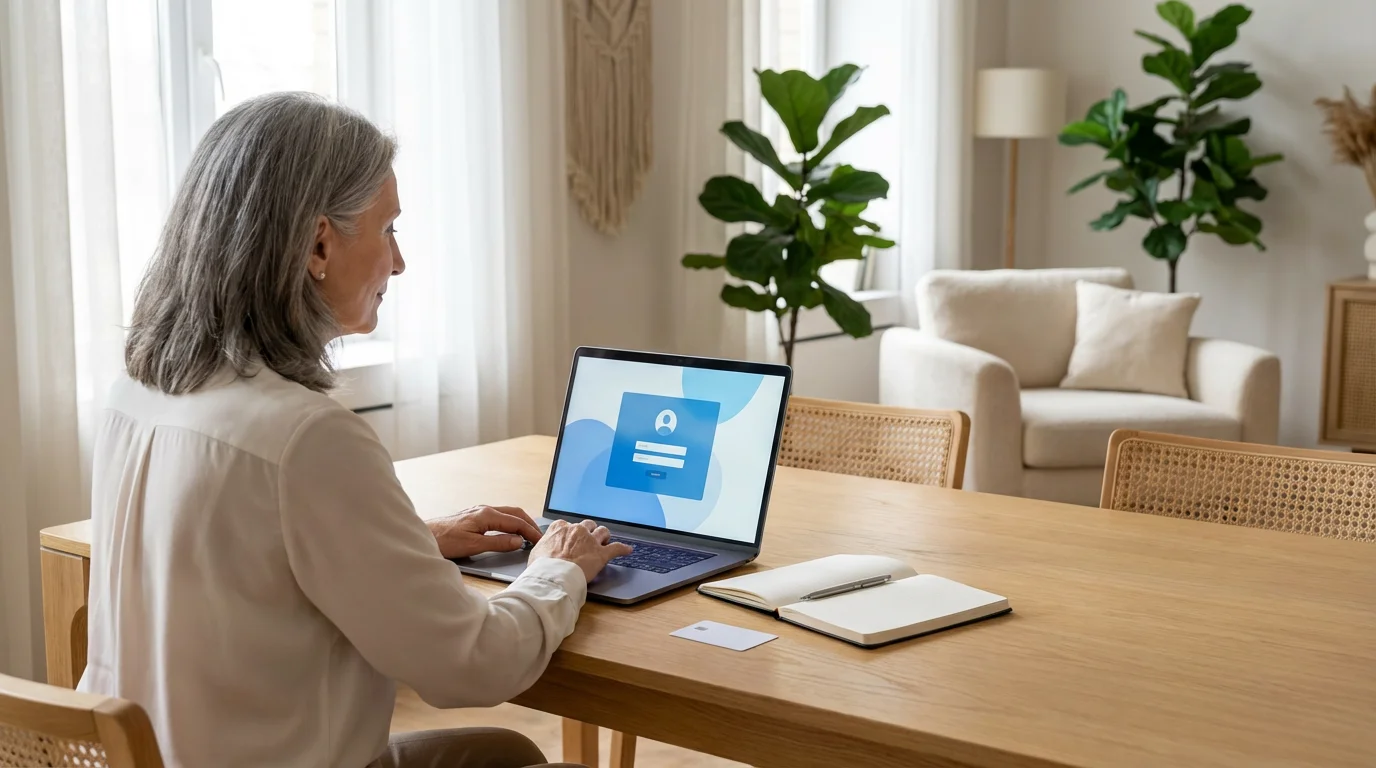
Setting up a new streaming service account is a straightforward process. We use Netflix as an example, but the steps are very similar for most other services. You only need an email address, a password you can remember, and a payment method. This process often takes less than ten minutes.
Steps to Create a Netflix Account
- Open the Netflix website or app:
- If you are using a computer, open your internet browser (like Chrome, Edge, or Safari) and type
www.netflix.cominto the address bar. Press Enter. - If you are using a smart TV or streaming stick, look for the Netflix app icon. It usually looks like a red “N” on a black background. Select it with your remote.
- If you are using a computer, open your internet browser (like Chrome, Edge, or Safari) and type
- Enter your email address:
- On the Netflix homepage, you will see a prominent field asking for your email address. Type your email there.
- Then, click the button that says “Get Started” or “Continue.”
- Create your password:
- Netflix asks you to create a strong password. Choose a combination of letters, numbers, and symbols that you can easily recall but others cannot guess.
- Write your password down in a secure place, like a notebook you keep near your TV.
- Click “Continue.”
- Choose your plan:
- Netflix displays various subscription plans. These plans differ in price, video quality (Standard Definition, High Definition, Ultra High Definition), and the number of screens you can watch on simultaneously.
- Select the plan that best fits your needs and budget. A basic plan is usually sufficient for single viewers or couples.
- Click “Continue.”
- Set up your payment:
- Enter your credit card or debit card details when prompted. This typically includes the card number, expiration date, and the security code on the back.
- Netflix charges you monthly on this card. You can cancel your subscription at any time without penalty.
- Click “Start Membership” or “Continue.”
- Create profiles (optional but recommended):
- After setup, Netflix might ask you to create profiles. Each profile keeps track of what a person watches and provides personalized recommendations.
- If you live alone, you only need one profile. If others use the service, create a separate profile for each person.
Congratulations! You now have a Netflix account and can begin exploring the content. Remember, these steps provide a general guide, and the exact wording on the screen might vary slightly.
Navigating and Watching Content
Once you set up your streaming service, the real fun begins: finding and watching your favorite content. Whether you use a smart TV remote, a streaming stick remote, or a touch screen on a tablet, the basic principles of navigation remain consistent. This section helps you understand the common controls and features.
Using Your Remote or Device Interface
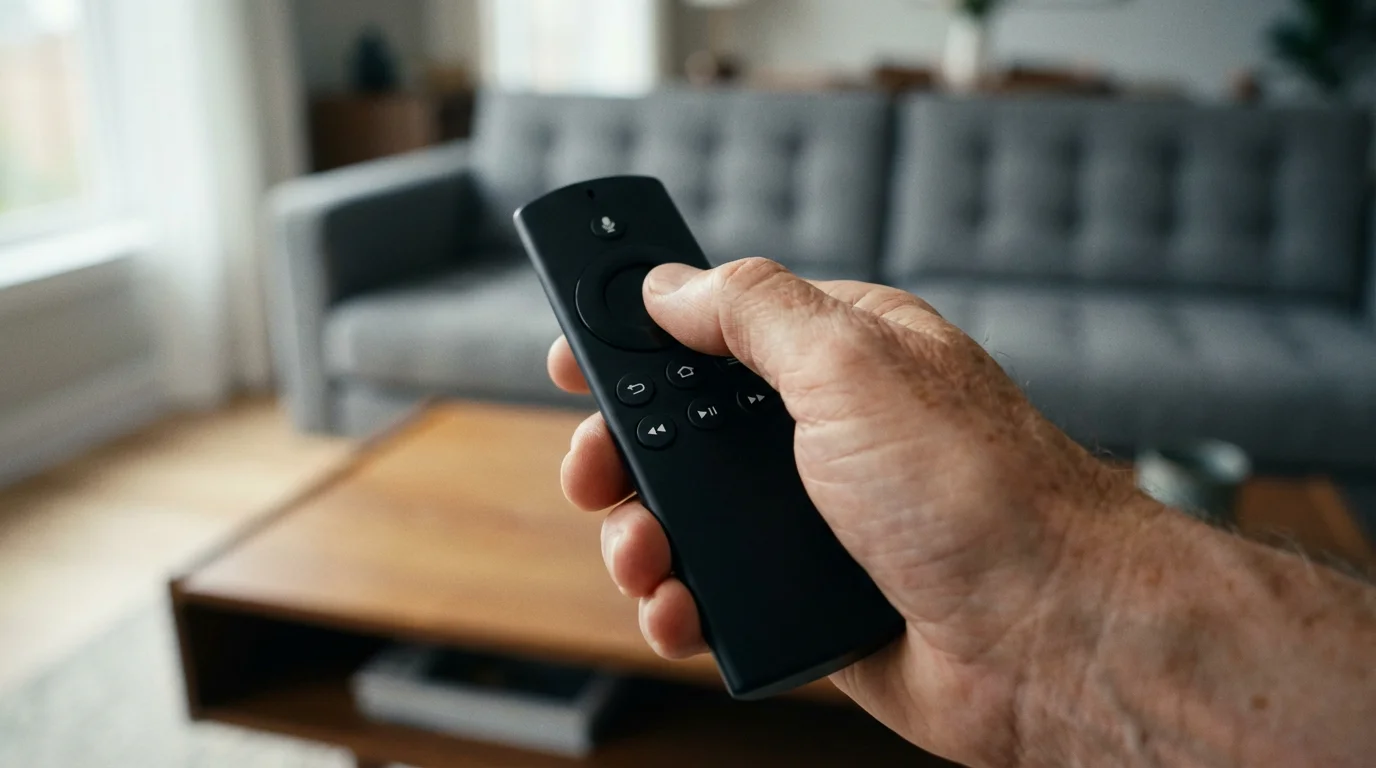
Most streaming device remotes are simpler than traditional cable remotes. You typically find a directional pad (up, down, left, right) with an “OK” or “Select” button in the center. These buttons move you around the screen and make selections.
- Directional Pad: Use the arrow buttons to move through menus, highlight shows, and select options.
- OK/Select Button: Press this button to open a highlighted movie, TV show, or menu item.
- Back Button (↩️): This button usually looks like a curved arrow. Press it to go back to the previous screen or menu.
- Home Button (🏠): This button takes you back to the main screen of your streaming device or app. It often looks like a small house icon.
- Play/Pause (▶️/⏸️): These buttons control video playback. Press play to start or resume a show, and pause to temporarily stop it.
- Rewind (⏮️) and Fast-Forward (⏭️): Use these to skip backward or forward in a program.
Finding What to Watch
Streaming services offer several ways to discover content. You can browse categories, use a search function, or rely on personalized recommendations.
- Browse Categories: Look for sections like “Movies,” “TV Shows,” “Genres,” “New Releases,” or “Trending.” Select a category and explore the options.
- Use the Search Function: Most services have a magnifying glass icon (🔍) or a “Search” option. Select it, and then use the on-screen keyboard to type the name of a movie, show, or actor you want to find.
- Check Recommendations: After you watch a few things, the service often suggests other titles you might enjoy based on your viewing history. Look for sections like “For You” or “Recommended.”
Enabling Subtitles and Closed Captions
Many seniors appreciate subtitles or closed captions for clarity. Most streaming services offer this feature. You usually find a small icon that looks like a speech bubble or “CC” while a program plays. Select this icon to turn captions on or off and to adjust their appearance. This feature greatly enhances the accessibility of watching movies and TV shows.

Troubleshooting Common Streaming Problems
Even with the best streaming services, you occasionally encounter technical hiccups. Do not get discouraged. Most common issues have simple solutions. You often resolve problems quickly with a few easy steps. If this doesn’t work the first time, that’s okay, try again or consult the specific service’s help page.
Dealing with Buffering and Poor Picture Quality
Buffering, when your video pauses to load, usually indicates a slow internet connection. Poor picture quality also relates to internet speed or device settings.
- Check your internet connection: Ensure your Wi-Fi router is plugged in and working. You can usually see indicator lights on the router that show it is active.
- Restart your streaming device: Turn off your smart TV or streaming stick, unplug it from power for 30 seconds, and then plug it back in. Restarting often clears temporary glitches.
- Restart your Wi-Fi router: Unplug your internet router for 30 seconds, then plug it back in. Wait a few minutes for it to fully restart and reconnect.
- Move closer to your router: If your streaming device is far from your Wi-Fi router, the signal might be weak. Try moving the device closer or consider a Wi-Fi extender.
- Close other internet-heavy applications: If other devices in your home are downloading large files or streaming at the same time, it can slow down your connection.
App Not Working or Crashing
If a specific streaming app is not opening or keeps closing unexpectedly, try these steps:
- Force close and reopen the app: On most smart TVs or streaming devices, you can usually highlight the app, then press and hold the “OK” or “Select” button to bring up an option to “Close App” or “Force Stop.” Confirm and then reopen the app.
- Update the app: Ensure the streaming app is updated to its latest version. Most devices update apps automatically, but you can usually check for updates in your device’s app store or settings menu (⚙️).
- Clear app cache (if available): Some devices allow you to clear an app’s cache in its settings. This removes temporary data that might be causing issues.
- Reinstall the app: If all else fails, delete the app from your device and then reinstall it from the app store. You will need to sign in again after reinstalling.
Forgotten Passwords
Forgetting a password is a common occurrence. Do not worry, streaming services provide easy ways to reset them.
- Go to the service’s website or app: Look for a “Sign In” or “Log In” option.
- Select “Forgot Password” or “Need help signing in?”: This option is usually located below the password entry field.
- Follow the instructions: The service typically sends a password reset link to the email address associated with your account.
- Check your email: Open the email from the streaming service and click the provided link. This allows you to create a new password.
- Write down your new password: Store your new password in a secure, easy-to-access location.
For more general online safety tips, you can visit the FTC Online Security website. They provide valuable information to keep your online accounts safe.

Quick Reference: Key Takeaways for Senior Entertainment
You have learned a great deal about streaming services. Here is a concise summary of the most important points to remember as you embark on your digital entertainment journey. These key takeaways help reinforce your confidence in using these new tools.
- Streaming means watching over the internet: You access movies and shows on demand, without fixed schedules.
- You need three things: A good internet connection (Wi-Fi), a compatible device (Smart TV, streaming stick, computer), and a payment method for subscriptions.
- Choose based on content and cost: Select services that offer your preferred shows and fit your budget. Free trials are an an excellent way to test options.
- Setup is simple: Creating an account involves your email, a password, and payment details.
- Navigation is intuitive: Use your remote’s directional pad and “OK” button to browse and select content. Look for the search (🔍) and home (🏠) icons.
- Troubleshooting is manageable: Most problems, like buffering, resolve by restarting your device or router. Password resets are straightforward.
- Prioritize ease of use: Netflix and YouTube are often great starting points for those new to streaming due to their simple interfaces, making them ideal for best streaming services for older adults.
Embrace the convenience and vast selection that streaming services offer. Enjoy your new entertainment hub!
Frequently Asked Questions
Is streaming expensive for seniors?
Streaming can be very affordable, especially compared to traditional cable TV. Many services offer monthly subscriptions starting around $7-$15. You can also find entirely free options, like YouTube and Peacock’s free tier. You only pay for the services you choose, which helps control costs effectively.
Do I need a Smart TV to stream?
No, you do not need a Smart TV. While Smart TVs have built-in apps, you can easily turn any modern TV with an HDMI port into a streaming hub. Simply plug in an inexpensive streaming stick, such as a Roku or Amazon Fire TV Stick, and connect it to your Wi-Fi. This provides access to all the best streaming services for older adults.
Can I watch streaming services on my tablet or smartphone?
Yes, absolutely. All major streaming services offer dedicated apps for tablets and smartphones, whether you use an iPhone or an Android device. You download the app from your device’s app store, sign in with your account, and start watching. This allows you to enjoy senior entertainment on the go.
What if I do not have Wi-Fi at home?
You need an internet connection to stream. If you do not have Wi-Fi, you can use a wired Ethernet connection for devices like Smart TVs or computers. For mobile devices, you need Wi-Fi or a cellular data plan. Local libraries or community centers often offer free Wi-Fi if you want to try streaming on a laptop or tablet outside your home.
How do I cancel a streaming service subscription?
Canceling a subscription is usually a simple process. You typically log into your account on the streaming service’s website, navigate to your “Account” or “Settings” section, and look for a “Cancel Membership” or “Manage Subscription” option. Most services allow you to cancel at any time, and your access continues until the end of your current billing period.
Are there free streaming services for older adults?
Yes, several excellent free options exist. YouTube offers a vast library of videos, from educational content to music and news. Services like Peacock and Pluto TV also provide free tiers with a good selection of movies and TV shows, though they include advertisements. These are great for watching movies without a monthly fee.
Disclaimer: This article is for informational purposes only. Device interfaces and features may vary depending on your device model and software version. Screenshots and steps are based on common versions but your experience may differ slightly. When in doubt, consult your device manufacturer’s official support resources.








Leave a Reply