
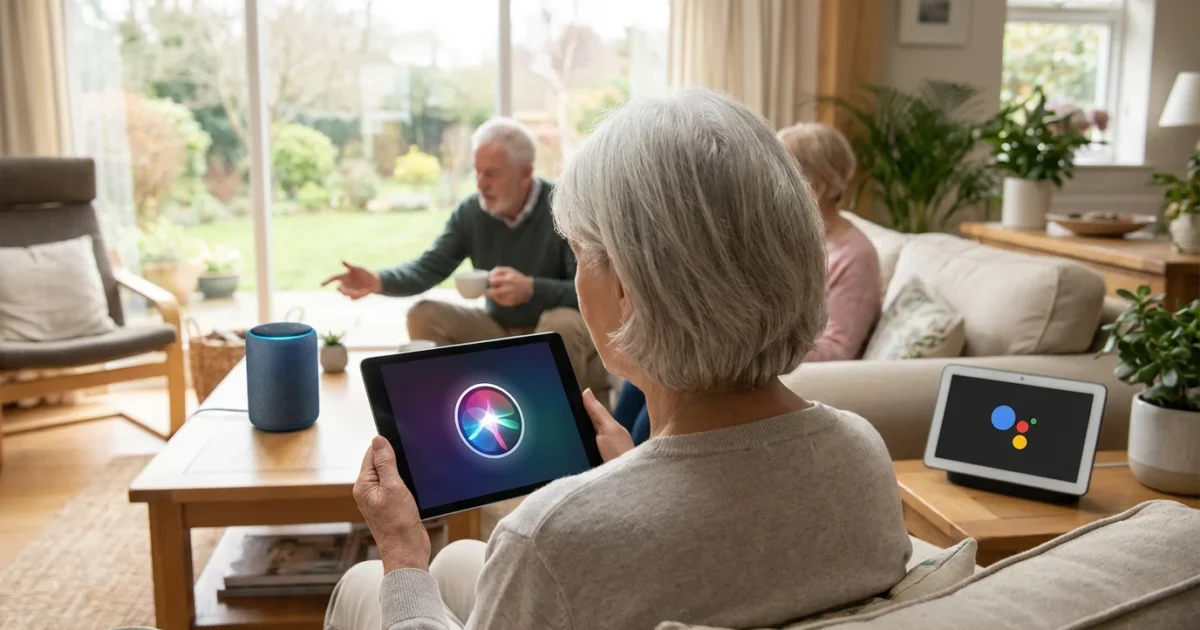
Navigating modern technology sometimes feels like learning a new language. You often hear about helpful tools, but knowing where to start or which one suits your needs best can feel overwhelming. Voice assistants, like Alexa, Google Assistant, and Siri, simplify many daily tasks. They respond to your spoken commands, making technology more accessible and convenient for everyone, including seniors.
Using these tools for regular communication is a simple yet effective way of preventing social isolation by keeping you in touch with your community.
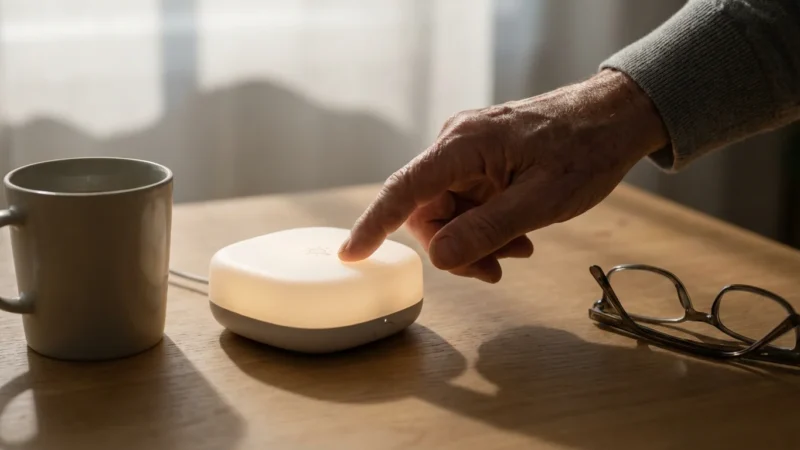
Think of a voice assistant as a digital helper living inside your smartphone, tablet, or a smart speaker in your home. It performs actions, answers questions, and controls other smart devices, all through your voice. You do not need to type or tap; you just speak. This guide helps you understand these powerful tools, explores their benefits, and shows you how to choose the right one for your lifestyle. Many seniors find voice assistants incredibly useful for staying connected, managing their day, and even exploring new interests.

What Are Voice Assistants and Why Do They Matter for You?
A voice assistant is a software program that understands spoken commands and performs tasks for you. These tasks range from simple information requests to controlling smart devices in your home. The technology uses artificial intelligence to process your words, understand your intent, and then provide a relevant response or action.
For seniors, voice assistants offer significant benefits. They remove the need for intricate screen navigation or small buttons, making technology more accessible. They also provide a convenient way to get information, stay connected, and manage daily routines with greater ease.
Here are some common ways seniors use voice assistants:
- Getting Information: Ask for weather forecasts, news headlines, sports scores, or definitions of words.
- Communication: Make phone calls or send text messages to loved ones, hands-free.
- Reminders and Organization: Set alarms, create reminders for medications or appointments, and add items to a shopping list.
- Entertainment: Play music, listen to audiobooks, or hear podcasts.
- Smart Home Control: Turn lights on or off, adjust thermostats, or lock doors using simple voice commands.
Technology is just a tool. It is how you use it that matters.
Getting to Know Alexa: Amazon’s Virtual Assistant
Alexa is Amazon’s popular voice assistant, primarily known for powering Amazon Echo smart speakers and smart displays. You can also find Alexa on some Fire tablets, smart TVs, and other third-party devices. Alexa is a great option if you want a dedicated device for voice control or if you enjoy Amazon’s ecosystem for shopping and entertainment.
Many users find that Alexa works well alongside social media for seniors to maintain a vibrant social life from home.
Alexa devices are standalone, meaning you do not necessarily need a smartphone to use them. You connect them directly to your home’s Wi-Fi, the wireless internet connection. This makes setup straightforward, especially for those who prefer not to rely on a phone for all their tech interactions.
Key Features of Alexa for Seniors:
- Easy Communication: Make calls to other Alexa devices or traditional phone numbers. Set up an “Alexa contact” list for quick access to family and friends.
- Daily Information: Get updated news briefings, local weather, and traffic reports simply by asking.
- Reminders and Timers: Alexa excels at setting multiple alarms, reminders for medications, or timers for cooking.
- Smart Home Integration: Alexa works with a vast array of smart home devices, allowing you to control lights, thermostats, and door locks with your voice.
- Entertainment Hub: Play music from various streaming services, listen to audiobooks from Audible, or enjoy podcasts.
- Drop In Feature: With permission, family members can “drop in” on your Alexa device for a quick voice chat, similar to an intercom.
Considerations for Alexa:
- Pros: Wide range of affordable devices, excellent smart home compatibility, simple setup for dedicated devices, good for communication within the Alexa network.
- Cons: Tends to be more integrated with Amazon’s shopping services, might require an Amazon account.

How to Activate and Use Alexa (Basic Steps)
Using Alexa typically involves an Echo device. The initial setup requires the Alexa app on a smartphone or tablet, but once configured, you mostly use your voice.
- Plug In Your Echo Device: Connect your Echo device to a power outlet. It will usually light up and greet you.
- Download the Alexa App: On your smartphone or tablet, open the app store (App Store for iPhone, Google Play Store for Android). Search for “Amazon Alexa” and install the app.
- Open the App and Sign In: Launch the Alexa app. Sign in with your Amazon account. If you do not have one, the app guides you through creating one.
- Add Your Device: In the Alexa app, tap the “Devices” icon at the bottom. Tap the plus sign (+) in the top right corner, then select “Add Device.” Choose “Amazon Echo” from the list and follow the on-screen prompts to connect it to your home’s Wi-Fi network. You will see a prompt to select your Wi-Fi network and enter its password.
- Start Talking: Once setup completes, simply say “Alexa” followed by your command.
Common Alexa Voice Commands:
- “Alexa, what is the weather like today?”
- “Alexa, set a timer for 20 minutes.”
- “Alexa, call Sarah.” (If Sarah is in your Alexa contacts)
- “Alexa, play relaxing music.”
- “Alexa, what is on my calendar for tomorrow?”
Exploring Google Assistant: Your Android and Smart Home Helper
Google Assistant is Google’s voice assistant, deeply integrated into Android smartphones and tablets. You also find it in Google Home or Google Nest smart speakers and smart displays. If you already use an Android phone or other Google services like Gmail and Google Maps, Google Assistant often feels like a natural extension of those tools.
Additionally, it can help you set reminders for upcoming telehealth appointments so you never miss a virtual doctor visit.
You can also ask Google Assistant to help you open or manage senior-friendly financial apps to keep your budget on track.
Since Google Assistant is integrated into many mobile devices, choosing one of the best cell phone plans for seniors can ensure you have the data needed to use it on the go.
Google Assistant leverages Google’s vast search engine knowledge, making it exceptionally good at answering general questions and providing detailed information. It also connects seamlessly with your personalized Google services, offering tailored information like your calendar appointments or commute times.
Key Features of Google Assistant for Seniors:
- Powerful Information Retrieval: Ask almost any question, and Google Assistant uses Google Search to provide an answer. This includes definitions, historical facts, and current events.
- Personalized Information: It integrates with your Google Calendar, Gmail, and Google Maps to give you personalized updates on your schedule, travel, and more.
- Navigation Assistance: Get turn-by-turn directions directly from your phone or smart display, making travel easier.
- Language Translation: Ask Google Assistant to translate phrases into different languages, a handy feature for travel or communicating with non-English speakers.
- Smart Home Control: Like Alexa, Google Assistant connects to many smart home devices. Control lights, thermostats, and other compatible gadgets with your voice.
- Routines: Set up “routines” where a single command triggers multiple actions. For example, say “Good morning” to hear the news, weather, and traffic.
Considerations for Google Assistant:
- Pros: Excellent for general knowledge questions, strong integration with Android phones and Google services, good for personalized daily updates.
- Cons: Requires a Google account, sometimes less prominent on non-Google smart home devices compared to Alexa.

Using Google Assistant on Your Phone or Smart Speaker
You can activate Google Assistant on most Android phones or Google Nest devices. For phones, it often comes pre-installed.
- On an Android Phone:
- Activate: Say “Hey Google” or “OK Google.” On many phones, you can also long-press the home button or swipe from a corner (depending on your phone model). You will see a small Google Assistant icon or a prompt appear on your screen, indicating it is listening.
- Set Up Voice Match: The first time you use it, the phone might ask you to set up Voice Match, which helps the assistant recognize your voice. Follow the on-screen instructions, saying phrases like “Hey Google” a few times.
- Start Your Command: Speak your command or question clearly after you see the assistant activate.
- On a Google Nest Speaker/Display:
- Plug In Your Device: Connect your Google Nest device to power.
- Download the Google Home App: On your smartphone or tablet, search for “Google Home” in the app store and install it.
- Set Up Your Device: Open the Google Home app. It should detect your new device. Tap “Set up device” and follow the prompts to connect it to your Wi-Fi (the wireless internet connection in your home) and link it to your Google account.
- Start Talking: Once setup completes, say “Hey Google” or “OK Google” followed by your request.
Common Google Assistant Voice Commands:
- “Hey Google, what is the fastest route to the grocery store?”
- “OK Google, remind me to take my medicine at 8 PM.”
- “Hey Google, what is the capital of France?”
- “OK Google, play my news briefing.”
- “Hey Google, call Mom.”

Discovering Siri: Apple’s Intuitive Voice Companion
Siri is Apple’s voice assistant, available on all Apple devices, including iPhones, iPads, Macs, Apple Watches, and the HomePod smart speaker. If you own an iPhone or other Apple products, Siri is often the most convenient choice as it integrates seamlessly with your existing devices and apps.
Siri is designed to understand natural language and perform tasks within the Apple ecosystem. It helps you manage your device, interact with apps, and find information without typing or tapping. For those deeply invested in Apple products, Siri offers a unified and familiar experience.
Key Features of Siri for Seniors:
- Seamless Apple Integration: Siri works flawlessly with your iPhone’s contacts, calendar, messages, and other apps. You can send texts, make calls, or check your schedule directly through voice commands.
- Personalized Assistance: Siri learns your preferences and habits over time, offering more relevant suggestions and shortcuts.
- App Control: Open apps, control music playback, or even dictate emails within various applications using Siri.
- Directions and Navigation: Get directions using Apple Maps, check traffic conditions, or find nearby points of interest.
- Quick Answers: Ask Siri questions about facts, calculations, or conversions.
- Announce Calls and Messages: On compatible devices, Siri can announce who is calling or read incoming messages aloud, which is useful if your phone is not immediately accessible.
Considerations for Siri:
- Pros: Deep integration with Apple devices and apps, excellent for hands-free communication, very private within Apple’s ecosystem.
- Cons: Limited to Apple devices, smart home compatibility primarily with Apple HomeKit devices, which are fewer than Alexa or Google Assistant.

Activating and Speaking with Siri on Your Apple Device
Activating Siri on an iPhone or iPad is straightforward, as it comes built into the operating system.
- Enable Siri:
- Go to your device’s “Settings” app. Look for the icon that looks like a gear (⚙️).
- Scroll down and tap on “Siri & Search.”
- Toggle on “Listen for ‘Hey Siri’” and “Press Side Button for Siri” (or “Press Home Button for Siri” on older iPhones with a physical home button).
- You might need to record your voice by saying “Hey Siri” a few times. This helps Siri recognize your voice.
- Activate and Speak:
- Say “Hey Siri,” then wait for Siri’s voice or a visual cue (like a colorful waveform at the bottom of the screen) that it is listening.
- Alternatively, press and hold the Side button (on newer iPhones) or the Home button (on older iPhones) until Siri activates.
- Speak your command or question clearly.
Common Siri Voice Commands:
- “Hey Siri, call my son.”
- “Hey Siri, text Mary, ‘I will be there in 10 minutes.’”
- “Hey Siri, what is the weather like in New York?”
- “Hey Siri, set an alarm for 7 AM.”
- “Hey Siri, open the Photos app.”
Comparing the Best Voice Assistants: Which One Is Right for You?
Choosing the best voice assistant depends largely on your current devices, your comfort with specific brands, and your primary use cases. All three assistants offer similar core functionalities, but they excel in different areas.
Consider these points when making your decision:
- Your Current Devices:
- iPhone, iPad, Mac: Siri is your most natural fit. It integrates seamlessly with your existing Apple products.
- Android Phone: Google Assistant is deeply embedded in Android, offering powerful personalized features.
- No Smartphone or Mixed Devices: Alexa smart speakers (like the Amazon Echo) are excellent standalone options that do not require a specific phone brand.
- Smart Home Integration:
- Alexa: Widest compatibility with various smart home devices from many brands.
- Google Assistant: Strong compatibility, especially with Google Nest products and many third-party brands.
- Siri: Focuses on Apple HomeKit devices, which offer robust security but have fewer product choices.
- Information Retrieval:
- Google Assistant: Often considered the best for answering factual questions due to its direct access to Google’s search engine.
- Alexa & Siri: Both provide good answers, but Google Assistant generally has a slight edge for complex or niche queries.
- Privacy Preferences:
- All major voice assistants have privacy controls allowing you to review and delete voice recordings. Apple (Siri) generally emphasizes privacy more in its product design and marketing.
- You can typically adjust settings to control how much data the assistant collects and stores.
If you are already comfortable with an iPhone, embrace Siri. If you use an Android phone or frequently use Google services, Google Assistant will integrate well. If you want a dedicated voice device that works independently, or if you plan to build a smart home with many different brands, Alexa offers excellent flexibility.

Practical Tips for Mastering Your Voice Assistant
Learning to use a voice assistant takes a little practice. You will quickly discover how useful they are once you get comfortable speaking to them. Here are some tips to help you become a pro.
If you find it difficult to hear the assistant’s responses, there are specialized hearing loss resources that can provide solutions for clearer audio.
As you get more comfortable with tech, remember the importance of protecting yourself from online scams to keep your personal information secure.
As you become more comfortable with these digital tools, it is equally important to protect yourself from online scams and keep your personal accounts secure.
- Speak Clearly and Naturally: You do not need to shout or speak unnaturally slowly. Speak as you would to another person.
- Be Specific: Instead of “Play music,” try “Play classical music” or “Play music by Frank Sinatra.” The more specific you are, the better the assistant understands.
- Learn Key Commands: Start with a few commands you use often, like “What is the weather?” or “Set a timer for 15 minutes.” Practice these until they feel natural.
- Explore What It Can Do: Ask “What can you do?” or “Give me some ideas.” The assistant often suggests new features.
- Patience is Key: If the assistant does not understand you the first time, that is okay. Try rephrasing your request slightly. It learns from your interactions.
- Adjust Settings: Explore the companion app (Alexa app, Google Home app, iPhone Settings for Siri) to customize settings. You can often change the wake word, adjust voice recognition, or manage linked services.
- Manage Privacy: All assistants allow you to review and delete past voice recordings. Take time to look at these privacy settings in the companion app to ensure they align with your preferences. You maintain control over your data.

Troubleshooting Common Voice Assistant Problems
Sometimes, your voice assistant might not respond as expected. Do not worry, most issues have simple solutions. Here are common problems and how to fix them.
- Problem: The Assistant Does Not Respond to My Voice.
- Check Power: Ensure your smart speaker or device is plugged in and turned on.
- Check Microphone: Many smart speakers have a mute button for the microphone. Look for an icon that looks like a microphone with a line through it, or an orange/red light indicating the microphone is off. Press it to unmute.
- Proximity: Make sure you are close enough to the device for it to hear you clearly.
- Speak Clearly: Try speaking a little louder and clearer.
- Problem: The Assistant Misunderstands My Command.
- Rephrase: Try saying your command in a different way. Instead of “What is the outside like?”, try “What is the weather like today?”
- Speak Naturally: Sometimes over-enunciating can confuse the assistant. Speak as you normally would.
- Background Noise: Reduce background noise if possible. Televisions, music, or conversations can interfere with listening.
- Problem: The Assistant Says It Cannot Connect to the Internet.
- Check Wi-Fi: Your voice assistant needs an internet connection (Wi-Fi, the wireless internet connection in your home) to work. Check if your home Wi-Fi is working. You can usually check this by seeing if your phone or computer can connect to the internet.
- Restart Router: Unplug your Wi-Fi router from its power source, wait 30 seconds, and then plug it back in. Wait a few minutes for it to fully restart.
- Restart Device: Unplug your smart speaker or restart your phone, then try again.
- Problem: I Cannot Hear the Assistant’s Response.
- Check Volume: Ask “Hey Google, what is the volume?”, or “Alexa, volume up,” or “Hey Siri, turn up the volume.” You can also often adjust the volume using physical buttons on smart speakers.
- Connected Bluetooth: Ensure the device is not accidentally connected to another Bluetooth speaker or headphones in another room. Check your device’s Bluetooth settings if applicable.
If problems persist, consult the official support pages for your device (Apple iPhone Support, Google Android Help, or Amazon’s Alexa support). These resources provide detailed troubleshooting guides and contact options.
Frequently Asked Questions
Are voice assistants always listening to everything I say?
Voice assistants are always listening for their specific “wake word” (like “Alexa,” “Hey Google,” or “Hey Siri”). They process very short snippets of audio to detect this word. Only after detecting the wake word does the device actively record and send your voice command to the cloud for processing. You can usually see a visual indicator, like a light ring or screen animation, when it is actively listening. You also have the option to review and delete voice recordings from your account settings.
Do I need a special device to use a voice assistant?
You need a compatible device. For Alexa, this is typically an Amazon Echo smart speaker or smart display. For Google Assistant, it is an Android smartphone, a Google Nest speaker or display. For Siri, it is an Apple iPhone, iPad, Mac, or HomePod speaker. Your smartphone often comes with a voice assistant built-in, so you might already have one without realizing it.
Can voice assistants help me in an emergency?
While voice assistants can call specific contacts if you set them up, they cannot directly dial 911 in the United States or equivalent emergency services. For emergencies, always use a traditional phone to call emergency services. Some smart speakers offer subscription services that connect you to an emergency call center, but this is not a standard, free feature.
Are voice assistants secure? What about my privacy?
Major voice assistant providers, including Amazon, Google, and Apple, implement security measures to protect your data. They encrypt communications and offer privacy controls in their respective apps or settings. You can manage voice recording history, opt out of certain data collection, and control device permissions. Regularly reviewing these settings helps you maintain your privacy preferences.
Can I use a voice assistant if I have difficulty speaking clearly?
Voice assistant technology has improved significantly in understanding different speech patterns and accents. However, severe speech difficulties might pose challenges. You can try speaking slowly and clearly, and if you have an Apple device, explore accessibility features in iOS that can adapt Siri to your needs. Some users find that speaking directly into the microphone on a smart speaker or phone improves recognition.
Is there a cost to use a voice assistant?
The voice assistant software itself, like Alexa, Google Assistant, or Siri, is generally free to use. You pay for the device it runs on (e.g., an Echo speaker, an iPhone). You might incur costs for premium services, such as music streaming subscriptions, audiobooks, or certain smart home devices, which are separate from the assistant’s core functions.

Take the Next Step with Confidence
Voice assistants are powerful tools that offer convenience, connectivity, and control, simplifying many aspects of daily life. Whether you choose Alexa, Google Assistant, or Siri, you gain a helpful companion ready to assist with a spoken command. Remember, technology is a skill you build over time, and every step you take builds your confidence. Explore the features that appeal most to you, practice using simple commands, and do not hesitate to experiment. You possess the ability to master these tools and enhance your daily routine with modern technology.
Disclaimer: This article is for informational purposes only. Device interfaces and features may vary depending on your device model and software version. Screenshots and steps are based on common versions but your experience may differ slightly. When in doubt, consult your device manufacturer’s official support resources.








Leave a Reply