

Smartphones offer incredible opportunities for connection, learning, and convenience. Yet, for many seniors, navigating these powerful devices can feel daunting. You might find the text too small, the buttons hard to press, or hearing notifications a challenge. Technology should empower you, not frustrate you.
Setting up these tools is a great first step toward confidently using social media for seniors to stay in touch with your loved ones.
In addition to these settings, there are many general technology tips for senior citizens that can help you feel more confident using your device.
Manufacturers design smartphones with a wide range of users in mind, including those who benefit from specific adjustments. These built-in tools, known as smartphone accessibility features, customize your device to better suit your needs. You can make your screen easier to see, your audio clearer to hear, and your interactions simpler to manage. Thousands of seniors successfully adjust their phones every day, transforming their user experience.
This comprehensive guide will help you understand what accessibility features are, how they work, and how you can activate them on both iPhone and Android devices. You will learn to personalize your smartphone, making it more comfortable and effective for you to use.
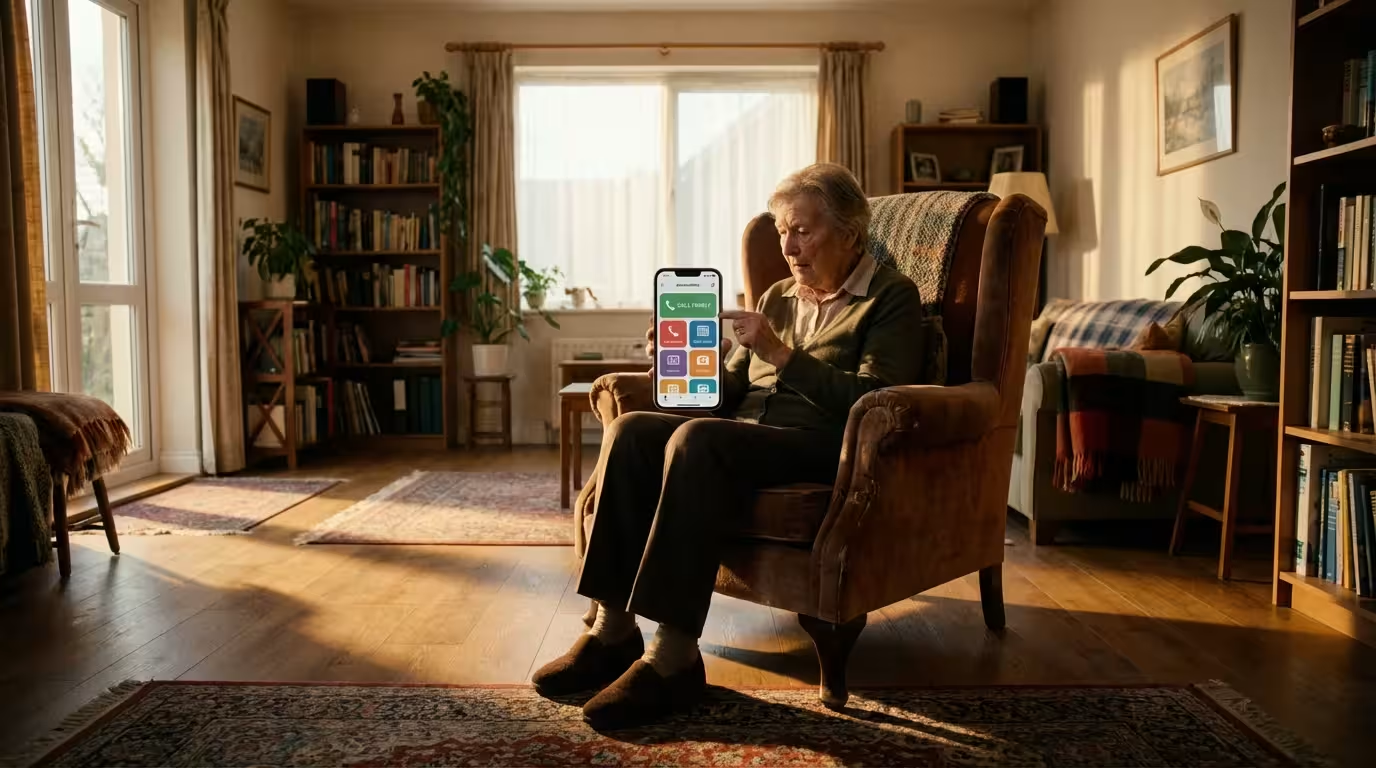
What Are Smartphone Accessibility Features?
Smartphone accessibility features are special settings and tools built directly into your device’s operating system. They help people with diverse needs use their phones more easily. These features address common challenges, such as vision impairment, hearing difficulties, or dexterity issues. Think of them as customization options that tailor the phone to your specific comfort and abilities.
As you build your digital confidence, you might also enjoy exploring free online courses for seniors to learn new skills right from your comfortable new screen setup.
Once you feel comfortable with your mobile device, you can use similar technology to set up smart home devices that make independent living safer and simpler.
Before diving deep into customized settings, you might want to ensure you have one of the best cell phone plans for seniors to keep your monthly costs manageable.
Optimizing your phone also makes it easier to use financial apps for seniors to manage your budget and banking securely.
Many seniors find that using voice assistants like Siri and Google Assistant can bypass the need for typing altogether.
Ensuring you have online safety and scam protection in place is just as important as the physical setup of your device.
Both iPhones, made by Apple, and Android phones, made by companies like Samsung, Google, and Motorola, offer extensive sets of accessibility tools. These features are not “add-ons” you need to download. They are core parts of the phone’s software. Activating them empowers you to interact with your smartphone with greater ease and confidence.
You can adjust many aspects of your phone. For example, you can increase the size of text, make buttons easier to tap, or even control your phone with just your voice. These adjustments personalize your device, making everyday tasks like reading emails, making calls, or browsing the internet much more comfortable.
Technology is just a tool. It’s how you use it that matters. You don’t have to be young to be tech-savvy—you just need patience and practice.

Enhancing Your Visual Experience
Many people find smartphone screens challenging to read due to small text or cluttered layouts. Your phone offers several features to improve visibility, whether you need to increase text size, magnify parts of the screen, or adjust colors for better contrast.
By making your display easier to read, you will find it much more enjoyable to navigate the best streaming services for seniors directly from your smartphone.
If you find that a phone screen is still too small after making adjustments, you might consider selecting a tablet for a larger and more accessible display.
Increasing Text Size and Display Zoom
Making text larger is one of the most common and impactful accessibility adjustments. It reduces eye strain and makes reading messages, articles, and menus much easier.
On iPhone:
- Open the Settings app. Look for the icon that looks like a gear (⚙️).
- Scroll down and tap on Accessibility.
- Under the “Vision” section, tap on Display & Text Size.
- Tap on Larger Text.
- You will see a slider at the bottom of the screen. Drag the slider to the right to increase the text size. As you drag, the text above the slider will show you a preview of the new size.
- You can also toggle on Larger Accessibility Sizes at the top of this screen to access even bigger text options.
- To zoom the entire screen, go back to Accessibility, then tap Zoom. Toggle on Zoom and use three fingers to move the zoomed area around. Double-tap with three fingers to zoom in or out.
On Android:
- Open the Settings app. Look for the gear icon (⚙️).
- Scroll down and tap on Accessibility. On some phones, you might find this under “Display” or “Vision” settings within Accessibility.
- Tap on Display size and text or similar. The exact wording can vary by phone model and Android version.
- You will see sliders for “Font size” and “Display size.” Drag these sliders to the right to increase the size of text and on-screen elements respectively.
- To use screen magnification, go back to Accessibility, then tap Magnification or Magnifier. Toggle it on. You can then triple-tap the screen to zoom in and out.
Dark Mode and Color Filters
Dark Mode, also known as Dark Theme, changes your phone’s background from white to black and text from black to white. Many people find this easier on the eyes, especially in low light conditions, and it can also conserve battery life on some screens.
On iPhone (Dark Mode):
- Open the Settings app (⚙️).
- Tap on Display & Brightness.
- Under the “Appearance” section, select Dark. You can also set it to automatically switch based on time of day.
On Android (Dark Theme):
- Open the Settings app (⚙️).
- Tap on Display.
- Toggle on Dark theme or Dark Mode. You might also find options to schedule it.
Color filters adjust the colors on your screen to help with certain types of color blindness or to make the display more comfortable to view. You can choose filters that intensify colors or make them appear monochrome (black and white).
On iPhone (Color Filters):
- Go to Settings (⚙️) > Accessibility > Display & Text Size.
- Scroll down and tap on Color Filters.
- Toggle on Color Filters. You can then choose from different filter options like Grayscale, Red/Green Filter, Green/Red Filter, and Blue/Yellow Filter.
On Android (Color Correction/Grayscale):
- Go to Settings (⚙️) > Accessibility.
- Look for Color correction or Color inversion.
- Toggle on Color correction to adjust how colors are displayed, or Color inversion to reverse colors. Some Android phones also offer a “Grayscale” option to make the entire screen black and white, which you might find under a “Digital Wellbeing” or “Sleep” setting.
Improving Your Hearing Experience
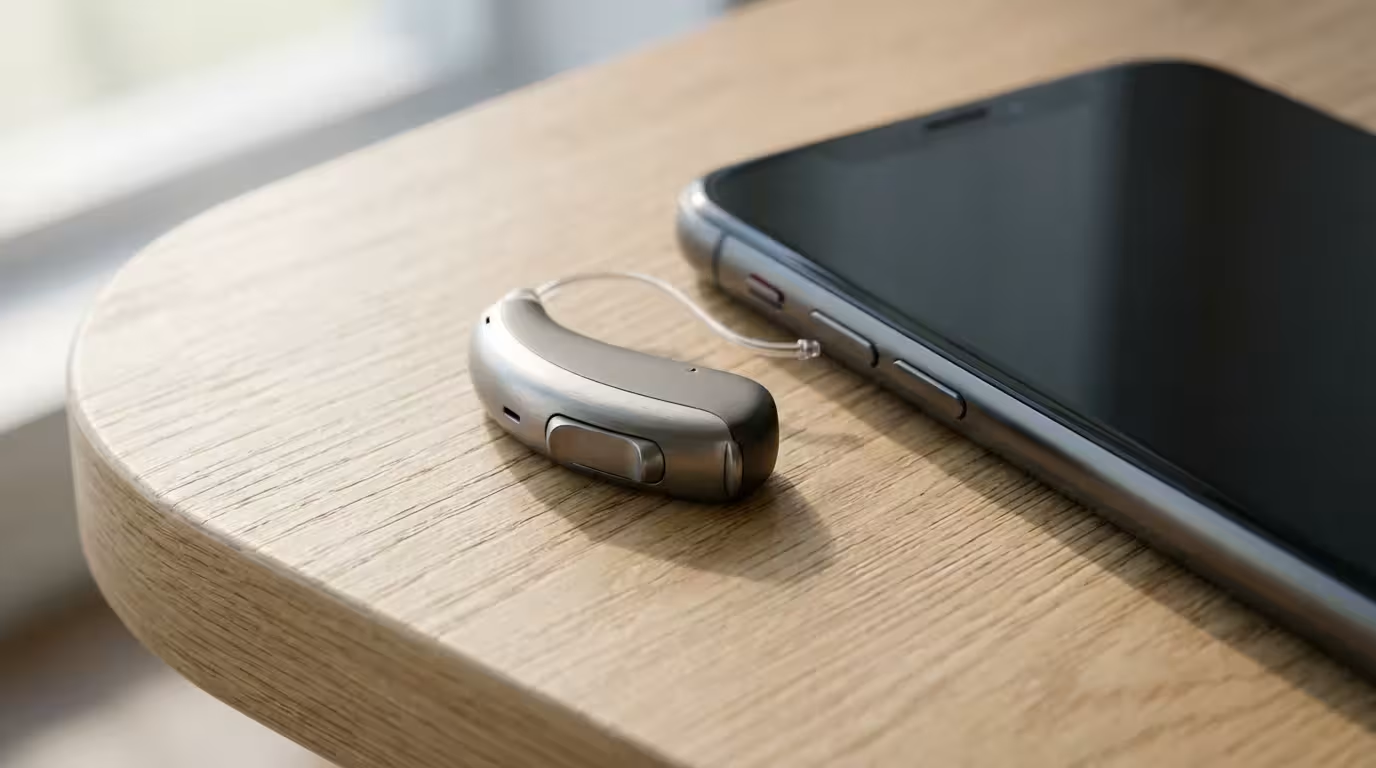
Smartphones are essential for communication, and ensuring you can clearly hear calls, notifications, and media is crucial. Accessibility features help address hearing challenges by enhancing audio quality, providing visual alerts, and improving compatibility with hearing aids.
Optimizing your phone’s audio is also highly beneficial when using telehealth services to consult securely with your doctor from home.
Mono Audio and Hearing Aid Compatibility
Most phones play audio in stereo, meaning sounds come from different directions (left and right). For people with hearing loss in one ear, or who prefer a simpler audio experience, Mono Audio combines both stereo channels into a single channel. This ensures you do not miss any part of the audio.
On iPhone (Mono Audio & Hearing Aid Compatibility):
- Open the Settings app (⚙️).
- Tap on Accessibility.
- Under the “Hearing” section, tap on Audio/Visual.
- Toggle on Mono Audio.
- On the same screen, you can also adjust the audio balance between left and right channels.
- For hearing aids, go back to Accessibility, then tap Hearing Devices. Here you can pair Made for iPhone (MFi) hearing aids for direct audio streaming and control.
On Android (Mono Audio & Hearing Aid Compatibility):
- Open the Settings app (⚙️).
- Tap on Accessibility.
- Scroll down to “Audio” or “Hearing enhancement.”
- Toggle on Mono audio.
- You can often find options for “Hearing aid support” or “Hearing aids” within the Accessibility settings, which helps improve compatibility with certain hearing aids.
Captions and Live Transcribe
For videos, podcasts, and even real-time conversations, captions provide a text display of spoken words. This is invaluable for people who are deaf or hard of hearing, or when you are in a noisy environment.
On iPhone (Closed Captions & Subtitles):
- Go to Settings (⚙️) > Accessibility.
- Under the “Hearing” section, tap Subtitles & Captioning.
- Toggle on Closed Captions + SDH (Subtitles for the Deaf and Hard of Hearing).
- You can also tap Style to customize the appearance of captions, including font, size, and background.
On Android (Live Caption & Live Transcribe):
- Go to Settings (⚙️) > Accessibility.
- Look for Live Caption. Toggle it on. This feature automatically captions media playing on your phone.
- You might also find Live Transcribe. This app provides real-time transcription of speech happening around you, directly on your phone screen. You typically need to download the Live Transcribe app from the Google Play Store if it is not pre-installed.
Making Touch and Interaction Easier
Interacting with a smartphone involves tapping, swiping, and pinching. These actions can sometimes be challenging due to hand tremors, limited dexterity, or difficulty with precise movements. Your phone offers features that simplify touch gestures and make interactions more forgiving.
If you encounter technical difficulties beyond your mobile device, learning some basic strategies for troubleshooting common computer problems can help keep all your home tech running smoothly.
Simplifying how you interact with your screen is just one way to modernize your routine; you can also explore other gadgets to simplify your life after retirement.
AssistiveTouch (iPhone)
AssistiveTouch creates a customizable on-screen button that gives you access to various phone functions with a single tap. It reduces the need for physical button presses or complex gestures.
On iPhone:
- Open the Settings app (⚙️).
- Tap on Accessibility.
- Under the “Physical and Motor” section, tap on Touch.
- Tap on AssistiveTouch.
- Toggle on AssistiveTouch. A semi-transparent button will appear on your screen. You can drag it to any edge of the screen.
- Tap this button to open a menu that includes options like Home, Control Center, Siri, Notifications, and custom gestures. You can customize this menu to include actions you use most often.
Touch Accommodations (iPhone)
Touch Accommodations helps modify how your iPhone responds to touch, which is useful if you have difficulty with precise tapping or tend to accidentally tap the screen.
On iPhone:
- Go to Settings (⚙️) > Accessibility > Touch.
- Tap on Touch Accommodations.
- Toggle on Touch Accommodations.
- You will find options like:
- Hold Duration: Requires you to hold your finger on the screen for a specific duration before a tap is registered.
- Ignore Repeat: Prevents multiple accidental taps from being registered as separate actions.
- Tap Assistance: Allows you to tap anywhere and drag your finger to the desired destination without lifting it, then lift your finger to activate.
Interaction Controls (Android) and Easy Mode (Samsung)
Android devices offer features to refine touch interactions. Some manufacturers, like Samsung, also provide a “Easy Mode” which simplifies the home screen layout for a less cluttered experience.
On Android (Interaction Controls):
- Open the Settings app (⚙️).
- Tap on Accessibility.
- Look for Interaction controls, Timing controls, or similar. The exact names vary.
- You might find options like:
- Touch & hold delay: Adjusts how long you need to touch and hold an item before the action occurs.
- Click after pointer stops: (if using a mouse) automatically clicks when the pointer stops moving.
- Auto click (dwell time): Allows you to select items without pressing, simply by hovering over them for a set duration.
On Samsung Phones (Easy Mode):
- Open the Settings app (⚙️).
- Tap on Display.
- Scroll down and tap on Easy mode.
- Toggle on Easy mode. This changes your home screen to a simpler layout with larger icons and text.

Voice Control and Hands-Free Operation
Controlling your smartphone with your voice offers incredible freedom, especially if you have difficulty with touch interactions or want to multitask. Both iPhones and Android phones have powerful voice assistants and voice control features that allow you to dictate messages, open apps, make calls, and even navigate your entire device using spoken commands.
Siri (iPhone)
Siri is Apple’s intelligent assistant. You can activate Siri by saying “Hey Siri” or by pressing and holding the side or Home button on your iPhone. Siri can perform a wide range of tasks.
Activating and Using Siri:
- Open the Settings app (⚙️).
- Tap on Siri & Search.
- Toggle on Listen for “Hey Siri” and/or Press Side Button for Siri (or Press Home for Siri on older models).
- Follow the on-screen prompts to train Siri to recognize your voice.
- Once activated, you can say “Hey Siri, call Mom” or “Hey Siri, open the Weather app.”
Voice Control (iPhone)
Beyond Siri, Voice Control on iPhone provides a more extensive way to operate your device entirely hands-free. You can tap, swipe, and type using only your voice, seeing numbered labels appear on screen for interaction.
Activating and Using Voice Control:
- Open the Settings app (⚙️).
- Tap on Accessibility.
- Under the “Physical and Motor” section, tap on Voice Control.
- Toggle on Voice Control. A microphone icon will appear at the top of your screen, indicating it is active.
- You can now say commands like “Tap 3” to select an item labeled with the number 3, “Swipe left,” “Go home,” or “Open Safari.” You can even dictate text directly into messages or documents.
Google Assistant (Android)
Google Assistant is Android’s intelligent assistant, similar to Siri. You can activate it by saying “Hey Google” or “OK Google,” or by pressing and holding the Home button or a dedicated assistant button on some devices.
Activating and Using Google Assistant:
- Open the Settings app (⚙️).
- Search for “Assistant” or navigate to Google > Settings for Google apps > Search, Assistant & Voice > Google Assistant.
- Tap on Hey Google & Voice Match.
- Toggle on Hey Google and follow the instructions to train the assistant to recognize your voice.
- Once activated, you can say “Hey Google, text John ‘I’m on my way’” or “Hey Google, set an alarm for 7 AM.”
Voice Access (Android)
Voice Access is Google’s comprehensive voice control system for Android. It lets you control your phone entirely with your voice, allowing you to open apps, navigate, and edit text without touching the screen.
Activating and Using Voice Access:
- First, download the Voice Access app from the Google Play Store if it is not pre-installed.
- Open the Settings app (⚙️).
- Tap on Accessibility.
- Under the “Interaction controls” or “Downloaded apps” section, tap on Voice Access.
- Toggle on Voice Access and grant any necessary permissions.
- You can activate Voice Access by saying “Hey Google, Voice Access” or by tapping the Voice Access notification.
- Once active, numbers will appear on interactive elements on your screen. You can say “Tap 5” or “Scroll down” to navigate. You can also say “Show labels” to reveal more commands.

Quick Reference: Finding Accessibility Settings
Finding the right setting can sometimes be the trickiest part. While exact menu names can vary slightly between phone models and software versions, the general path to accessibility features remains consistent.
General Steps to Access Accessibility Settings:
- Open your Settings app: This is almost always represented by a gear icon (⚙️) on your home screen or in your app drawer.
- Search for “Accessibility”: Most modern smartphones have a search bar at the top of the Settings menu. Type “accessibility” into the search bar. This is often the fastest way to find it.
- Manual Navigation: If searching is not an option or you prefer to browse, look for “Accessibility” listed as a main category in your Settings.
- On iPhone: Settings > Accessibility.
- On Android: Settings > Accessibility. On some Android phones, you might find sub-sections like “Vision,” “Hearing,” or “Interaction and Dexterity” within Accessibility.
Remember, your phone wants you to use it comfortably. Do not hesitate to explore these settings. You can always turn off a feature if it does not suit your needs.

Troubleshooting Common Accessibility Issues
Even with helpful features, you might occasionally encounter a small hurdle. Do not get discouraged. Many common issues have simple solutions.
- My text is still too small:
- Double-check if you moved the slider far enough in the “Larger Text” or “Font size” settings.
- Ensure you have enabled “Larger Accessibility Sizes” on iPhone for even bigger options.
- Try increasing “Display size” (Android) or “Display Zoom” (iPhone) which enlarges everything on the screen, not just text.
- Voice control is not responding:
- Make sure you have a clear voice and are speaking directly to the phone.
- Check if the microphone is blocked or dirty.
- Verify that “Hey Siri” or “Hey Google” is toggled on in your voice assistant settings.
- If using Voice Control/Access, ensure the feature is actively enabled (look for the microphone icon).
- Restart your phone. A simple restart can resolve many temporary software glitches.
- I accidentally turned on a feature and cannot figure out how to turn it off:
- Go back to your Accessibility settings. Most features have a toggle switch you can easily turn off.
- If you turned on a screen reader (like VoiceOver on iPhone or TalkBack on Android), navigation changes. You will need to use different gestures:
- VoiceOver/TalkBack: Tap once to select an item (the phone will speak it), then double-tap anywhere on the screen to activate it. Use three fingers to scroll. Find the Accessibility settings using these gestures to turn the screen reader off.
- If you are truly stuck, a friend, family member, or a visit to your phone carrier’s store can provide hands-on help.
- Battery drains faster after enabling accessibility features:
- Some features, especially those constantly listening for voice commands (like “Hey Siri” or “Hey Google”), use more battery.
- To conserve battery, consider turning off “Listen for ‘Hey Siri’” or “Hey Google” and manually activating your assistant with a button press when needed.
- Features like Live Caption can also consume more power.
Frequently Asked Questions
What is the easiest accessibility feature to start with?
The easiest and most impactful feature for most seniors is increasing the text size and display zoom. This immediately makes everything on your screen more readable and less straining on your eyes, improving your overall comfort with the device.
Do accessibility features slow down my phone?
Most accessibility features have a minimal impact on your phone’s performance. Features that constantly listen for voice commands (like “Hey Siri” or “Hey Google”) or continuously process screen content (like Live Caption) might use slightly more battery or processing power, but generally, the effect is negligible on modern smartphones.
Can I use multiple accessibility features at once?
Yes, you can combine multiple accessibility features to create a personalized experience. For example, you can have larger text, dark mode, and mono audio all enabled simultaneously. Experiment with different combinations to find what works best for you.
Are accessibility features only for people with disabilities?
Absolutely not. While designed to help people with specific needs, many accessibility features benefit everyone. Dark Mode, for instance, reduces eye strain for all users, and larger text or display zoom can be helpful for anyone in certain situations, like reading in bright sunlight.
Will these settings reset when my phone updates?
Generally, no. Your personalized accessibility settings should persist through software updates. However, occasionally a major update might introduce new options or slightly change the location of existing ones. If something seems different after an update, simply navigate back to the Accessibility settings to confirm your preferences.
Where can I find more official support for my specific phone?
You can find detailed, device-specific support directly from the manufacturers. For iPhones, visit Apple iPhone Support. For Android devices, check Google Android Help or your specific phone manufacturer’s website (e.g., Samsung, LG, Motorola).
Taking Control of Your Smartphone Experience
Understanding and utilizing smartphone accessibility features marks a significant step towards greater independence and confidence with technology. You have the power to transform your device from a source of frustration into a powerful tool that works for you.
Start by trying one or two features that directly address a challenge you face, such as increasing text size or enabling mono audio. Give yourself time to adjust to the changes. If a feature does not feel right, simply turn it off and try another. There is no single “right” way to set up your phone; the best way is the one that makes your experience most comfortable and efficient.
Remember, technology learning is an ongoing journey. Every adjustment you make, every feature you explore, builds your confidence and expands your digital world. Embrace the journey, and enjoy the many benefits your smartphone offers.
Disclaimer: This article is for informational purposes only. Device interfaces and features may vary depending on your device model and software version. Screenshots and steps are based on common versions but your experience may differ slightly. When in doubt, consult your device manufacturer’s official support resources.









Leave a Reply