

Technology offers incredible tools to simplify our lives, and one of the most powerful for keeping your important memories and documents safe is something called cloud storage. You might have heard the term “the cloud” and wondered what it means. It sounds a bit mysterious, but it simply refers to storing your digital files on secure internet servers, rather than solely on your own device.
Think of it as a digital safety deposit box that you can access from almost anywhere, at any time. This article guides you through understanding what cloud storage is, how it works, and most importantly, how to use it to protect your photos, videos, and documents. We will make sure you feel confident using this essential tool.

What is Cloud Storage and How Does It Work?
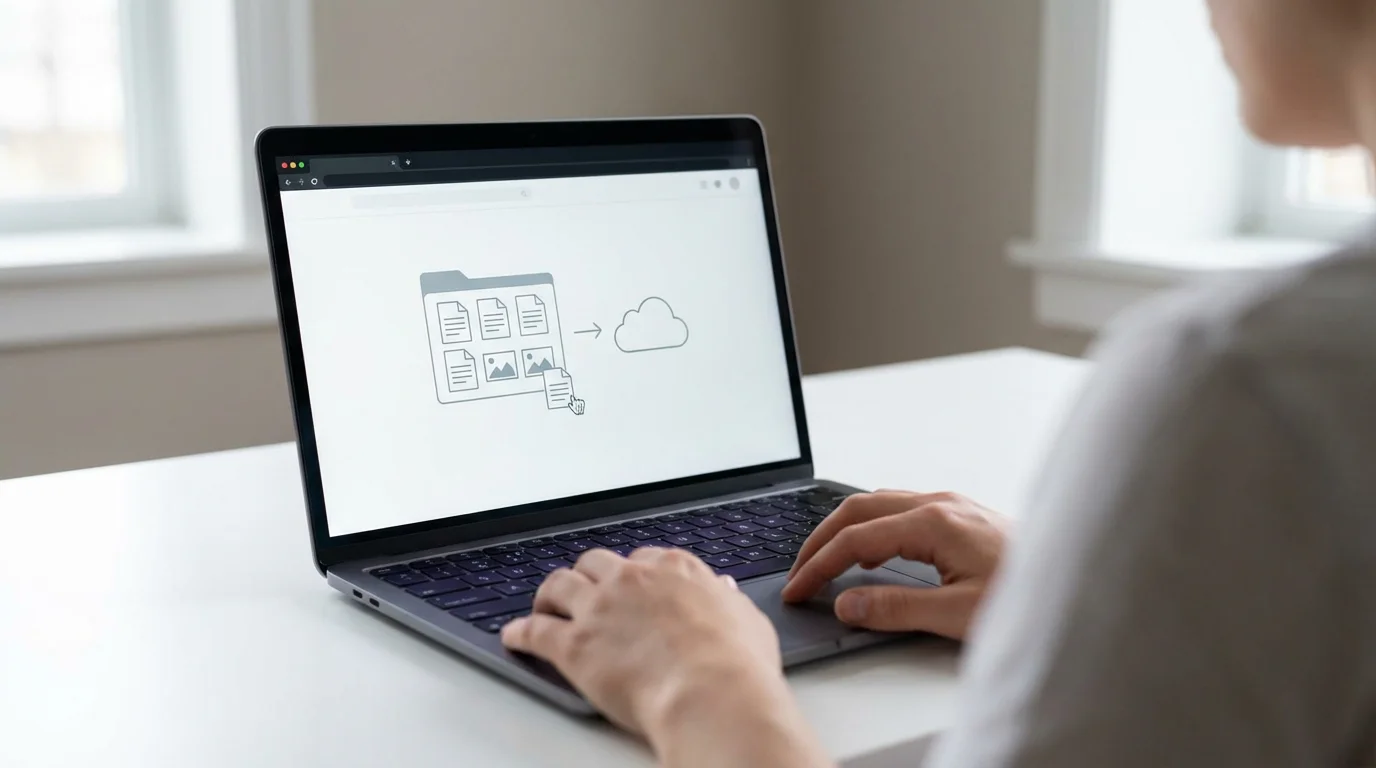
Cloud storage means saving your digital information, like photos, videos, and documents, on remote servers maintained by a company. These servers live in large data centers and connect to the internet. Instead of keeping everything only on your smartphone, tablet, or computer, you send copies of your files to these internet-connected servers. This process makes your files accessible from many different devices.
This technology is similar to how modern streaming services deliver movies and music over the internet without needing physical discs.
When you hear “the cloud,” imagine a network of powerful computers working together to store and manage information. When you upload a photo to the cloud, you are essentially sending a copy of that photo to one of these remote servers. When you want to see that photo again, your device downloads it from the server.
Understanding Key Concepts:
- Servers: These are powerful computers that store data and “serve” it to other computers and devices. Cloud storage companies own and maintain vast networks of these servers.
- Upload: This is the act of sending your files from your device to the cloud storage servers.
- Download: This is the act of retrieving your files from the cloud storage servers to your device.
- Sync (Synchronization): Many cloud services offer “syncing.” This means the cloud service automatically keeps your files updated across all your devices. If you edit a document on your computer and it syncs to the cloud, the updated version becomes available on your phone and tablet as well. This automation offers great convenience, ensuring your `data backup` remains current.

Why You Need Cloud Storage: Key Benefits for Seniors
Using cloud storage provides numerous practical advantages, especially for keeping your important digital life secure and accessible. You will find it gives you significant peace of mind knowing your valuable information is protected.
Many of these servers also communicate with smart home devices, allowing you to manage your home as easily as you manage your files.
In addition to organizing your physical space, decluttering your digital life by moving old files to the cloud can provide a great sense of relief.
Using the cloud is also a great way to save digital statements when you are managing your finances online.
What are Cloud Storage Benefits for You?
- Protection Against Data Loss: This is the primary reason many people use cloud storage. If your phone breaks, your computer crashes, or you accidentally delete files from your device, your photos and documents remain safe in the cloud. This provides a crucial `data backup` solution.
- Access Anywhere, Anytime: You can access your files from any internet-connected device, whether you are at home, visiting family, or traveling. For example, you can take a photo with your smartphone, and later view it on your tablet or computer.
- Easy Sharing: Cloud storage makes sharing photos and documents with family and friends incredibly simple. You can send a link to a specific file or folder instead of trying to email large attachments. This is very convenient for sharing vacation photos or family recipes.
- Frees Up Device Space: Storing large files like videos and high-resolution photos in the cloud can free up valuable storage space on your smartphone or computer. This helps your devices run faster and smoother.
- Automatic Backups: Many cloud services can automatically back up your photos and documents in the background. Once you set it up, you rarely need to think about it again. This ensures your memories are continuously protected without extra effort.
- Enhanced Online Security: Reputable cloud providers invest heavily in `online security` measures. They use strong encryption to protect your data, meaning your files are scrambled and unreadable to anyone without the correct key. This often provides better protection than keeping files only on a single device, which can be lost or stolen.
Technology helps us preserve our stories. Cloud storage ensures those stories, captured in photos and documents, stay safe for generations to come.

Choosing Your Cloud Storage Provider
Several excellent cloud storage providers exist, each offering different amounts of free storage and various features. Many popular choices integrate seamlessly with the devices you already own, making them user-friendly. We will look at a few of the most common options.
To dive deeper into these technical topics, you can explore various free online learning resources specifically designed for adult learners.
Popular Cloud Storage Services:
- iCloud (Apple): If you own an iPhone, iPad, or Mac computer, iCloud is the natural choice. It integrates deeply with Apple devices, automatically backing up photos, contacts, and device settings. Apple provides a small amount of free storage, with options to purchase more.
- Google Drive (Google): This service is popular, especially for Android phone users and anyone with a Google account (like Gmail). It offers a generous amount of free storage and integrates well with Google Photos and other Google services. It works across Android, Apple, and computer devices.
- Microsoft OneDrive (Microsoft): If you use a Windows computer, OneDrive is a convenient option. It often comes pre-installed on Windows PCs and integrates with Microsoft Office programs like Word and Excel. It also offers free storage and paid upgrades.
- Dropbox: Dropbox is a long-standing cloud storage service known for its simplicity and ease of use. It works across all types of devices and operating systems. You receive a small amount of free storage, with plans available for more.
When choosing, consider which devices you use most often. Often, staying within the ecosystem you already use, such as Apple or Google, provides the smoothest experience.

Setting Up Your Cloud Storage Account: General Steps
Creating a cloud storage account is similar to signing up for any other online service. If you already have an Apple ID (for iCloud) or a Google account (for Google Drive), you might already have cloud storage set up. Otherwise, here are the general steps to get started with a new service, using Google Drive as an example.
Before you begin the setup, make sure you are connected to a stable Wi-Fi network to ensure your files sync correctly.
- Open your web browser: On your computer or tablet, open an internet browser like Chrome, Safari, or Edge.
- Go to the provider’s website: Type `drive.google.com` into the address bar and press Enter. If you are setting up iCloud, you can go to `icloud.com`.
- Look for the “Sign Up” or “Create Account” option: You will typically see a button or link. For Google, it might say “Go to Drive” and then prompt you to sign in or create an account if you do not have one.
- Enter your information: You will need to provide your name, date of birth, and possibly a phone number or existing email address.
- Create a strong password: Choose a password that is unique and difficult for others to guess. Use a combination of uppercase and lowercase letters, numbers, and symbols. Write it down somewhere safe if you are worried about forgetting it.
- Review and agree to terms: Read the terms of service and privacy policy, then click “Agree” or “Accept.”
- Complete any verification steps: The service might send a code to your phone or email to verify your identity. Enter this code when prompted.
Once you complete these steps, you have successfully created your cloud storage account. You now possess a secure space on the internet for your digital files.

Backing Up Your Photos and Files to the Cloud
The most common and valuable use of cloud storage for many seniors is backing up photos and important documents. We will cover how to do this on popular devices.
Backing Up Photos on iPhone or iPad (iCloud Photos)
iCloud Photos keeps all your photos and videos safely stored in iCloud, making them available on all your Apple devices and on iCloud.com.
- Open Settings: Look for the icon that looks like a gray gear (⚙️) on your home screen. Tap it.
- Tap your name: At the very top of the Settings screen, you will see your name and picture (if you have one). Tap there.
- Tap iCloud: Scroll down a bit and tap on “iCloud.”
- Tap Photos: Under the “Apps Using iCloud” section, tap on “Photos.”
- Turn on Sync this iPhone/iPad: You will see a toggle switch next to “Sync this iPhone/iPad” or “iCloud Photos.” Tap this switch to turn it green.
- Choose Optimization option: You might see two options, “Optimize iPhone/iPad Storage” and “Download and Keep Originals.” “Optimize” saves space on your device by storing full-resolution photos in iCloud and smaller versions on your device. “Download and Keep Originals” keeps full-resolution photos on both. For most users, “Optimize” works best to save device space.
Your photos and videos will now start uploading to iCloud. This might take some time depending on how many photos you have and your internet speed. You can verify your setup on Apple’s official support page for iPhone support.
Backing Up Photos on Android Phone or Tablet (Google Photos)
Google Photos offers an easy way to back up your photos and videos to your Google account. It often comes pre-installed on Android devices.
- Open the Google Photos app: Look for an icon that looks like a colorful pinwheel (🌀). Tap it.
- Tap your profile picture: In the top right corner of the Photos app, you will see your profile picture or your initial. Tap it.
- Tap “Photos settings”: In the menu that appears, tap “Photos settings.”
- Tap “Backup”: This option controls your photo backup settings.
- Turn on “Backup”: Ensure the toggle switch at the top is turned on (it will be blue).
- Check backup account: Make sure it says “Backup to [your Gmail address].” If not, tap on “Backup account” to select the correct Google account.
- Review backup quality: You can choose “Storage saver” (slightly reduced quality to save space) or “Original quality” (uses more storage). For most, “Storage saver” provides excellent quality photos that look great and save space.
Your photos will now begin uploading. You can monitor the progress at the top of the Google Photos app. Google’s Android Help Center offers more detailed guidance.
Backing Up Documents on a Computer (Windows using OneDrive, Mac using iCloud Drive)
Windows (OneDrive)
- Find OneDrive: OneDrive often appears as a blue cloud icon in your computer’s taskbar (near the clock) or in the File Explorer sidebar. Click on it.
- Sign in: If you are not signed in, follow the prompts to sign in with your Microsoft account (the same one you use for Windows).
- Drag and drop files: Open File Explorer (the folder icon on your taskbar). Navigate to the files or folders you want to back up. Drag them directly into the OneDrive folder you see in File Explorer.
- Enable “Files On-Demand” (Optional): This feature allows you to see all your cloud files in File Explorer without them taking up space on your computer until you open them. Right-click the OneDrive cloud icon, go to “Settings,” then the “Sync and backup” tab, and ensure “Save space and download files as you use them” is checked.
Mac (iCloud Drive)
- Open System Settings (or System Preferences): Click the Apple menu (🍎) in the top left corner of your screen, then select “System Settings” (or “System Preferences” on older macOS versions).
- Click your name: At the top of the sidebar, click your name.
- Click iCloud: In the list of options, click “iCloud.”
- Turn on iCloud Drive: Find “iCloud Drive” and make sure the toggle switch is turned on. You can click “Options” next to it to choose which apps store data in iCloud Drive.
- Drag and drop files: Open Finder (the smiling face icon in your Dock). In the Finder sidebar, click “iCloud Drive.” You can then drag and drop files and folders from your computer directly into the iCloud Drive window.
These actions ensure your important documents are stored safely off your device, accessible from anywhere.

Accessing and Sharing Your Cloud Files
One of the great advantages of cloud storage is the ability to easily access your files from various devices and share them with others. You are no longer tied to a single machine to view your photos or documents.
Accessing Your Cloud Files:
- On your smartphone or tablet: Open the specific app for your cloud service (e.g., Google Photos, Files app on iPhone for iCloud Drive, OneDrive app). Your backed-up files will appear there.
- On a computer: You can access files through the dedicated folder (like OneDrive or Google Drive folders in File Explorer/Finder) or by visiting the service’s website in a web browser (e.g., drive.google.com, icloud.com, onedrive.com).
- From any web browser: Even on a borrowed computer, you can log into your cloud service’s website using your credentials to view and download your files.
Sharing Files with Family and Friends:
Sharing is a common task. Here are general steps, which apply similarly across most cloud services:
- Locate the file or folder: Open your cloud storage app or website and navigate to the item you wish to share.
- Find the Share option: Look for an icon that looks like a person with a plus sign (👤➕), an arrow pointing right (➡️), or the word “Share.” Tap or click it.
- Choose who to share with:
- Specific people: You can often type in email addresses of the people you want to share with. They will receive an email with a link.
- Anyone with the link: Some services let you create a link that anyone can open. Be cautious with this option, as anyone who gets the link can see your file.
- Set permissions: Decide if the people you share with can only “View” the file, or if they can also “Edit” it. For photos, “View” is usually sufficient. For collaborating on a document, “Edit” is necessary.
- Send the link or invitation: Once you confirm your choices, the service will generate a shareable link or send an email invitation. You can then copy this link and paste it into an email or text message to send to your family or friends.
Using these sharing features lets you easily keep loved ones updated with your latest photos or collaborate on family projects.

Understanding Online Security and Privacy in the Cloud
Thinking about `online security` when putting your personal information on the internet is a very smart thing to do. Reputable cloud storage providers prioritize the security of your data, employing advanced measures to keep your files safe. Your proactive steps also play a crucial role in maintaining your privacy.
How Cloud Providers Protect Your Data:
- Encryption: Cloud services use encryption to protect your data. This means your files are converted into a secret code that only authorized users can unlock. Imagine your data is stored in a locked safe, and only you have the key. This happens when your data is both stored on their servers (data at rest) and when it travels between your device and their servers (data in transit).
- Physical Security: Data centers housing these servers have robust physical security, including guards, cameras, and biometric access controls. They are far more secure than your home computer.
- Regular Backups: Cloud providers themselves perform regular backups of your data. This adds an extra layer of protection against their own system failures.
Your Role in Keeping Your Cloud Data Secure:
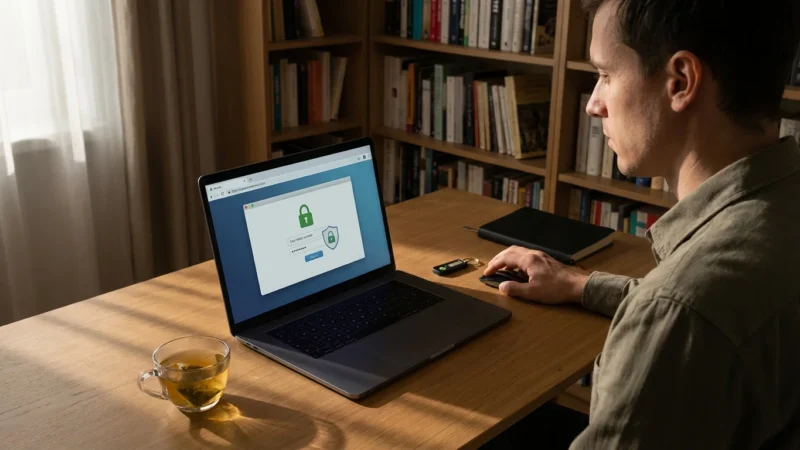
- Use Strong, Unique Passwords: This is the most important step you can take. Never use easy-to-guess passwords like “123456” or your birth date. Create a complex password for your cloud account that includes a mix of uppercase and lowercase letters, numbers, and symbols. Each online account should have its own unique password.
- Enable Two-Factor Authentication (2FA): This adds an extra layer of security. With 2FA, even if someone guesses your password, they still need a second piece of information, usually a code sent to your phone, to access your account. Most cloud providers offer this feature, and you should always turn it on.
- Be Careful What You Share: Only share files with people you trust. Double-check the sharing permissions to ensure you are only granting “View” access unless someone truly needs to “Edit” a document.
- Be Wary of Phishing Scams: Cybercriminals often send fake emails pretending to be from your cloud provider, asking you to click a link and log in. Always go directly to your cloud provider’s website to log in, rather than clicking links in emails, especially if the email seems suspicious. The Federal Trade Commission (FTC) offers excellent resources on online security practices.
- Keep Your Devices Updated: Regularly update your phone, tablet, and computer. These updates often include important security fixes that protect your devices from new threats.
By understanding these security measures and taking your own proactive steps, you can feel confident that your information in the cloud is well-protected.

Troubleshooting Common Cloud Storage Problems
Even with simple technology, you might encounter a few common hiccups. Do not get discouraged; most problems have straightforward solutions. You simply need to know where to look.
If you experience broader technical difficulties, you might find our guide to troubleshooting common computer problems helpful.
Problem 1: Files Are Not Syncing or Uploading
You expect your photos to appear in the cloud, but they are not.
- Check your internet connection: Cloud services require an active internet connection (Wi-Fi or cellular data) to upload and download files. Ensure your device is connected.
- Verify backup settings: Double-check the backup settings within your cloud app (e.g., Google Photos settings, iCloud Photos settings) to confirm that backup is turned on for the specific types of files you expect to see.
- Check available cloud storage: You might have run out of free storage space. Most services notify you when you are near your limit. Consider upgrading your plan or deleting unnecessary files from the cloud.
- Restart the app or device: Sometimes, a simple restart of the cloud app or your entire device can resolve temporary glitches.
Problem 2: “Not Enough Storage” Message
You see a message saying you do not have enough space, either on your device or in the cloud.
- For device storage: If your phone or computer is full, it might struggle to process uploads. Consider enabling the “Optimize Storage” option (for iCloud Photos) or deleting old apps/files from your device that you no longer need.
- For cloud storage: If your cloud storage is full, you have two main options:
- Delete unnecessary files: Go into your cloud service (via app or website) and remove old photos, videos, or documents you no longer need.
- Upgrade your plan: Most providers offer affordable paid plans with significantly more storage. For example, you can get 50GB or 200GB for a few dollars a month.
Problem 3: Forgot My Cloud Account Password
Losing track of passwords happens to everyone. Do not panic.
- Use the “Forgot Password” link: On the login screen of your cloud service, always look for a link that says “Forgot Password” or “Need help signing in?”
- Follow the recovery steps: The service will guide you through a process to verify your identity, often by sending a code to your registered email address or phone number.
- Create a new strong password: Once you regain access, immediately create a new, strong, and unique password for your account.
Remember, patience and a methodical approach solve most tech problems. If you encounter an issue, take a deep breath, and walk through these steps.
Quick Reference Guide for Cloud Backup
Here is a concise summary of the most important takeaways for effective cloud storage use:
- Purpose: Use cloud storage for `data backup`, ensuring your important files, especially photos, are safe from device loss or damage.
- Choice: Pick a provider that integrates well with your existing devices (iCloud for Apple, Google Drive for Android/Google users, OneDrive for Windows).
- Setup: Create an account with a strong, unique password and enable two-factor authentication for maximum `online security`.
- Backup: Activate automatic photo backup in your device settings (iCloud Photos, Google Photos) or drag files into your cloud folder on a computer.
- Access: View your files from any device by logging into the cloud app or website.
- Share: Use the “Share” feature to easily send links to photos or documents to family and friends.
- Security: Always use strong passwords and 2FA. Be careful about clicking suspicious links in emails.
Frequently Asked Questions
What is “the cloud” in simple terms?
The cloud simply refers to storing your digital files and information on powerful computers, called servers, that are connected to the internet. Instead of files being only on your specific device, they reside online and you access them through an internet connection, much like retrieving items from a remote safety deposit box.
Is cloud storage really secure for my personal photos?
Yes, reputable cloud storage providers invest heavily in `online security`. They use strong encryption to protect your data, both when it is stored on their servers and when it travels over the internet. Your most important step for security is using a strong, unique password and enabling two-factor authentication for your cloud account.
Do I have to pay for cloud storage?
Most major cloud providers, like Google Drive, Apple iCloud, and Microsoft OneDrive, offer a certain amount of free storage (typically 5GB to 15GB) when you sign up. This free space is often enough for many users, especially for basic `data backup` of photos. If you need more space, you can purchase additional storage for a small monthly fee.
What happens to my files in the cloud if I lose my phone?
If you lose your phone, your files stored in the cloud remain safe. Since your photos and documents are stored on remote servers and not just on your device, you can simply sign into your cloud account from a new phone, tablet, or computer, and all your backed-up files will be accessible again. This highlights a key `cloud storage benefit`.
Can I access my cloud files without an internet connection?
Generally, you need an internet connection to upload new files to the cloud, download files from the cloud, or view files that are not already saved directly on your device. However, some cloud services allow you to mark specific files or folders for “offline access,” meaning a copy is stored on your device so you can view it even without an internet connection.
How is cloud storage different from saving files on my computer?
Saving files on your computer keeps them only on that specific machine. If the computer breaks or gets lost, those files could be gone forever. Cloud storage creates an off-site copy of your files on secure servers, providing a `data backup`. This means your files are protected even if your physical devices are damaged or lost, and you can access them from any internet-connected device.
Disclaimer: This article is for informational purposes only. Device interfaces and features may vary depending on your device model and software version. Screenshots and steps are based on common versions but your experience may differ slightly. When in doubt, consult your device manufacturer’s official support resources.







Leave a Reply