
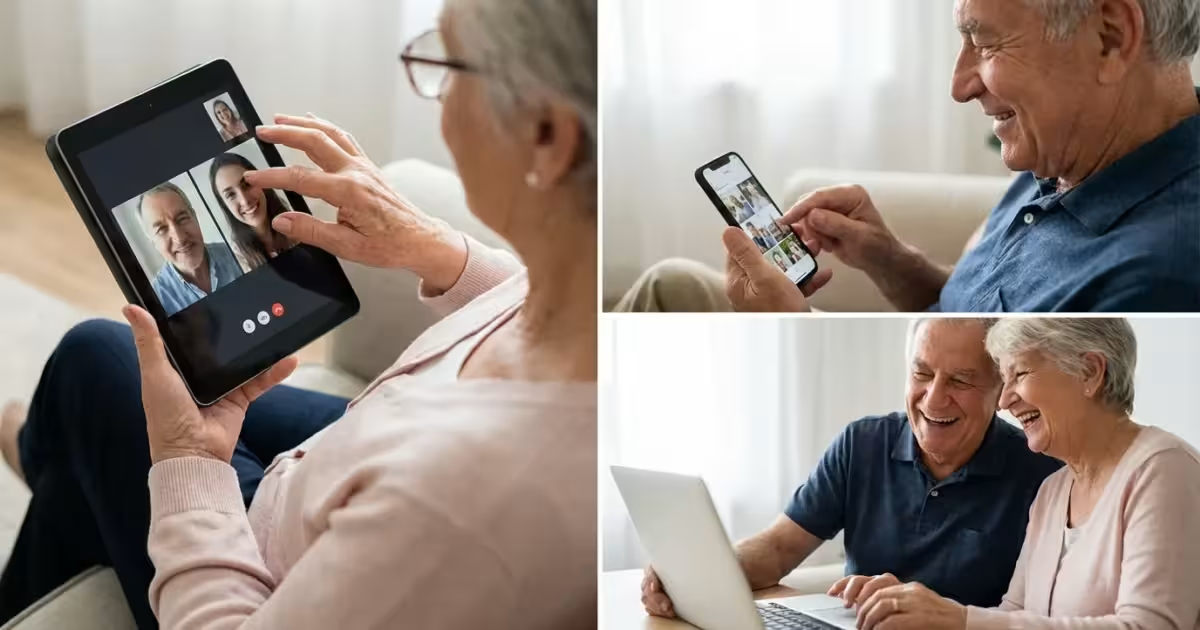
Staying connected with loved ones, discovering new hobbies, and engaging with your community remains incredibly important as you navigate life. Social media offers a wonderful way to achieve all these goals. It connects you to family, friends, and the wider world from the comfort of your home. You might feel a little unsure about starting, and that is perfectly normal. This guide helps you understand social media, choose the right platforms, and use them safely and confidently.
What is Social Media, Really?
Social media refers to websites and applications that enable users to create and share content. It also allows you to participate in social networking. Think of it as a digital gathering place. You can connect with people, share photos, videos, and thoughts, and discover information about topics you care about. It has evolved into a powerful tool for communication and community building.
Examples of social media platforms include Facebook, Instagram, WhatsApp, and Nextdoor. Each platform offers unique ways to interact. For instance, Facebook focuses on sharing updates and photos with a broad network, while WhatsApp prioritizes instant messaging for smaller groups.
The core idea behind social media is interaction. You are not just reading information. You are also engaging with it, and with other people. This interaction fosters a sense of online community.

Why Social Media Matters for Seniors
Many seniors find significant benefits from using social media. Research indicates that using social media can reduce feelings of loneliness and isolation. It helps you stay connected to your family and friends, especially those who live far away.
Here are key reasons why senior engagement with social media is valuable:
- Strengthen Family Ties: You can see photos of grandchildren, watch videos from family vacations, and share your own life updates in real time. This bridges geographical distances effortlessly.
- Reconnect with Old Friends: Many platforms make it easy to find classmates from high school, former colleagues, or old neighbors. You can rediscover cherished connections and reminisce about shared memories.
- Join Interest Groups and Communities: Do you love gardening, cooking, or local history? You can find countless groups dedicated to specific hobbies. These online communities offer a place to share knowledge, ask questions, and connect with like-minded individuals.
- Access Information and Learning: Social media provides a wealth of information. You can follow news organizations, local community pages, or educational channels. Many organizations, like AARP, offer valuable resources and tips directly through their social media presence, as highlighted by their Technology section.
- Combat Isolation: Interacting online gives you a sense of belonging and purpose. It can provide daily opportunities for social interaction, which positively impacts mental well-being.
- Stay Informed Locally: Local community groups on platforms like Facebook or Nextdoor keep you updated on neighborhood news, events, and important announcements. You can also connect with local businesses and services.
Social media is not just for younger generations. It offers tangible benefits for maintaining an active and fulfilling life. It empowers you to stay in touch and stay engaged with the world around you.

Choosing the Right Social Media Platform for You
With so many options, you might wonder which social media platform is the best social media platform for seniors to start with. The best choice depends on what you want to achieve. Do you primarily want to see family photos, join local groups, or chat privately?
Here is an overview of popular platforms and their typical uses:
- Facebook: This is often the most comprehensive and widely used platform. It is excellent for keeping up with family and friends, sharing personal updates, photos, and videos, and joining groups based on interests or local communities. Most people you know likely already have a Facebook account.
- Instagram: If you enjoy looking at and sharing photos and short videos, Instagram is a great choice. It focuses heavily on visual content. You can follow photographers, artists, travel accounts, or even family members who love to share their visual experiences.
- WhatsApp: This is primarily a messaging app, popular for private chats and group conversations. It works well for direct communication with family and close friends, especially those who live internationally, as it uses your internet connection instead of traditional text messages. You can send text messages, photos, videos, and make voice or video calls.
- Nextdoor: This platform focuses on connecting you with your immediate neighborhood. It is ideal for local announcements, finding trusted service providers, organizing community events, or discussing neighborhood issues.
- Pinterest: If you enjoy collecting ideas, recipes, home decor inspiration, or crafting projects, Pinterest acts like a digital bulletin board. You can “pin” images and articles you find inspiring or useful to your own virtual boards.
- X (formerly Twitter): This platform focuses on short, text-based updates and news. It moves very quickly and can feel overwhelming for beginners. It may be less suitable for your initial social media experience unless you have a specific interest in real-time news and public discourse.
Consider starting with one platform that aligns with your primary goal. Many seniors begin with Facebook due to its versatility and widespread use. Once you feel comfortable with one, you can explore others.

Getting Started with Facebook: Your First Steps
Facebook offers a friendly environment for connecting. This step-by-step guide helps you create an account and make your first connections. Remember, if this does not work the first time, that is okay. Technology often requires a little patience and practice.
Step 1: Create Your Account
- Open your web browser (like Chrome, Firefox, or Safari) and go to www.facebook.com.
- You will see a green button that says “Create new account” or “Sign up.” Click this button.
- A form will appear. You need to enter your first name, last name, mobile number or email address, a new password, your birth date, and your gender.
- Choose a strong password that you will remember but is difficult for others to guess. A good password mixes uppercase and lowercase letters, numbers, and symbols.
- Click the “Sign Up” button at the bottom of the form.
- Facebook will send a verification code to your email or phone. Type this code into the box on the screen to confirm your account.
Step 2: Set Up Your Profile
Your profile acts as your personal page on Facebook. It is where you share information about yourself and where others can learn about you.
- Add a Profile Picture: Click the empty circle on your profile page that says “Add Photo.” Choose a clear photo of yourself from your computer or phone. This helps friends recognize you.
- Add a Cover Photo: This is a larger image at the top of your profile. You can choose a picture of a favorite landscape, family, or hobby. It adds a personal touch.
- Fill in Basic Information: You can add details like where you live, where you worked, or your education. You control how much information you share. You can set each piece of information to be visible to ‘Friends,’ ‘Only Me,’ or ‘Public.’
Step 3: Find Friends and Family
The real fun begins when you connect with people you know.
- Look for the search bar at the very top of your Facebook page. It often says “Search Facebook.”
- Type the name of a friend or family member into the search bar.
- Press the Enter key on your keyboard or click the magnifying glass icon (🔍) next to the search bar.
- A list of people matching that name will appear. Look for their profile picture to identify the correct person.
- When you find them, click the “Add Friend” button on their profile. This sends a “friend request.” They must accept your request before you become “friends” on Facebook.
Step 4: Understand Your News Feed
Your News Feed is the central stream of updates you see when you log in. It displays posts from your friends, groups you have joined, and pages you follow.
- Scroll down to see new content.
- You can “like” a post by clicking the “Like” button (a thumbs-up icon 👍) below it.
- You can also leave a “Comment” to share your thoughts.
Step 5: Make Your First Post
Sharing your own thoughts or photos is a key part of social media.
- At the top of your News Feed, you will see a box that says “What’s on your mind?” Click inside this box.
- Type your message. For example, “Hello everyone, I just joined Facebook!”
- To add a photo, click the “Photo/Video” button (it looks like a small picture frame 🖼️). Choose a photo from your computer or phone.
- Before posting, look for a small button below your name that says “Public,” “Friends,” or “Only Me.” This is your privacy setting for this specific post. Choose “Friends” to share with your connections.
- Click the “Post” button. Your message or photo is now visible to your chosen audience.

Exploring Other Popular Platforms: Instagram and WhatsApp
Once you feel comfortable with Facebook, you might want to explore other platforms. Instagram and WhatsApp offer different ways to connect and share.
Getting Started with Instagram
Instagram focuses on sharing photos and short videos. It is a visual platform, great for creative expression and seeing beautiful images from around the world.
Step 1: Download the App and Create an Account
- On your smartphone or tablet, open your device’s app store. This is the App Store on an iPhone (a blue icon with a white ‘A’ 🅰️) or the Google Play Store on an Android phone (a colorful triangle icon ▶️).
- Search for “Instagram” and tap the “Get” or “Install” button.
- Once installed, open the Instagram app.
- Tap “Create New Account.”
- Enter your phone number or email, then create a username and a strong password. You will also enter your birth date.
- Tap “Sign Up.”
Step 2: Set Up Your Profile and Find People to Follow
- Add a Profile Photo: Tap the circle at the bottom right of the screen (it looks like a person’s outline 👤). Then tap “Edit Profile.” Choose a photo from your device.
- Find Accounts to Follow: Instagram uses the term “follow” instead of “friend.” Tap the magnifying glass icon (🔍) at the bottom of the screen to go to the “Explore” page.
- Use the search bar at the top to type in the name of a person or a topic you are interested in.
- When you find an account you want to see updates from, tap the “Follow” button next to their name.
Step 3: Make Your First Post (Share a Photo)
- Tap the plus (+) icon at the bottom center of the screen.
- Your device’s photo gallery will appear. Choose a photo you want to share.
- Tap “Next” in the top right corner.
- You can apply a filter (a pre-set style) or make edits if you wish, then tap “Next” again.
- Write a “caption” for your photo (a short description).
- Tap “Share.” Your photo now appears on your profile and in the feeds of people who follow you.
Getting Started with WhatsApp
WhatsApp is excellent for secure, private messaging and calls with individuals or small groups. It uses your phone number and internet connection.
Step 1: Download and Install WhatsApp
- Open your device’s app store (App Store on iPhone, Google Play Store on Android).
- Search for “WhatsApp Messenger” and tap “Get” or “Install.”
- Once installed, open the WhatsApp app.
- Tap “Agree and Continue” to accept the terms.
Step 2: Verify Your Phone Number
- WhatsApp will ask for your phone number. Enter it carefully.
- Tap “Done” or “Next.”
- WhatsApp sends a verification code via text message to your phone.
- Enter this code into the app. Sometimes, it auto-fills.
Step 3: Start a Chat
- Tap the chat icon (it often looks like a speech bubble 💬 or a pencil on paper 📝) usually found in the bottom right or top right corner.
- Your phone’s contact list will appear, showing which of your contacts also use WhatsApp.
- Tap on the name of the person you want to message.
- A chat window opens. Type your message at the bottom and tap the “Send” button (a paper airplane icon ✈️).
- To send a photo or video, tap the paperclip icon 📎 or plus icon (+), then choose “Gallery” or “Photos.”
Step 4: Create a Group Chat
- From the main “Chats” screen, look for “New Group” or an icon with three dots (•••) that opens a menu, then select “New Group.”
- Select the contacts you want to add to the group.
- Tap the green arrow or “Next.”
- Give your group a name, then tap “Create” or the green checkmark (✅). You can now send messages that everyone in the group will see.
Essential Online Safety and Privacy on Social Media
Using social media safely is crucial. You control your information. Understanding privacy settings and recognizing risks helps you maintain a positive experience. The Federal Trade Commission (FTC) provides valuable guidance on online security and identity theft prevention, which applies directly to social media use.
Here are vital tips for staying safe and protecting your privacy:
- Understand Privacy Settings: Every platform offers robust privacy controls. Take time to explore these. On Facebook, go to “Settings & Privacy,” then “Privacy Checkup” or “Privacy Settings.” You can choose who sees your posts, your profile information, and who can send you friend requests. Set your default post audience to “Friends” or “Only Me” instead of “Public.”
- Be Selective About Friend Requests: Only accept friend requests from people you genuinely know and trust. Do not accept requests from strangers, even if they have mutual friends. Scammers often create fake profiles to gain access to your information or send you malicious links.
- Recognize Phishing and Scams: Be wary of messages, emails, or posts that ask for personal financial information, promise unlikely rewards, or pressure you to click a suspicious link. These are common phishing attempts. Never click links from unknown sources.
- Create Strong, Unique Passwords: Use a different, complex password for each social media account. A strong password combines uppercase and lowercase letters, numbers, and symbols. Avoid using easily guessed information like birthdays or pet names.
- Enable Two-Factor Authentication (2FA): This adds an extra layer of security. When you log in from a new device, the platform sends a code to your phone or email. You must enter this code in addition to your password. This prevents unauthorized access even if someone knows your password. Look for this option in your account’s “Security” settings.
- Do Not Overshare Personal Information: Avoid posting your full birth date, home address, phone number, or detailed travel plans. This information can be used for identity theft or to target your home when you are away. Consider what information a stranger could use against you.
- Think Before You Post: Once you post something online, it can be difficult to remove completely. Imagine your post being seen by anyone. If you are unsure, it is best not to share it.
- Report Suspicious Activity: If you encounter a suspicious profile, a scam message, or inappropriate content, use the platform’s reporting tools. This helps protect you and other users.
- Log Out of Public Computers: Always log out of your social media accounts if you use a public computer or a shared device. This prevents others from accessing your profile.
You do not have to be young to be tech-savvy—you just need patience and practice. Safety on social media comes from awareness and making informed choices.
By following these guidelines, you can enjoy the many benefits of social media while keeping your personal information secure. For more comprehensive cyber-safety practices, resources like CISA’s Cyber-Safety for Seniors offer excellent advice.

Troubleshooting Common Social Media Questions
You might encounter a few hiccups as you begin your social media journey. That is completely normal. Here are solutions to some common problems:
- “I cannot log in to my account.”
- Check Your Username/Email and Password: Double-check that you are entering the correct email address or phone number and password. Passwords are often case-sensitive, meaning “Password123” is different from “password123.”
- Use “Forgot Password”: Most platforms have a “Forgot Password?” link on the login screen. Click this, and the platform will guide you through resetting your password via your email or phone number.
- Check Internet Connection: Ensure your device has an active internet connection (Wi-Fi, the wireless internet connection in your home, or cellular data).
- “My post did not show up.”
- Check Your Internet Connection: A poor connection can prevent posts from uploading fully.
- Refresh Your Feed: Pull down on your screen (on a phone/tablet) or refresh your browser page (on a computer) to update your feed. Sometimes it just takes a moment to appear.
- Check Your Privacy Settings for the Post: Ensure you did not accidentally set the post to “Only Me.” You can often edit a post after it is published to adjust its visibility. Look for the three dots (•••) near your post.
- “Someone sent me a strange message or friend request.”
- Do Not Respond: If it looks suspicious, do not reply.
- Block and Report: Every platform allows you to block users and report suspicious activity. On Facebook, go to their profile, click the three dots (•••), and choose “Block” or “Report Profile.” This helps protect you and the community.
- Do Not Click Links: Never click on links in unsolicited or suspicious messages. These can lead to malicious websites.
- “I want to delete something I posted.”
- Find the Post: Go to your profile or the feed where the post appears.
- Look for Options: You will usually see an icon with three dots (•••) next to your post. Tap or click this.
- Select “Delete”: A menu will appear with options like “Edit Post,” “Delete Post,” or “Move to Trash.” Select “Delete.” Confirm your choice if prompted.
- “How do I adjust notifications? I am getting too many alerts.”
- Go to Settings: On most platforms, navigate to your “Settings & Privacy” or “Settings” menu.
- Find Notification Settings: Look for a section called “Notifications” or “Notifications Settings.”
- Customize Your Preferences: You can often choose which types of alerts you receive (e.g., likes, comments, group activity) and how you receive them (e.g., email, push notifications on your phone, or within the app). You can often turn off sounds or vibrations for notifications too.
Remember, troubleshooting is part of learning. Do not hesitate to try these steps. If you are still stuck, family members, friends, or even local libraries often offer tech support. Resources like OATS Senior Planet also offer free courses and support for seniors using technology.

Tips for Maximizing Your Social Media Experience
As you grow more comfortable with social media, these tips help you get the most out of your online interactions.
- Start Small and Build Gradually: Do not feel pressured to join every platform at once. Master one platform, like Facebook, before exploring others. This builds your confidence and makes the learning process less overwhelming.
- Engage Regularly: Liking posts, leaving comments, and sharing your own updates encourages interaction. The more you engage, the richer your online experience becomes.
- Join Groups Relevant to Your Interests: Seek out groups related to your hobbies, local community, or support needs. These provide focused content and connect you with people who share your passions. For example, a “Local Bird Watching Enthusiasts” group.
- Ask Questions: If you are unsure how to do something, ask a tech-savvy friend or family member. Many communities also have online forums where you can ask for help. Remember, everyone started as a beginner.
- Be Mindful of Your Digital Footprint: Everything you post contributes to your “digital footprint,” the trail of data you leave online. Be thoughtful about the content you share, remembering the safety and privacy tips discussed earlier.
- Take Breaks: It is easy to spend a lot of time scrolling. If you feel overwhelmed or spend too much time on social media, step away. It is healthy to balance online activity with real-world interactions and activities.
- Explore New Features: Social media platforms frequently update their features. Do not be afraid to tap around and see what is new. You might discover a new way to connect or share.
- Use It for Good: Social media can be a powerful tool for positive change. Share uplifting stories, support causes you believe in, and connect with organizations that matter to you.
Social media offers a vibrant world of connection and discovery. Approach it with an open mind and a commitment to learning. You will soon enjoy its many benefits.
Frequently Asked Questions
Is social media safe for seniors?
Yes, social media can be safe for seniors when you understand and use privacy settings, recognize common scams, and avoid sharing overly personal information. Platforms offer tools to control who sees your content and who can contact you. Educating yourself about these features significantly enhances your safety. Always be cautious of unsolicited messages or requests for money.
Which social media platform is best for beginners?
Facebook often serves as an excellent starting point for beginners. It offers a wide range of features, a large user base, and relatively straightforward navigation for connecting with family and friends, joining groups, and sharing updates. Its comprehensive privacy settings also help new users feel more secure as they learn.
What information should I avoid sharing on social media?
You should never share sensitive personal details such as your full birth date, home address, phone number, financial information, or details about your daily routines or travel plans. Avoid posting images of your boarding passes or any document that contains personal data. Scammers can use this information for identity theft or other fraudulent activities.
How do I find my family and friends on social media?
Most social media platforms have a search bar at the top of the screen. You can type in the name of a friend or family member. Often, the platform will suggest people you might know based on your phone contacts or mutual friends. Once you find them, you can send a “friend request” or “follow” them to connect.
What if I accidentally post something I did not mean to?
Do not worry, this happens often. Most social media platforms allow you to edit or delete posts after you have shared them. Look for an icon with three dots (•••) or an “Edit” or “Delete” option next to your post. Tapping or clicking this will usually bring up a menu with these choices. You can quickly remove or correct your content.
Can I use social media without revealing too much about myself?
Absolutely. You control how much information you share. Focus on filling out only the essential profile details and use strong privacy settings. On Facebook, for example, you can set your posts to be visible only to ‘Friends’ or ‘Only Me.’ You do not need to share your exact location or personal preferences if you do not feel comfortable doing so. Remember, your comfort level guides your social media activity.
Disclaimer: This article is for informational purposes only. Device interfaces and features may vary depending on your device model and software version. Screenshots and steps are based on common versions but your experience may differ slightly. When in doubt, consult your device manufacturer’s official support resources.








Leave a Reply