
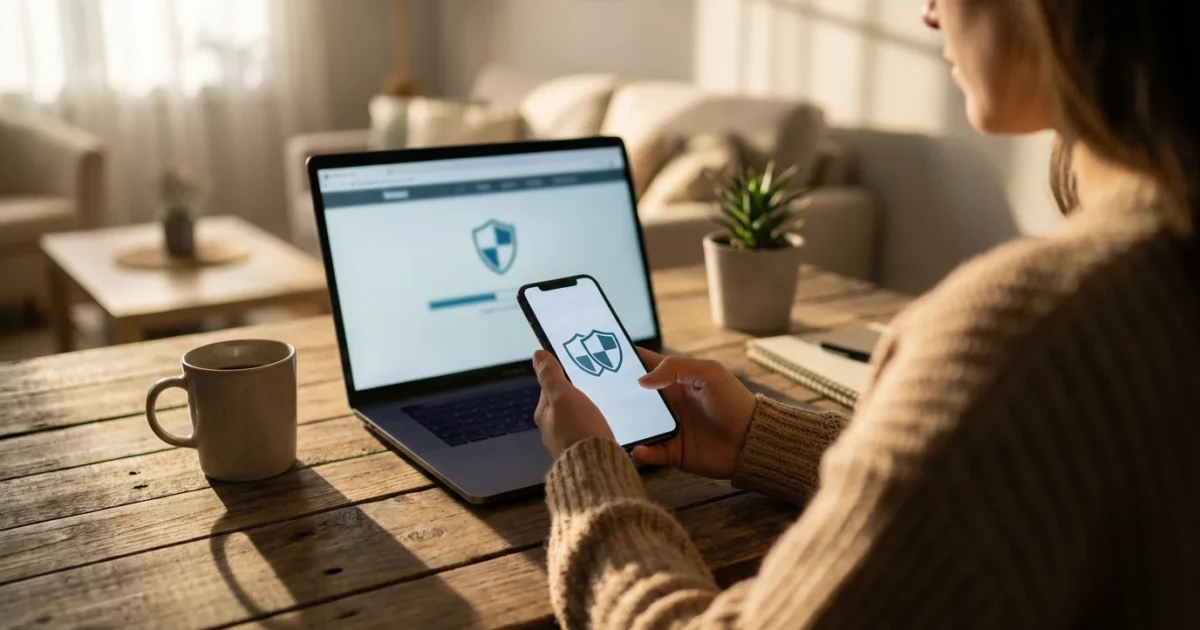
Securing your online accounts may seem complicated, but it is one of the most powerful steps you take to protect your personal information. Imagine having an extra, invisible lock on your digital doors. That is exactly what two-factor authentication, often called 2FA, provides. This guide simplifies the process, showing you how to add this crucial layer of `account security` to your most important online services. You gain greater peace of mind and significantly strengthen your `online protection` against cyber threats.
Many people worry about hackers or unauthorized access to their email, banking, or social media. Two-factor authentication directly addresses these concerns. It makes it much harder for anyone to get into your accounts, even if they somehow discover your password. You control this powerful tool and setting it up is easier than you think. Let us build your confidence together as we walk through how to set up two factor authentication, step by step.

What Exactly Is Two-Factor Authentication?
Two-factor authentication adds an extra layer of defense when you log in to an online account. Think of it like this: your password is the first lock on your door, and 2FA is a second, separate lock. Even if a thief picks the first lock (your password), they still cannot get in without also picking the second lock (your 2FA code).
This “two-factor” part means you need two different kinds of proof to verify it is really you. These usually fall into two categories:
- Something you know: This is typically your password, something only you remember.
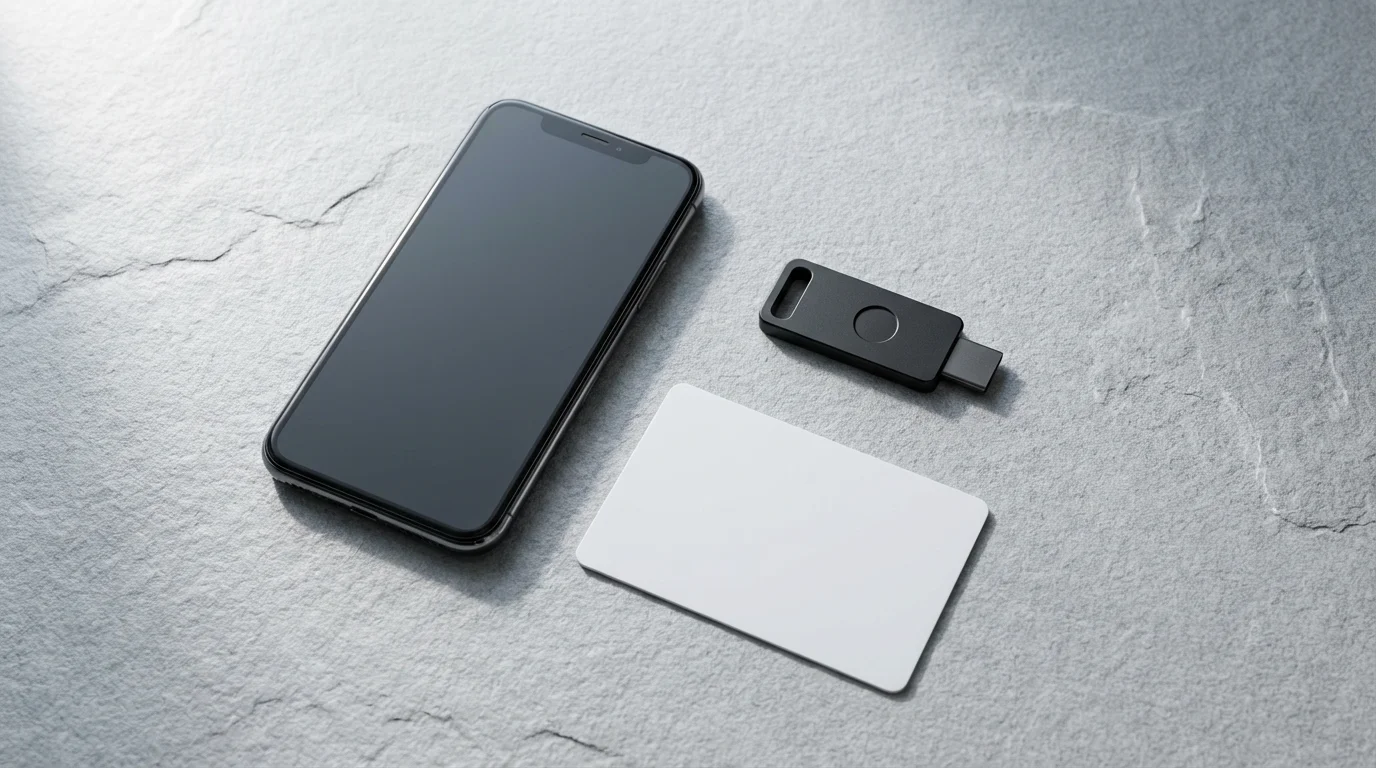
- Something you have: This is usually a physical item in your possession, like your smartphone or a special security key, which receives a unique code.
When you enable `two-factor authentication`, after you enter your password, the service asks for a second code. This code goes to your phone or a specific app on your device. Only you have access to that second factor, making your `online protection` significantly stronger.

Why Two-Factor Authentication is Essential for Your Security
In today’s digital world, safeguarding your online presence is more critical than ever. Two-factor authentication provides a powerful defense against many common cyber threats. Here is why it is so important for your `account security`:
- Protection Against Stolen Passwords: Passwords get stolen surprisingly often. Data breaches, where companies lose customer information, expose millions of passwords. Additionally, phishing scams trick people into revealing their login details. In fact, a study by Verizon showed that 82% of data breaches involved stolen or weak credentials. Even if someone obtains your password, 2FA prevents them from logging in because they lack your second verification factor.
- Defense Against Phishing Attempts: Phishing emails often try to steal your login credentials. With 2FA enabled, even if you accidentally enter your password on a fake website, the attacker cannot log in to your real account without the unique code sent to your device.
- Increased Peace of Mind: Knowing your important accounts, such as email, banking, and social media, have this extra layer of `online protection` allows you to navigate the internet with greater confidence. You worry less about identity theft or unauthorized financial transactions.
- Mandatory for Some Services: Many financial institutions and government services now strongly recommend or even require 2FA for enhanced security. This highlights its recognized effectiveness in protecting sensitive data.
Understanding Different Types of Two-Factor Authentication
Not all two-factor authentication methods are exactly alike. They offer varying levels of convenience and security. Understanding the common types helps you choose what works best for your needs and the services you use.
- SMS Codes (Text Messages):
- How it works: After entering your password, the service sends a unique numerical code to your registered mobile phone number via text message (SMS). You enter this code to complete your login.
- Pros: Very common, easy to use, does not require a smartphone with internet access, only text message capability.
- Cons: Less secure than other methods. Sophisticated attackers can sometimes intercept text messages, or port your phone number to their own device, a process called SIM swapping. This method is still far better than no 2FA at all, but it is not the strongest option.
- Authenticator Apps:
- How it works: You install a special app on your smartphone, such as Google Authenticator or Microsoft Authenticator. When you set up 2FA for an account, you link it to this app, often by scanning a QR code. The app then generates a new, time-sensitive six-digit code every 30-60 seconds. You enter this code when prompted during login.
- Pros: More secure than SMS codes because the codes are generated on your device and are not sent over the cellular network. They also work even if your phone has no cell signal or Wi-Fi, the wireless internet connection in your home.
- Cons: Requires a smartphone and the app, which you must back up if you get a new phone.
- Biometrics (Fingerprint or Face Scan):
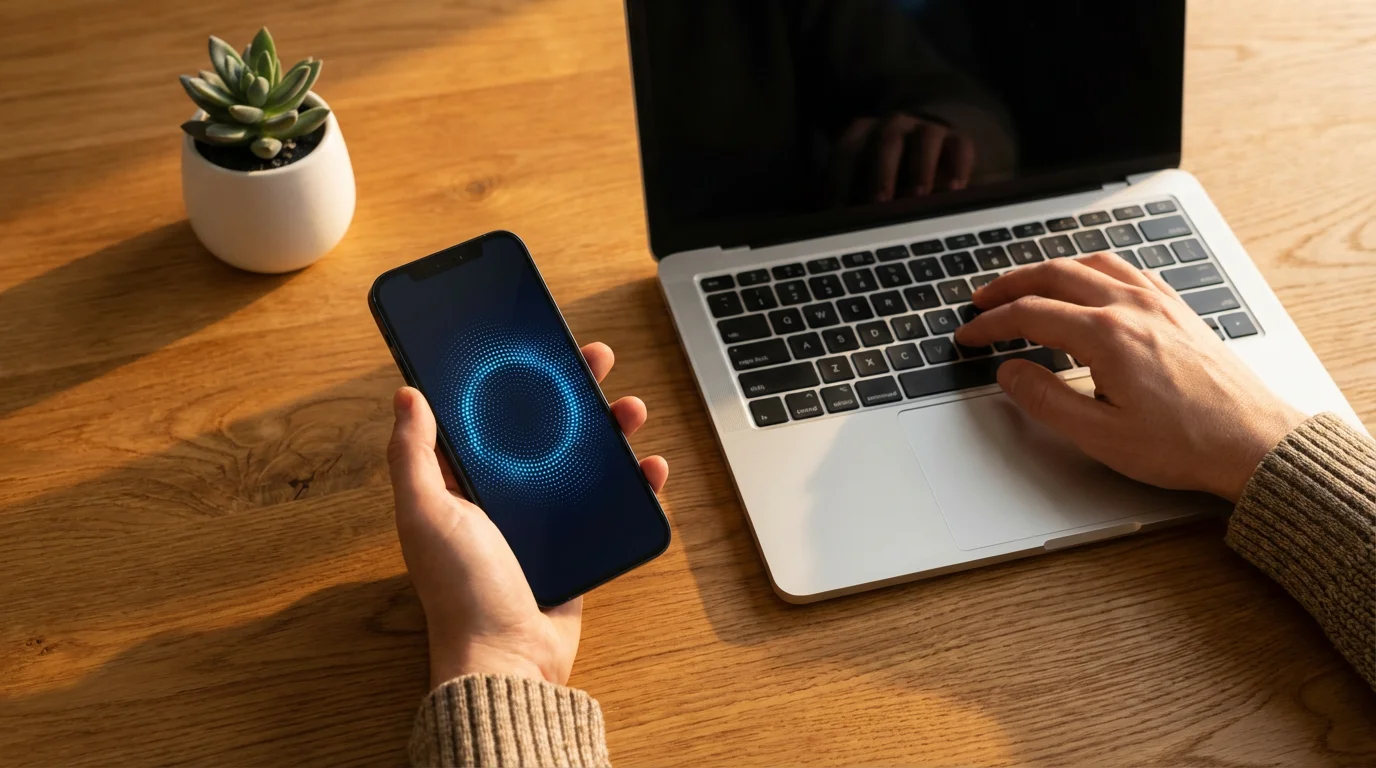
- How it works: Many modern smartphones and computers allow you to use your fingerprint or a face scan as a second factor. After entering your password, you might simply place your finger on a sensor or look at your phone’s camera.
- Pros: Extremely convenient and fast. Your biometric data is unique to you.
- Cons: Requires compatible hardware (a phone or computer with a fingerprint reader or facial recognition scanner).
- Physical Security Keys:
- How it works: These are small USB devices that plug into your computer or connect wirelessly via Bluetooth. After entering your password, you press a button on the key or tap it to your device to verify your identity.
- Pros: Considered the most secure method. They are highly resistant to phishing and interception.
- Cons: Requires purchasing a separate device (e.g., YubiKey) and carrying it with you. More complex to set up.
For most users, especially when starting, SMS codes or authenticator apps provide excellent `online protection` without significant hassle. Services like Google and Apple often guide you to the most straightforward options when you begin the setup process.
Technology is just a tool. It’s how you use it that matters. Taking control of your security is a powerful way to use technology for your benefit.

Preparing to Set Up Two-Factor Authentication
Before you begin activating 2FA, a little preparation makes the process much smoother. Gathering what you need beforehand helps prevent frustration and ensures you complete each step correctly.
- Identify Your Most Important Accounts: You do not have to enable 2FA on every single online account at once. Start with your most critical services, such as:
- Your primary email account (Gmail, Outlook, Yahoo Mail). This is often the “master key” to resetting other passwords.
- Your online banking accounts.
- Social media platforms (Facebook, Instagram) if you use them frequently.
- Online shopping sites where you store payment information (Amazon, eBay).
- Ensure Your Information is Up-to-Date:
- Phone Number: If you plan to use SMS codes, confirm that the phone number associated with your online accounts is current and that you have access to that phone.
- Recovery Email: Check that your recovery email address for important accounts is also up-to-date and accessible.
- Have Your Devices Ready:
- Keep your smartphone nearby. This is usually where you receive verification codes.
- Be at your computer or the device you normally use to access the account.
- Know Your Passwords: You will need to log in to each account to enable 2FA. Make sure you remember your current passwords. If you struggle to remember them, consider using a password manager.
By taking these preparatory steps, you establish a solid foundation for successfully implementing `two-factor authentication` across your digital life.
Step-by-Step: How to Set Up Two-Factor Authentication on Your Google Account
Your Google Account often connects to many other services you use, making it a critical starting point for `online protection`. Google calls 2FA “2-Step Verification.” Let us walk through the setup.
- Go to Your Google Account: Open your web browser (like Chrome, Edge, or Safari) and go to myaccount.google.com. Log in with your Google email and password if you are not already.
- Navigate to Security Settings: On the left side of the screen, you will see a menu. Click on “Security.”
- Find “2-Step Verification”: Scroll down the “Security” page until you find the “How you sign in to Google” section. Look for “2-Step Verification” and click on it. It will likely say “Off” if you have not set it up yet.
- Get Started: On the next screen, you will see a “Get started” button. Click it.
- Re-enter Your Password: For security, Google asks you to re-enter your password. Do so and click “Next.”
- Choose Your Second Step: Google will suggest your phone as a second step. This means you will receive a prompt on your phone to approve logins, or a code via text.
- For a phone prompt: Confirm your phone is listed correctly. Click “Continue.”
- For text messages (SMS): If you prefer text messages, Google will ask to send a test code to your phone number. Enter the code you receive and click “Next.”
- Turn On 2-Step Verification: After confirming your method, you will see a button that says “Turn On.” Click this to activate 2-Step Verification.
- Set Up Backup Options (Important!): Google immediately prompts you to set up backup options. This is crucial if you lose your phone or cannot receive codes.
- Backup codes: Click “Set up” next to “Backup codes.” Google provides a list of one-time-use codes. Print these or save them in a very safe, offline place. Each code works once.
- Authenticator App: You can also set up an authenticator app here for even stronger security.
Congratulations! Your Google Account now has strong `two-factor authentication` enabled. You have significantly boosted your `account security`.

Step-by-Step: How to Set Up Two-Factor Authentication on Your Apple ID
If you use an iPhone, iPad, or Mac, your Apple ID is the key to all your Apple services, purchases, and data. Enabling 2FA for your Apple ID is crucial for your `online protection`. Apple’s version of 2FA uses trusted devices you already own.
On Your iPhone or iPad:
- Open Settings: Tap the “Settings” icon (it looks like a gray gear ⚙️) on your home screen.
- Tap Your Name: At the very top of the Settings menu, tap on your name and profile picture. This is your Apple ID section.
- Go to Password & Security: Tap on “Password & Security.”
- Turn On Two-Factor Authentication: You will see “Two-Factor Authentication” with an option to turn it on. Tap “Turn On.”
- Continue and Verify: Tap “Continue.” Apple asks you to confirm a phone number where you can receive verification codes. This number is used if you need to access your account on a new device. Enter the number and choose whether to receive codes via text message or an automated phone call. Tap “Next.”
- Enter Verification Code: Apple sends a verification code to the phone number you provided. Enter this code into the prompt on your iPhone or iPad.
- Confirm Setup: Once you enter the code, two-factor authentication is active. You are now protected.
On Your Mac Computer:
- Open System Settings (or System Preferences): Click the Apple menu (🍎) in the top-left corner of your screen. Select “System Settings” (on newer macOS versions) or “System Preferences” (on older versions).
- Click Your Name: In System Settings, click on your name at the top of the sidebar. In System Preferences, click on “Apple ID.”
- Go to Password & Security: Select “Password & Security” from the options.
- Turn On Two-Factor Authentication: Find “Two-Factor Authentication” and click “Turn On” or “Set Up.”
- Follow Prompts: Your Mac guides you through confirming your trusted phone number and entering a verification code sent to that number.
With `two-factor authentication` on your Apple ID, your devices and data gain a significant boost in `account security`. If you need more detailed support, Apple’s official support pages offer comprehensive guidance: Apple iPhone Support.

Setting Up Two-Factor Authentication for Other Popular Services
Once you have secured your Google Account and Apple ID, applying `two-factor authentication` to other key online services follows a similar pattern. While exact menu names may differ, the general approach remains consistent. Always look for security or privacy settings.
Here is a general guide and where to typically find 2FA settings for common platforms:
- Log In to Your Account: Access the service you want to protect using your regular username and password.
- Find Account Settings: Look for an icon that looks like a gear (⚙️), a person (👤), or a menu (☰) in the corner of the screen. Click on it to open your account settings, profile, or preferences.
- Navigate to Security or Privacy: Within the settings, search for sections labeled “Security,” “Privacy,” “Login & Security,” or “Account Protection.”
- Locate Two-Factor Authentication Option: Look for phrases like “Two-Factor Authentication,” “2FA,” “Two-Step Verification,” or “Multi-Factor Authentication (MFA).”
- Follow On-Screen Prompts: The service will guide you through choosing your preferred 2FA method (SMS, authenticator app, etc.) and verifying it. This typically involves entering your password again and then confirming a code sent to your phone.
- Save Backup Codes: Always save any backup codes provided. These are essential if you lose access to your primary verification method.
Common Services and Where to Look for 2FA:
- Facebook: Go to “Settings & Privacy,” then “Settings,” then “Security and Login.” Look for “Two-Factor Authentication.”
- Amazon: Go to “Your Account,” then “Login & security.” Look for “Two-Step Verification (2SV) Settings.”
- Microsoft Accounts (Outlook, Xbox): Go to account.microsoft.com/security and select “Advanced security options.” You will find “Two-step verification” there.
- Online Banking: Log in to your bank’s website. Look for “Security,” “Profile,” or “Settings” to find options for “Login Security,” “Extra Security,” or “Two-Factor Authentication.”
By applying `two-factor authentication` to these various accounts, you build a robust shield around your digital life, significantly enhancing your `online protection` wherever you go online.

Troubleshooting Common Two-Factor Authentication Problems
Sometimes, technology does not work exactly as expected. If you encounter an issue while using `two-factor authentication`, do not get discouraged. Most problems have straightforward solutions. Here are some common scenarios and how to address them:
- I am not receiving the SMS code:
- Check your phone signal: Ensure you have a good cellular signal. If not, try moving to an area with better reception.
- Verify your phone number: Double-check that the phone number linked to the account is correct. You might need to log in without 2FA (if possible, using a backup code) or contact the service’s support to update it.
- Wait a moment: Sometimes, text messages experience slight delays. Give it a minute or two.
- Request a new code: Most services have an option to “Resend code” or “Try again.”
- My authenticator app codes are not working:
- Check your phone’s time: Authenticator apps rely on your phone’s time being accurate. Ensure your phone’s date and time are set to “automatic” in its settings. Incorrect time can cause codes to be out of sync.
- Re-sync the app: Some authenticator apps have a “Time correction for codes” setting (often found in the app’s settings menu) that can re-sync it with the server.
- I lost my phone or it is not working, and I cannot get my code:
- Use backup codes: This is why saving backup codes is so important! Locate the backup codes you generated during setup. Each code is a one-time use option to bypass 2FA.
- Use a trusted device: If you previously marked another computer or tablet as a “trusted device,” you might be able to log in from there without a new code.
- Account recovery: If you have no backup codes or trusted devices, you must go through the account recovery process for that specific service. This usually involves answering security questions or verifying your identity through other means. This process can take time, reinforcing why having backup codes is so vital for `account security`.
- I want to change my 2FA method (e.g., from SMS to an authenticator app):
- Log in to your account’s security settings (where you initially enabled 2FA).
- Look for an option to “Manage 2-Step Verification” or “Edit Two-Factor Authentication.”
- You should see options to add a new method or remove an existing one.
Remember, patience is key. If a problem persists, do not hesitate to look for the “Help” or “Support” section on the website of the service you are trying to access. They often have specific guides for `two-factor authentication` issues.

Quick Reference: Key Steps for Activating 2FA
To give you a concise overview, here are the general steps to activate `two-factor authentication` for almost any online service:
- Log In: Access the online account you wish to secure using your username and password.
- Find Settings: Locate your account’s “Settings” or “Profile” area.
- Go to Security: Navigate to the “Security” or “Privacy” section.
- Enable 2FA: Find “Two-Factor Authentication,” “2-Step Verification,” or a similar option and choose to activate it.
- Choose Method: Select your preferred second factor, such as receiving codes via text message (SMS) or an authenticator app.
- Verify Identity: Follow the prompts to confirm your identity, usually by entering a code sent to your phone or using a linked app.
- Save Backup Codes: Critically, generate and securely store any backup codes provided.
By following these steps, you actively improve your `online protection` and contribute to a safer online experience for yourself.
Frequently Asked Questions
Is two-factor authentication mandatory for all my online accounts?
No, it is not mandatory for every single account. However, many services, especially banks and email providers, strongly recommend it for enhanced `account security`. You have the option to enable it on most platforms. We recommend starting with your most critical accounts, like your primary email and banking.
What if I lose my phone with the authenticator app?
If you lose your phone, you use your previously saved backup codes to access your accounts. Always keep these codes in a safe, offline location, separate from your phone. You can also use a trusted device, like another computer or tablet, that you previously authorized for access.
Are SMS codes safe enough for two-factor authentication?
SMS codes offer significantly better `online protection` than using just a password. While they are not the most secure method due to potential vulnerabilities like SIM swapping, they are still a strong improvement. For most people, SMS 2FA is a great starting point for `two-factor authentication` if authenticator apps feel too complex.
Does two-factor authentication cost anything to use?
No, using `two-factor authentication` is typically free. The codes are sent to your phone as standard text messages, and authenticator apps are free to download and use. Any costs would only apply if you opt for a physical security key, which is an optional, advanced method.
How often do I have to use 2FA when I log in?
This depends on the service and your settings. Often, you only need to use `two-factor authentication` when logging in from a new device, a new location, or after clearing your browser’s cookies. Many services allow you to mark a device as “trusted” so you do not need a code every time you log in from that specific device, providing a balance between security and convenience.
Can I turn off two-factor authentication if I do not like it?
Most services allow you to disable `two-factor authentication` in your account’s security settings. However, disabling it significantly reduces your `account security` and makes your online presence more vulnerable to cyber threats. We strongly advise against turning it off unless absolutely necessary, and only temporarily.
You have taken a significant step toward making your online life safer and more secure by understanding and implementing `two-factor authentication`. This tool empowers you to take charge of your `online protection` and enjoy the digital world with greater confidence. Remember, practice makes perfect, and with each account you secure, you become more proficient.
Disclaimer: This article is for informational purposes only. Device interfaces and features may vary depending on your device model and software version. Screenshots and steps are based on common versions but your experience may differ slightly. When in doubt, consult your device manufacturer’s official support resources.







Leave a Reply