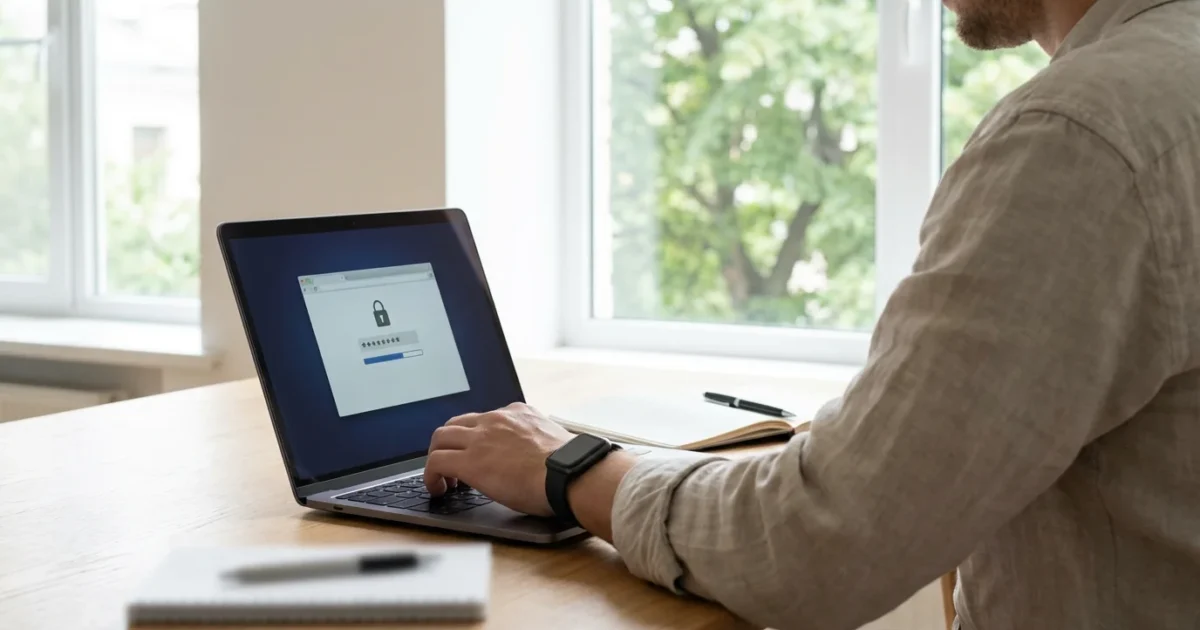
Navigating the online world brings incredible opportunities, from connecting with loved ones to managing your finances and exploring new hobbies. Your key to unlocking these experiences safely is a secure password. Feeling intimidated by talk of “cybersecurity” or “hackers” is a common experience, but creating a strong password is a practical skill anyone can master. This guide walks you through the process, step by step, empowering you to protect your personal information and enjoy your online time with confidence. You do not need to be a tech expert to safeguard your digital life.
Why Strong Passwords Matter for Your Online Safety
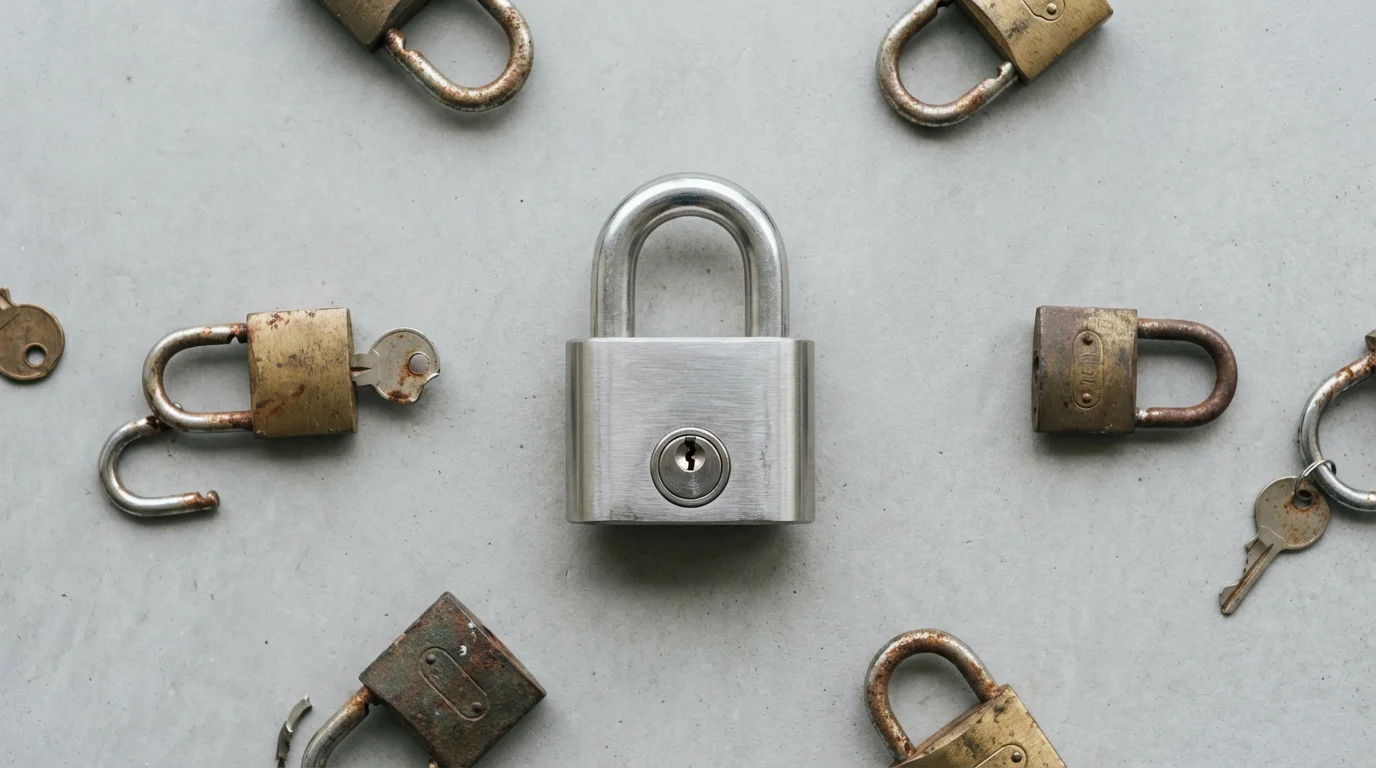
Think of your passwords as the digital locks on your most important online doors: your email, banking, social media, and shopping accounts. A weak lock invites trouble. In the same way you would not leave your front door unlocked, you should not leave your online accounts vulnerable. Weak passwords are a primary target for cybercriminals who want to access your personal data, steal your identity, or commit financial fraud.
Every year, millions of accounts face compromise due to easily guessed or reused passwords. Statistics show that common passwords like “123456” or “password” are guessed in seconds. Once a criminal gains access to one of your accounts, they can often use that access to unlock others. For example, if they get into your email, they can usually reset the passwords for your banking or shopping sites. Protecting your passwords actively safeguards your finances, your privacy, and your peace of mind. The Federal Trade Commission offers extensive resources on identity theft and online security, emphasizing the importance of strong passwords to prevent these issues.
“Taking small steps to secure your online accounts today can save you significant time and stress in the future. Your digital safety is worth the effort.”

Understanding the Basics: What Makes a Password “Strong”?
A “strong password” is not just about making it hard for a person to guess. It also needs to be difficult for a computer program to crack. Cybercriminals use sophisticated programs that can try millions of password combinations per second in what is called a “brute-force attack.” The stronger your password, the longer it takes these programs to break it, often making it not worth the attacker’s time.
Here are the key characteristics of a truly strong password:
- Length: This is arguably the most important factor. Aim for at least 12 to 16 characters, but longer is always better. A password with 16 characters takes vastly longer to crack than one with eight, even if both have similar complexity.
- Complexity: Include a mix of different character types. This means using:
- Uppercase letters (A, B, C)
- Lowercase letters (a, b, c)
- Numbers (1, 2, 3)
- Symbols (!, @, #, $, %)
You want to avoid easily predictable patterns in your complexity.
- Uniqueness: Never reuse passwords across different accounts. If one account is compromised, criminals will try that same username and password on dozens of other popular sites, hoping to gain access. Each account needs its own distinct, secure password.
- Unpredictability: Do not use personal information that someone could easily find or guess, such as your birthday, pet’s name, or address. Avoid common dictionary words, keyboard patterns (like “qwerty”), or simple sequences (like “abcdefg”). Attackers use dictionaries of common words and phrases.
Step-by-Step: Creating Your Secure Password
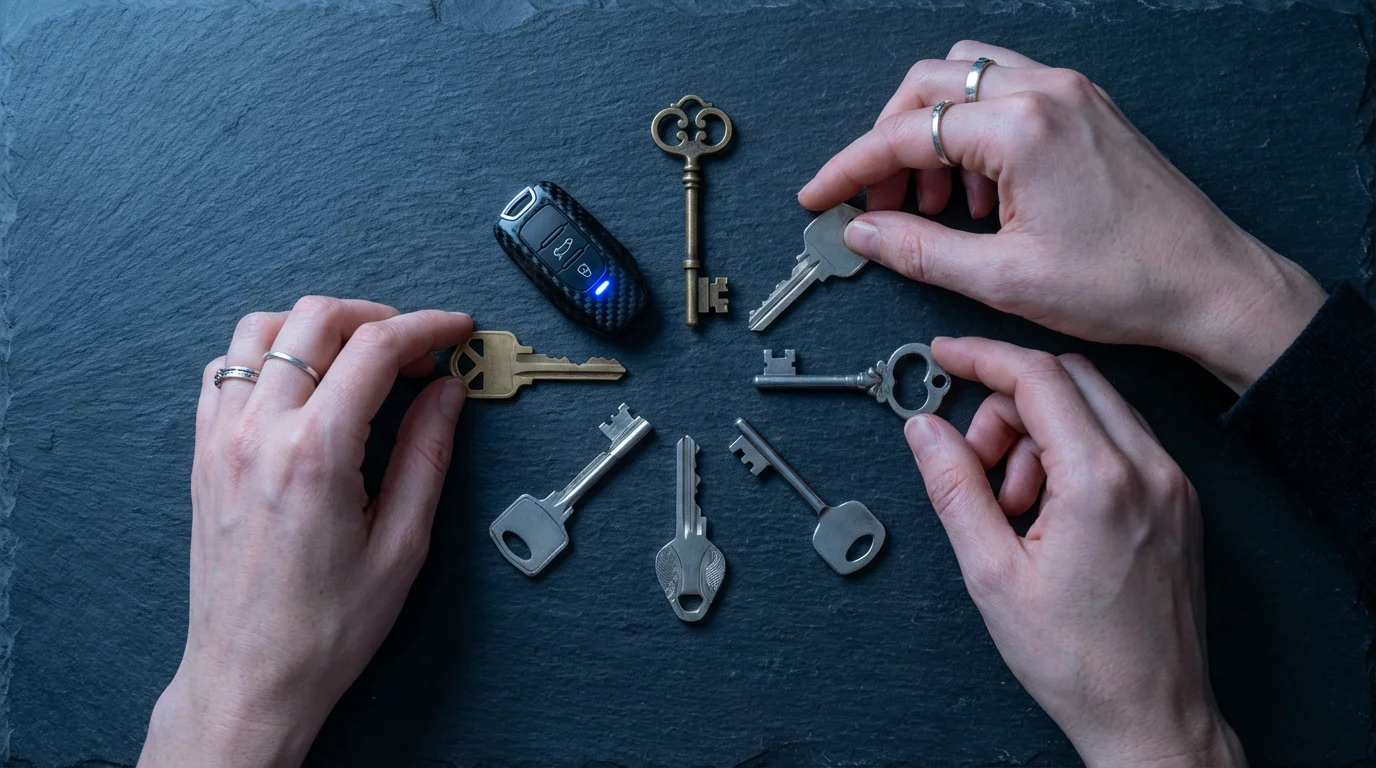
Now that you understand what makes a password strong, let us put that knowledge into action. Forget trying to memorize random letter and number combinations. We will focus on methods that create passwords that are both strong and memorable for you, but difficult for others to guess.
Method 1: The Phrase Method (Recommended)
This method turns a memorable sentence or phrase into a highly secure password. It leverages length and complexity naturally.
- Choose a Memorable Phrase: Pick a sentence that is easy for you to remember but not commonly known. It could be a line from a favorite song, a quirky saying, or a personal reminder.
- Example phrase: “My dog Sparky loves to chase the mailman down the street!”
- Take the First Letter of Each Word: Write down the first letter of each word in your chosen phrase.
- Example: M d S l t c t m d t s
- Add Numbers and Symbols: Integrate numbers and symbols into your sequence. You can replace letters with similar-looking numbers or symbols, or simply add them in at specific points you will remember.
- Example: Change ‘o’ to ‘0’, ‘s’ to ‘$’, ‘a’ to ‘@’, ‘i’ to ‘!’, or add a number like ‘7’ at the end.
- Original sequence: M d S l t c t m d t s
- After adding numbers/symbols: M d $p@rkyl0ve$2ch@se7m@ilm@nd0wn$treet! (This becomes a new, unique password)
A simpler approach for the example phrase “My dog Sparky loves to chase the mailman down the street!”:
- Take the first letters: M d S l t c t m d t s
- Capitalize some letters: My Dog Sparky Loves To Chase The Mailman Down The Street!
- Add a number: MyDogSparkyLovesToChaseTheMailmanDownTheStreet1!
- Now make it more complex: Md$p@rkyL0ve$2Ch@$e7M@!lm@nD0wnTheStreet! (This is long, complex, and unique.)
- Check for Strength: Does your new password meet the criteria?
- Is it at least 12-16 characters long?
- Does it include uppercase, lowercase, numbers, and symbols?
- Is it unique to this account?
Adjust as needed to ensure it is very strong.
Method 2: Random Word Combinations
This method involves combining several unrelated words with numbers and symbols to create a long, unguessable password.
- Pick 3-4 Unrelated Words: Choose words that have no connection to each other or to you.
- Example: “coffee,” “purple,” “umbrella,” “mountain”
- Combine and Add Separators: Link these words together. You can use hyphens, underscores, or numbers as separators.
- Example: coffee-purple-umbrella-mountain
- Introduce Complexity: Add numbers, symbols, and vary the capitalization within your words.
- Example: C0ffee-purpLe_Umbr3lla!M0unta!n
- Check for Strength: As with the phrase method, ensure your new password is long, complex, and unique.
Tips for Remembering Your Secure Passwords
Creating a strong password is one thing, remembering it is another. Do not feel discouraged if you find remembering complex passwords challenging at first. Many people do. The goal is to make it memorable for you but not for others.
- Do Not Write Them Down on Sticky Notes: This is a common mistake and a major security risk. Anyone with physical access to your device or desk can see your passwords.
- Consider a Password Manager: For many seniors, a password manager is an excellent solution. These secure applications store all your unique, complex passwords in an encrypted vault. You only need to remember one very strong “master password” to unlock it. The manager then automatically fills in your login details for websites and apps. This makes managing multiple unique passwords much easier and safer. While this guide does not cover setting up a password manager in detail, we will have a future article on this topic.
- Practice Typing: After creating a new password, type it out a few times. The muscle memory can help reinforce it in your mind.
- Use Mnemonics (Memory Aids): The phrase method inherently uses a mnemonic. For other passwords, try to associate a visual image or a short story with the password components.
- Be Patient with Yourself: Learning new habits takes time. If you struggle with a new password, return to the “Forgot Password” option, reset it, and try a slightly different variation of your phrase or words that is easier to recall.
Implementing Your New Secure Password: Where and How to Change It
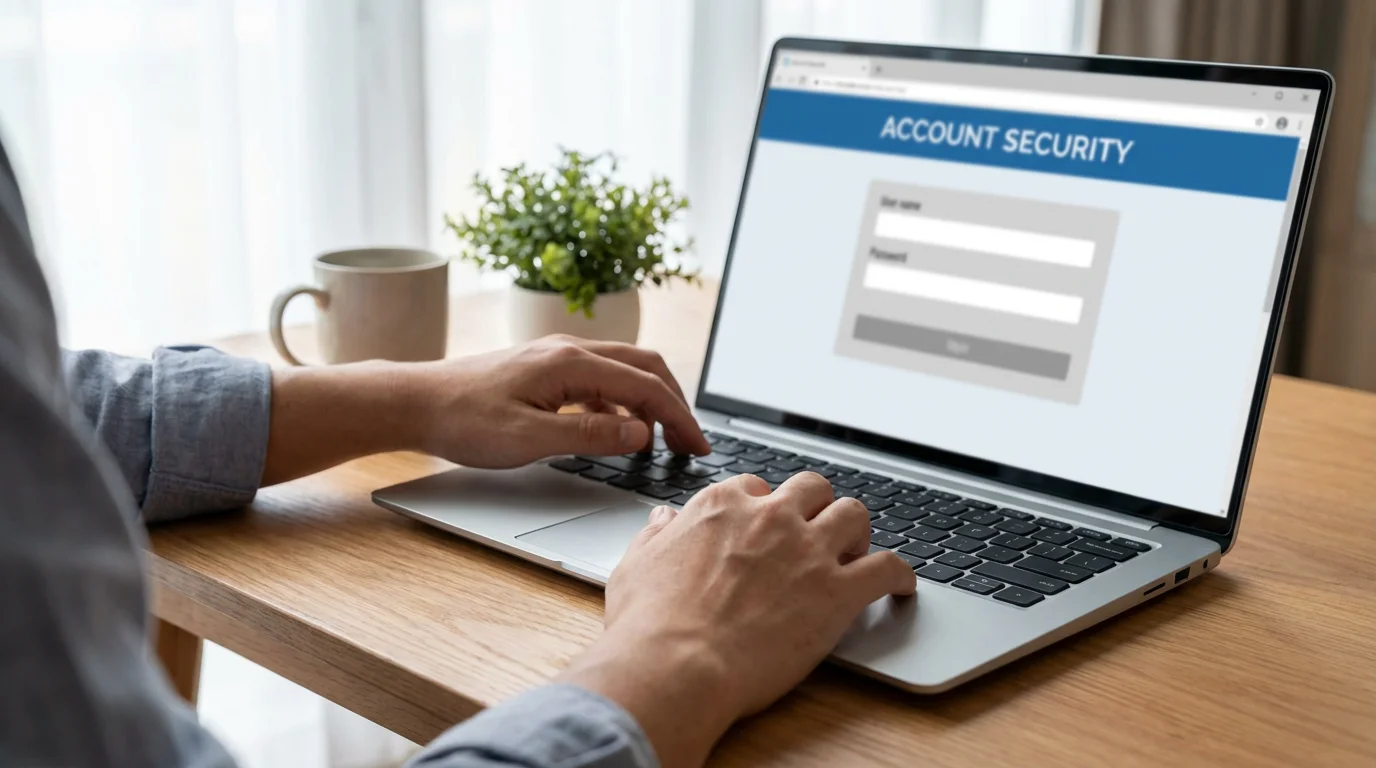
Once you have your new, strong password, it is time to apply it to your online accounts. The process for changing a password is generally similar across different websites and services. You typically navigate to your account settings or security preferences.
General Steps to Change a Password
- Log In to Your Account: Access the account where you want to update the password using your old password.
- Locate Account Settings or Profile: Look for a button or link usually labeled “Settings,” “Account,” “Profile,” or sometimes an icon that looks like a gear (⚙️) or a person. This is often in the top right corner of the screen or in a navigation menu.
- Find Security or Password Section: Within the settings, search for sections like “Security,” “Privacy,” “Login & Security,” or “Change Password.”
- Enter Old and New Passwords: You will typically be asked to enter your current password first for verification. Then, you will input your new secure password twice to confirm it. Make sure you type it carefully and correctly both times.
- Save Changes: Look for a “Save,” “Update,” or “Confirm” button to finalize the change.
Specific Examples
While the steps are similar, the exact wording and layout might vary slightly:
- Email (Gmail, Outlook): You usually find “Settings” (often a gear icon), then navigate to “See all settings” or “View all Outlook settings,” and look for “Accounts” or “Security.” From there, you should see an option to change your password.
- Social Media (Facebook): On Facebook, click the down arrow in the top right corner, then select “Settings & Privacy,” followed by “Settings.” In the left-hand menu, click “Security and Login.” You will find the “Change password” option there.
- Online Banking: For banking sites, log in, then look for “Security Settings,” “Profile,” or “Manage Account.” Always be extra cautious when changing banking passwords. Ensure you are on the official bank website and not a phishing site.

Troubleshooting Common Password Problems
Even with the best intentions, you might run into issues. Here are solutions for common password-related problems:
- “Forgot Password” Link is Your Friend: If you cannot remember your password, do not keep guessing repeatedly. Most services will temporarily lock your account after too many incorrect attempts. Instead, immediately look for the “Forgot Password” or “Reset Password” link on the login screen. This process usually involves verifying your identity through your email or phone number.
- Check for Typos or Caps Lock: Carefully re-type your password. Sometimes, a simple typo is the culprit. Also, check if your “Caps Lock” key is accidentally on (it often has a small light indicator on your keyboard). Passwords are case-sensitive, meaning “Password123” is different from “password123.”
- Account Lockout: If a service locks your account, follow their instructions. They often send an email with steps to unlock it, or you may need to wait a specific period before trying again.
- Contact Customer Support: If you have tried the “Forgot Password” option and still cannot gain access, contact the customer support of the website or service. Be prepared to answer security questions to verify your identity.
- Recognize Phishing Attempts: Be extremely wary of emails or messages that unexpectedly ask you to “verify” or “reset” your password by clicking a link. These are often phishing attempts designed to steal your credentials. Always go directly to the official website of the service by typing its address into your browser, rather than clicking links in emails, if you suspect a problem.
Password Safety Habits for Everyday Use
Creating strong, unique passwords is a fantastic start. To maintain robust online security, integrate these habits into your daily digital routine:
- Enable Two-Factor Authentication (2FA): This adds an extra layer of security. After entering your password, 2FA requires a second verification, like a code sent to your phone or a fingerprint scan. Many critical services, like email and banking, offer 2FA, and you should enable it wherever possible.
- Never Share Your Passwords: Your passwords are for your eyes only. No legitimate company, bank, or government agency will ever ask you for your full password via email or phone. If someone asks, it is a scam.
- Be Wary of Public Wi-Fi: Avoid accessing sensitive accounts, like banking or credit card sites, when connected to public Wi-Fi networks (at coffee shops, airports, etc.). These networks are often less secure. Wait until you are on your secure home network or use your phone’s cellular data.
- Review Account Activity Regularly: Periodically check the “Security” or “Activity Log” section of your important accounts (email, banking, social media). Look for any unfamiliar logins or unusual activity. If you spot something suspicious, change your password immediately.
- Update Passwords Periodically: While unique passwords are paramount, it is still a good practice to update your most critical passwords (email, banking) every 6 to 12 months. This adds another layer of defense against potential breaches.
- Be Skeptical of Password Reset Requests: If you receive an unexpected email or message asking you to reset your password, do not click the link. Instead, go directly to the website by typing its address into your browser and log in. If there is a legitimate issue, the website will inform you after you log in.
Quick Reference: Key Steps for a Strong Password
Here is a quick summary of the essential takeaways for creating and maintaining strong passwords:
- Length is Key: Aim for 12-16 characters or more.
- Mix it Up: Use a combination of uppercase letters, lowercase letters, numbers, and symbols.
- Be Unique: Never reuse passwords across different accounts.
- Try the Phrase Method: Convert a memorable sentence into a complex, easy-to-recall password.
- Consider a Password Manager: These tools securely store all your unique passwords.
- Enable 2FA: Add an extra layer of security wherever available.
- Stay Vigilant: Be cautious of suspicious emails and monitor your account activity.
Frequently Asked Questions
How often should I change my secure password?
For critical accounts, like banking or email, aim to update your password every 6 to 12 months. For less sensitive accounts, an annual review is usually sufficient. The most important thing is to use unique, strong passwords for every account so that if one is compromised, the others remain safe. Changing passwords regularly, especially if a service reports a data breach, adds another layer of protection.
What is a password manager and should I use one?
A password manager is a secure application or program that stores all your usernames and passwords in an encrypted “vault.” You only need to remember one strong “master password” to unlock this vault. Password managers can automatically fill in login details for you and even generate very strong, random passwords. They are highly recommended for improving your online security and making it easier to manage many unique passwords without having to remember each one yourself. Reputable options include LastPass, Dashlane, and 1Password.
Is it safe to save my password in my web browser?
While convenient, saving passwords directly in your web browser (like Chrome, Safari, or Edge) offers less security than a dedicated password manager. If someone gains access to your computer or device, they might be able to access your saved passwords more easily. A password manager offers stronger encryption and additional security features designed specifically for password protection. For maximum online security, use a dedicated password manager rather than relying solely on browser password saving features.
What is two-factor authentication (2FA) and why is it important?
Two-factor authentication, often called 2FA, adds an extra layer of security to your accounts. After you enter your password, the service sends a unique code to your phone or email, or asks for a fingerprint or facial scan. You must enter this code or confirm your identity before gaining access. This means even if someone guesses your password, they cannot access your account without also having access to your second verification method. Activating 2FA on your email, banking, and social media accounts significantly boosts your online safety.
What should I do if I forget my password?
If you forget your password, do not panic. Most websites and services offer a “Forgot Password” or “Reset Password” link on their login page. Clicking this link usually prompts the service to send a password reset link or a verification code to your registered email address or phone number. Follow the instructions provided in that email or text message to create a new secure password. Always be sure you are on the official website before entering any information to avoid phishing scams.
Disclaimer: This article is for informational purposes only. Device interfaces and features may vary depending on your device model and software version. Screenshots and steps are based on common versions but your experience may differ slightly. When in doubt, consult your device manufacturer’s official support resources.




Leave a Reply