
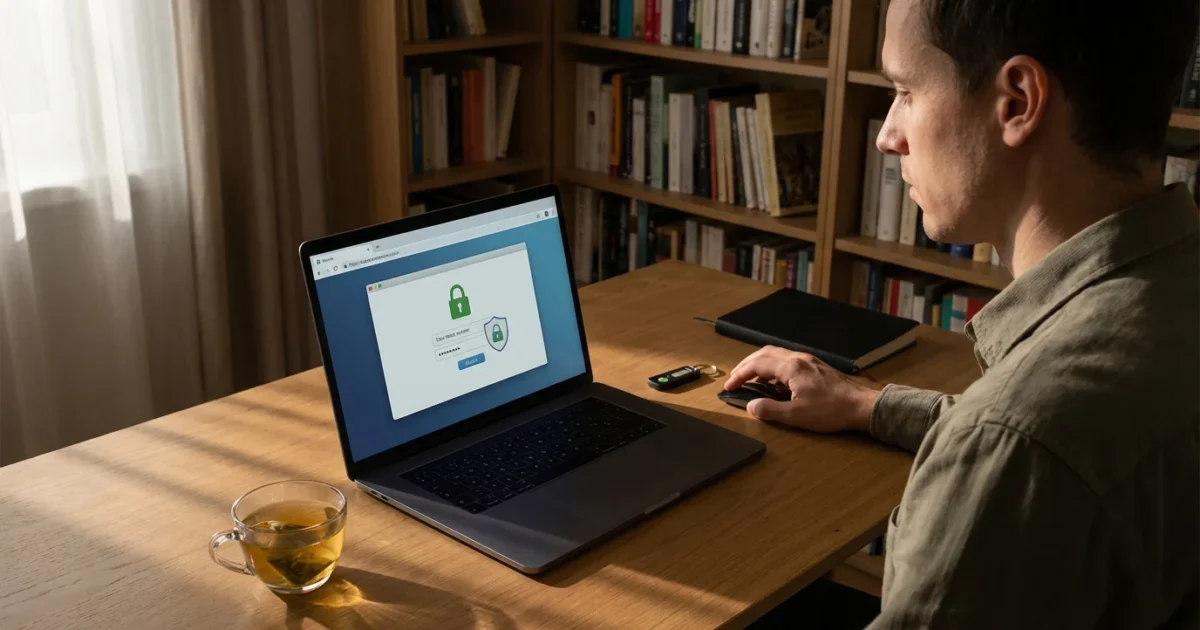
Using technology opens up a world of convenience, connection, and learning. It also brings the need to stay vigilant against threats like online scams and phishing attempts. These digital traps aim to trick you into giving away personal information, money, or access to your devices. Knowing how to recognize and avoid them is crucial for your senior safety and peace of mind. This guide provides practical steps and clear explanations to help you navigate the internet securely. We empower you to use technology confidently, making smart decisions that protect your digital life.

Understanding Online Scams and Phishing
Online scams are deceptive schemes designed to trick you. Scammers use technology to steal money, personal data, or even your identity. They often play on emotions, like fear, urgency, or the promise of easy money. Understanding their basic tactics is your first step in building strong internet security.
Phishing is a specific type of online scam. It involves tricking you into revealing sensitive information, such as usernames, passwords, and credit card details. Scammers do this by pretending to be a trustworthy entity. They often pose as banks, government agencies, utility companies, or well-known tech support.
The goal of these criminals is to gain your trust. They want you to click on malicious links, open infected attachments, or directly provide confidential information. Staying informed helps you recognize these attempts before you fall victim.

Recognizing Common Types of Online Scams
Scammers constantly evolve their methods, but many online scams share common themes. Knowing what are common internet scams helps you stay one step ahead. Here are some prevalent types you should know about.
Tech Support Scams
These scams involve fraudsters pretending to be from a well-known tech company, like Microsoft or Apple. They claim your computer has a virus or other serious problem. They might call you directly, display pop-up warnings on your screen, or send emails. Their goal is to convince you to give them remote access to your computer or pay for unnecessary “fixes.” They often demand payment in gift cards or wire transfers.
Grandparent Scams
In this emotional scam, you receive a call or message from someone pretending to be a grandchild in distress. They claim to be in an emergency, needing money for bail, medical bills, or travel. They typically ask you to send money quickly and secretly. They instruct you not to tell other family members, often citing embarrassment or danger.
Romance Scams
Scammers create fake online profiles, often on dating sites or social media. They develop a relationship with you over time, building trust and emotional connection. Once they have your affection, they invent a crisis and ask for money. They might claim to need money for medical emergencies, travel, or business investments. These scams can last for months or even years before a money request is made.
Government Impersonation Scams
Fraudsters pretend to be from government agencies, such as the IRS, Social Security Administration, or Medicare. They might claim you owe back taxes, have a warrant for your arrest, or are eligible for a special grant. They pressure you to pay immediately, often using gift cards, wire transfers, or cryptocurrency. Legitimate government agencies do not demand immediate payment over the phone or threaten arrest for unpaid taxes.
Lottery or Sweepstakes Scams
You receive an email, letter, or call stating you have won a large sum of money in a lottery or sweepstakes. However, to claim your prize, you must first pay a “fee” for taxes, processing, or customs. Once you send the money, the prize never materializes, and the scammers disappear. Remember, you never have to pay to receive a legitimate prize.
Online Shopping and Classified Scams
These scams involve fake online stores or listings on legitimate classified sites. The product is either non-existent, a counterfeit, or drastically different from what was advertised. Scammers often use very low prices to entice buyers. They might demand payment through non-traceable methods like wire transfers or peer-to-peer payment apps, rather than secure credit card transactions.

Spotting Phishing Attempts in Emails and Texts
Phishing is one of the most common ways scammers try to get your information. It primarily happens through emails and text messages, often called “smishing.” Learning to identify the red flags helps you avoid scams online.
Email Phishing Red Flags
Look for these signs in any suspicious email:
- Generic Greetings: Legitimate companies usually address you by your name. Phishing emails often use “Dear Customer” or “Valued Member.”
- Urgent or Threatening Language: Scammers want you to act without thinking. They create a sense of panic, saying your account will be closed, or you face legal action if you do not respond immediately.
- Suspicious Sender Address: Check the sender’s email address. It might look similar to a real company’s but contain slight misspellings or extra characters. For example, “service@applee.com” instead of “service@apple.com.”
- Poor Grammar and Spelling: Professional organizations employ proofreaders. Scammers, especially those operating from different countries, often make obvious grammatical errors or spelling mistakes.
- Unexpected Attachments: Never open an attachment from an unfamiliar sender. Even if you recognize the sender, be cautious if the attachment is unexpected. These attachments often contain malware, which is malicious software that can harm your computer or steal your data.
- Requests for Personal Information: Legitimate companies will never ask for your password, Social Security number, or full credit card details via email. If an email asks for this, it is almost certainly a scam.
- Links That Don’t Match: Hover your mouse cursor over any link without clicking it. On a computer, the actual web address will appear in the bottom-left corner of your screen. If the displayed address does not match the company you expect, do not click the link. On a smartphone, you can usually press and hold the link to see the full URL before deciding to tap it.
Text Message (Smishing) Red Flags
Smishing attempts work similarly to email phishing. You might receive texts claiming:
- You have a package delivery issue and need to click a link.
- Your bank account is locked, and you need to verify details via a link.
- You won a prize and must click a link to claim it.
- A government agency needs you to provide personal information.
Always be skeptical of unexpected texts that include links. It is safer to go directly to the company’s official website or call them using a verified phone number if you suspect a legitimate message.
Staying informed is your best defense against online scams.

Strengthening Your Passwords and Accounts
Strong passwords and extra security measures are fundamental to internet security. They create robust barriers against unauthorized access to your online accounts.
Creating Strong, Unique Passwords
A strong password is long, complex, and unique for each account. Think of a password as a passphrase.
Here is how to create effective passwords:
- Length: Aim for at least 12-16 characters. Longer passwords are harder to guess.
- Mix Characters: Include a combination of uppercase letters (A, B, C), lowercase letters (a, b, c), numbers (1, 2, 3), and symbols (!, @, #, $).
- Avoid Personal Information: Do not use your name, birthdate, pet’s name, or common words.
- Use a Password Manager: A password manager is an application that securely stores all your passwords. You only need to remember one master password. It also generates strong, unique passwords for you. Many web browsers, like Google Chrome and Apple Safari, offer built-in password management features.
- Update Regularly: Change your most important passwords, like email and banking, every 3-6 months. Change others if you suspect a breach.
Enabling Two-Factor Authentication (2FA)
Two-factor authentication adds an extra layer of security to your accounts. It requires two different forms of verification to log in. This means that even if a scammer steals your password, they cannot access your account without the second factor.
Common second factors include:
- A code sent to your smartphone via text message.
- A code generated by an authenticator app (like Google Authenticator or Authy).
- A fingerprint or face scan on your smartphone.
Always enable 2FA on your email, banking, social media, and other important accounts. Look for an option labeled “Security,” “Privacy,” or “Two-Factor Authentication” in your account settings.
Safe Online Habits for Shopping and Banking
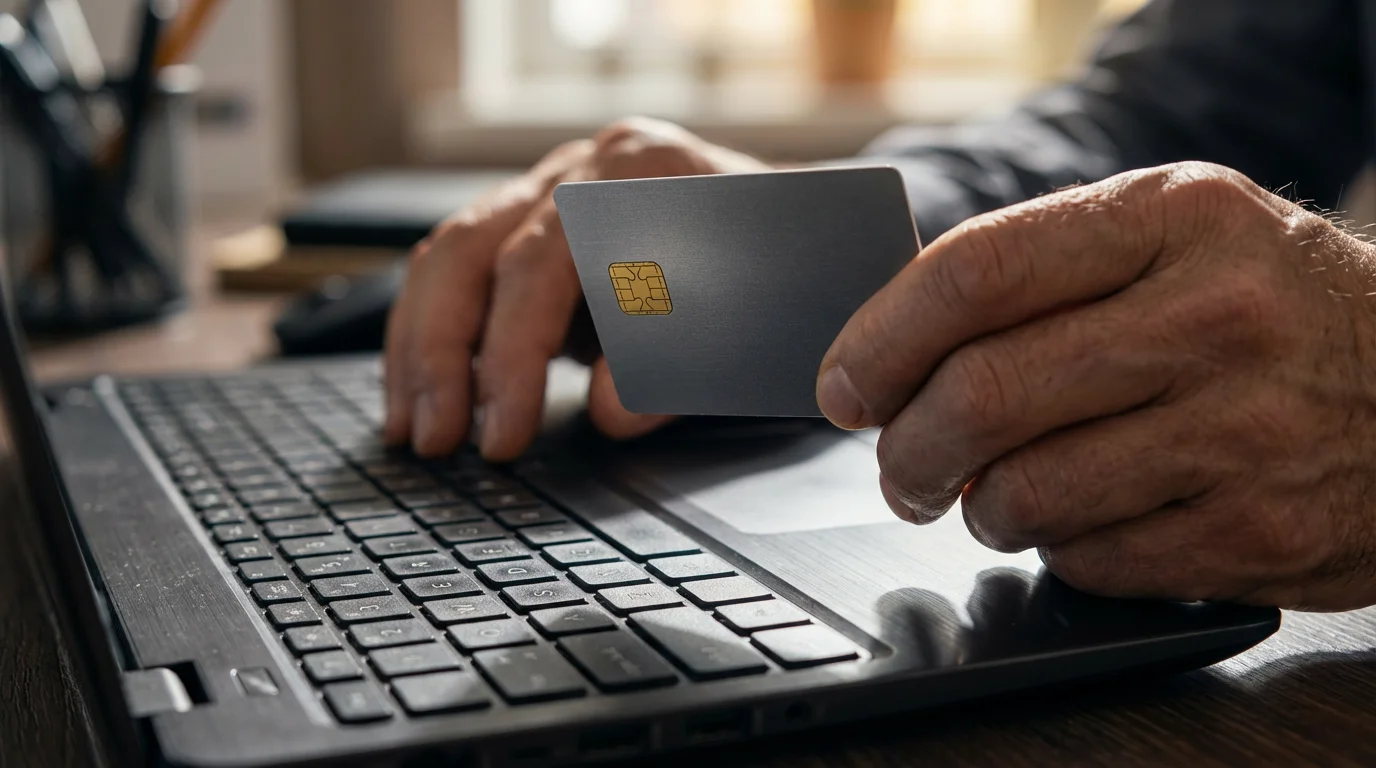
Online shopping and banking offer incredible convenience. Practicing safe habits ensures your financial information remains secure.
Secure Online Shopping
Follow these steps for safe online shopping:
- Shop on Reputable Websites: Stick to well-known retailers. If you try a new site, do a quick search for reviews or complaints.
- Look for “HTTPS”: Before entering any payment information, check that the website address begins with “https://” (the ‘s’ stands for secure). You should also see a padlock icon (🔒) in the address bar. This indicates the connection is encrypted, meaning your data is scrambled and protected during transmission.
- Use a Credit Card: Credit cards generally offer better fraud protection than debit cards. If your credit card information is compromised, the credit card company can often reverse fraudulent charges.
- Avoid Public Wi-Fi for Sensitive Transactions: Public Wi-Fi, the wireless internet connection in places like coffee shops or airports, is often unsecured. Anyone on the same network might be able to intercept your data. Save online banking or shopping for your secure home Wi-Fi.
- Be Wary of Too-Good-To-Be-True Deals: Unbelievably low prices or offers requiring unusual payment methods often signal a scam.
- Review Bank Statements Regularly: Check your bank and credit card statements frequently for any unauthorized transactions. Report anything suspicious immediately.
Secure Online Banking
Banks invest heavily in security, but your vigilance is also key.
Here are important online banking tips:
- Log In Directly: Always type your bank’s website address directly into your browser or use their official mobile app. Never click on links in emails to access your bank account.
- Use Strong, Unique Passwords: As mentioned, this is paramount for your financial accounts.
- Enable Bank Alerts: Most banks offer text or email alerts for transactions over a certain amount, failed logins, or changes to your account. Enroll in these to stay informed.
- Never Share Account Information: Your bank will never call or email you asking for your full account number, PIN, or password.
- Install and Update Antivirus Software: Reliable antivirus software helps protect your computer from malware that could try to steal your banking information.

Protecting Your Personal Information Online
Your personal information is valuable to scammers. Safeguarding it online is a critical aspect of senior safety and preventing identity theft.
Limiting Information Sharing
Be mindful of what you share on social media and other public platforms.
Consider these points:
- Social Media Privacy Settings: Review and tighten the privacy settings on your Facebook, Instagram, or other social media accounts. Limit who can see your posts, photos, and personal details.
- Avoid Oversharing: Think twice before posting your full birthdate, home address, vacation plans, or even your daily routine. This information can be used by criminals.
- Be Skeptical of Online Quizzes and Games: Many online quizzes ask seemingly innocent questions about your first car, pet’s name, or mother’s maiden name. These are often common security questions for online accounts. Providing these answers makes it easier for scammers to hack your accounts.
Data Protection Measures
Implement these measures to protect your data:
- Keep Software Updated: Regularly update your operating system (like Windows or macOS) and all your applications. Updates often include security patches that fix vulnerabilities scammers could exploit. When your phone, tablet, or computer prompts you to update, do it.
- Use a VPN on Public Wi-Fi: A Virtual Private Network (VPN) encrypts your internet connection. If you must use public Wi-Fi, a VPN provides an extra layer of protection, making it harder for others to snoop on your activity.
- Be Cautious with Pop-Ups and Downloads: Avoid clicking on unexpected pop-up windows. Only download software or files from trusted sources. If a website offers a “free download” that seems too good to be true, it probably is.

What to Do If You Suspect a Scam
Even with the best precautions, you might encounter a scam attempt. Knowing how to respond helps minimize potential harm. Taking immediate action is key.
Steps to Take
If you suspect you have encountered an online scam or phishing attempt:
- Do Not Engage: Do not reply to suspicious emails or text messages. Do not click on any links or open attachments. If it is a phone call, hang up immediately.
- Verify the Source: If you are unsure whether a message is legitimate, contact the company or agency directly. Use a verified phone number from their official website or a previous bill, not a number provided in the suspicious message. For example, if you get an email from your bank, log into your online banking account directly through your browser, or call the number on the back of your bank card.
- Change Passwords Immediately: If you accidentally clicked a suspicious link or provided any information, change the passwords for any affected accounts and any other accounts using the same password. Remember, using unique passwords for each account protects you better.
- Monitor Your Accounts: Check your bank accounts, credit card statements, and credit report for any unusual activity. Report unauthorized transactions to your bank or credit card company immediately.
- Run a Virus Scan: If you clicked a link or downloaded an attachment, run a full scan with your antivirus software to check for malware.
Reporting Scams
Reporting online scams helps authorities track down criminals and protect others.
Here is where to report different types of scams:
- Federal Trade Commission (FTC): Report general online scams, identity theft, and fraud to the FTC at reportfraud.ftc.gov. The FTC offers valuable resources on identity theft and online security.
- FBI Internet Crime Complaint Center (IC3): For internet crimes, including phishing, online fraud, and cybercrime, file a report with the IC3 at ic3.gov.
- Your Bank or Credit Card Company: Report any fraudulent charges or suspicious activity on your financial accounts directly to your bank or credit card provider.
- Email Provider: Most email services have a “Report Phishing” or “Report Spam” button. Use this to help them identify and block future malicious emails.
- Social Media Platforms: If you encounter a scammer on Facebook or another platform, report their profile to the platform administrators.
As noted by the FTC Online Security guidelines, reporting fraud is a vital step in combatting cybercrime and helps protect other consumers from similar attacks.

Troubleshooting Common Online Security Concerns
Even with careful attention to internet security, you might encounter issues. Knowing how to address them can alleviate stress and quickly restore your digital safety.
Slow Computer or Unexpected Pop-Ups
If your computer suddenly slows down, displays many unexpected pop-up ads, or behaves strangely, you might have malware. Malware is malicious software designed to disrupt computer operations, gather sensitive information, or gain access to private computer systems.
Here are steps to address this:
- Disconnect from the Internet: Unplug your Ethernet cable or turn off your Wi-Fi to prevent the malware from communicating or spreading.
- Run a Full Antivirus Scan: Open your antivirus software, ensure it is updated, and run a complete scan of your computer. Follow its instructions to remove any detected threats.
- Delete Temporary Files: Go to your computer’s settings or control panel and clear temporary internet files and browser history. This removes potentially harmful cached data.
- Restart Your Computer: After the scan and cleanup, restart your computer.
- Change Important Passwords: Once you are sure your computer is clean, change your passwords for banking, email, and other critical accounts. Do this from a clean, trusted device if possible.
Locked Out of an Account
If you cannot log into an account, and suspect it is due to a scam or hacking attempt, remain calm.
Follow these steps:
- Use “Forgot Password” Feature: Most services have a “Forgot Password” link. This usually sends a reset link to your email or a code to your phone.
- Check Email for Security Alerts: Look for emails from the service provider indicating suspicious login attempts or password changes.
- Contact Customer Support: If you cannot regain access through automated methods, contact the company’s official customer support. Use phone numbers or chat options found on their official website, not through suspicious emails.
- Review Security Questions: Ensure your security questions are up-to-date and that you remember the answers.
Suspicious Activity on Bank Statements
Finding unfamiliar charges on your bank or credit card statement is alarming.
Here is what to do:
- Contact Your Bank/Credit Card Company Immediately: Call the fraud department using the number on the back of your card or your official bank statement. Do not use numbers from suspicious emails or calls.
- Dispute the Charges: They will guide you through disputing fraudulent charges. Most financial institutions offer strong fraud protection.
- Close Compromised Card: Your bank will likely cancel your current card and issue a new one to prevent further unauthorized use.
- Monitor Credit Report: Consider placing a fraud alert on your credit report. This makes it harder for identity thieves to open new accounts in your name. You can do this through one of the three major credit bureaus: Equifax, Experian, or TransUnion.
Frequently Asked Questions
Navigating online security often brings questions. Here are answers to some common concerns about online scams and internet security.
Does antivirus software protect me from all online scams?
Antivirus software is a vital tool for internet security. It helps protect your computer from malware, viruses, and some phishing attempts by scanning files and blocking malicious websites. However, it cannot protect you from all online scams. Many scams rely on social engineering, which means tricking you into voluntarily giving up information. Your best defense is a combination of good antivirus software and vigilance in recognizing scam tactics.
Is it safe to store my passwords in my web browser?
Storing passwords in your web browser, such as Chrome or Safari, offers convenience. This method is generally safe if you use a strong master password for your computer and enable two-factor authentication for your browser account. However, dedicated password managers often provide stronger encryption and more robust security features. For critical accounts, a dedicated password manager offers enhanced protection.
What if a scammer already has my personal information?
If you believe a scammer has obtained your personal information, act quickly. First, change all compromised passwords immediately. Then, monitor your financial accounts and credit report for any suspicious activity. Report the incident to the FTC at reportfraud.ftc.gov and consider placing a fraud alert or credit freeze on your credit reports. These steps help prevent further misuse of your information.
Should I trust emails from well-known companies like Amazon or PayPal?
Always exercise caution, even with emails that appear to come from well-known companies. Scammers frequently “spoof” these brands to appear legitimate. Always verify the sender’s email address and hover over any links to check the destination URL before clicking. If an email seems urgent or asks for personal information, it is safer to go directly to the company’s official website or app to log in and check your account, rather than clicking links in the email.
Can I get my money back if I fall victim to an online scam?
Recovering money lost to an online scam can be challenging, but it is sometimes possible. Your chances depend on how you paid and how quickly you act. If you paid with a credit card, contact your credit card company immediately to dispute the charge. If you used a bank transfer or gift cards, recovery is more difficult. Report the scam to your bank and relevant authorities like the FTC or IC3, as they might offer guidance or assistance.

Quick Reference: Key Anti-Scam Strategies
Protecting yourself from online scams and phishing involves consistent application of a few core principles. Keep this quick reference handy to reinforce your internet security habits.
- Pause Before You Act: Do not let urgency or fear pressure you into immediate action. Take a moment to think and verify.
- Verify the Source: Contact companies or agencies using official, independently found contact information, not details provided in suspicious messages.
- Use Strong, Unique Passwords: Create complex passwords for each account and consider using a password manager.
- Enable Two-Factor Authentication (2FA): Add an extra layer of security to all important accounts.
- Check for HTTPS and Padlock: Ensure websites are secure (https:// and 🔒) before entering personal or payment information.
- Never Click Suspicious Links or Open Attachments: Be wary of unexpected messages, especially those with links or files.
- Limit Personal Information Shared Online: Be cautious about what you post on social media and avoid revealing answers to security questions.
- Keep Software Updated: Regularly update your operating system and applications for the latest security patches.
- Monitor Accounts and Statements: Regularly check your bank, credit card, and online accounts for unusual activity.
- Report Scams: If you encounter or fall victim to a scam, report it to the FTC and other relevant authorities. This helps protect others.
Building confidence with technology means knowing how to protect yourself. By understanding online scams and phishing tactics and adopting these proactive measures, you significantly enhance your senior safety online. You can enjoy the benefits of the digital world with greater peace of mind. For more in-depth cybersecurity best practices, you can explore resources from the Cybersecurity and Infrastructure Security Agency (CISA).
Disclaimer: This article is for informational purposes only. Device interfaces and features may vary depending on your device model and software version. Screenshots and steps are based on common versions but your experience may differ slightly. When in doubt, consult your device manufacturer’s official support resources.







Leave a Reply