

Accessing healthcare has evolved, bringing new possibilities right to your home. Telehealth, also known as telemedicine or virtual care, allows you to connect with your doctors and other healthcare providers using technology. This modern approach to senior healthcare offers convenience and ensures you receive the care you need without leaving your house.
Along with virtual care, many people find that smart home devices can further enhance their independence and safety at home.
If you have questions about how remote healthcare works or how to get started, you are in the right place. We will walk you through the essentials of telehealth, clarify what you need, and provide clear steps for a successful virtual visit. You will gain confidence in using this valuable technology to manage your health.
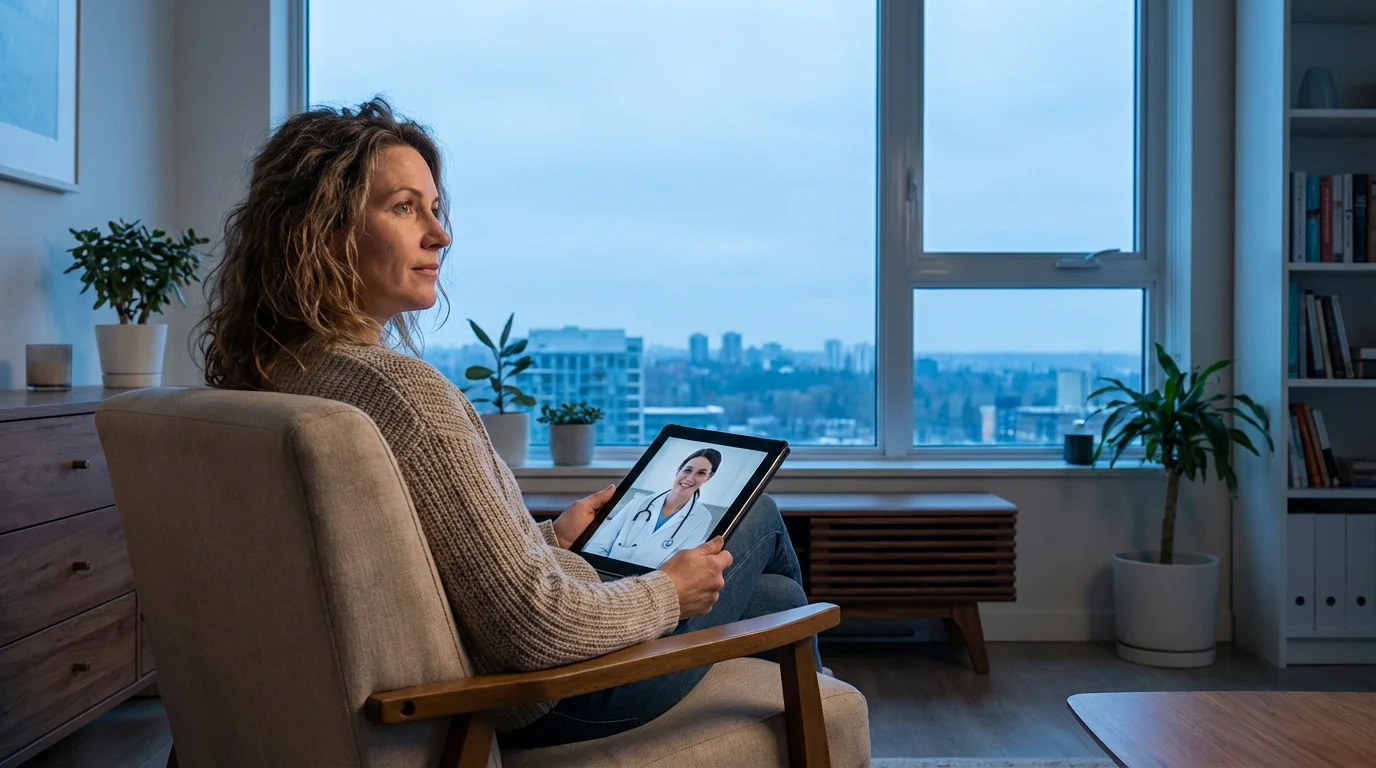
What Exactly is Telehealth?
Telehealth refers to using digital information and communication technologies, like computers and mobile devices, to access healthcare services remotely. It involves more than just a video call with your doctor; telehealth encompasses a wide range of services. You might have a live video appointment, receive a diagnosis, or even get a prescription renewal, all from the comfort of your home.
This technology is especially effective for managing diabetes as a senior, where regular data tracking and consultations are necessary.
The goal of telehealth is to make healthcare more accessible and convenient. For instance, instead of traveling to a doctor’s office, you can open an app on your smartphone or click a link on your computer to begin your consultation. This method is becoming increasingly popular, especially for routine check-ups, medication management, and follow-up appointments. Understanding how does telehealth work for seniors makes these services easier to embrace.

Key Benefits of Telehealth for Seniors
Telehealth offers many significant advantages, particularly for seniors. These benefits improve access to care, enhance comfort, and simplify your healthcare routine. Exploring what are the benefits telehealth provides helps you see its value.
Much like managing your finances online, telehealth empowers you to handle vital responsibilities from the safety and convenience of your computer.
Virtual visits are also a key component in managing chronic pain, allowing for more frequent monitoring without the stress of travel.
This is particularly beneficial for those managing arthritis pain, as it removes the physical burden of traveling to frequent specialist appointments.
- Convenience and Comfort: You receive care from your own home, eliminating the need to travel to a clinic. This is especially helpful if you have mobility challenges or if weather conditions make travel difficult.
- Reduced Exposure to Illness: Limiting trips to clinics or hospitals decreases your exposure to germs and viruses, which is crucial for maintaining your health, especially during flu season.
- Easier Access to Specialists: Telehealth expands your access to specialists who might not be available in your immediate area. You can consult with experts from anywhere, improving your options for specialized care.
- Time and Cost Savings: You save time that you would otherwise spend traveling and waiting in a doctor’s office. You also save money on transportation costs, such as gas or public transit fares.
- Family Participation: Family members or caregivers can more easily participate in your appointments, even if they live far away. They can join the virtual call to offer support or help ask questions.
- Continuity of Care: Telehealth helps you stay connected with your regular doctors, ensuring consistent care. It makes follow-up appointments simpler to schedule and attend.
Technology is just a tool. It’s how you use it that matters. You can learn to use new tools to improve your life and your health.

What You Need for a Telehealth Appointment
Participating in a telehealth appointment requires a few basic items. Most likely, you already own what you need. Preparing these items beforehand ensures a smooth and stress-free experience. This section explains what you need to successfully engage in remote healthcare.
Here are the essential items for your virtual visit:
- A Device: You need a smartphone (like an iPhone or Android), a tablet (like an iPad or Android tablet), or a computer (laptop or desktop) with a webcam and microphone. Your device should be fully charged or plugged into a power source.
- Reliable Internet Connection: You need a stable Wi-Fi connection (the wireless internet connection in your home) or a strong cellular data signal. A poor connection can cause your video or audio to freeze.
- A Quiet, Private Space: Find a comfortable, well-lit room where you can speak freely without interruptions. Ensure good lighting on your face so your doctor can see you clearly.
- Medical Information: Have a list of your current medications, any symptoms you are experiencing, and questions you want to ask your doctor. This helps you cover all important topics during your limited appointment time.
- Eyeglasses or Hearing Aids: If you use them, make sure they are within reach and functioning properly to help you hear and see clearly during the call.

Preparing for Your Telehealth Visit: A Step-by-Step Guide
Preparation is key to a successful telehealth appointment. Following these steps helps you feel confident and ready, ensuring your remote healthcare experience is productive. This outlines exactly how does telehealth work for seniors in practice.
You may also want to prepare notes on your healthy eating habits to provide your physician with a complete picture of your daily lifestyle.
When setting up your device, ensure your pathways are clear to prioritize fall prevention at home while you move around.
- Confirm Your Appointment Details:
- Your doctor’s office will send you instructions, often by email or text message.
- These instructions usually include a link to join the virtual meeting or details on how to use their specific telehealth app.
- Note the date and time of your appointment. Your doctor’s office might use your local time zone.
- Charge Your Device and Test Your Internet:
- Plug in your smartphone, tablet, or laptop at least 30 minutes before your appointment.
- Confirm your device connects to your home Wi-Fi. You often see a small fan-like icon ( resembling multiple curved lines radiating upwards) at the top of your screen when connected.
- If you use cellular data, ensure you have a strong signal.
- Choose Your Location:
- Select a quiet, private area in your home where you will not be disturbed.
- Position yourself where light shines on your face, not from behind you. Avoid sitting with a bright window directly behind your head.
- Ensure your background is tidy and free from distractions.
- Prepare Your Information:
- Gather your list of medications, symptoms, and questions.
- Have a pen and paper ready to take notes.
- If you have a blood pressure monitor, thermometer, or blood glucose meter, measure and record those readings just before your appointment.
- Test Your Audio and Video:
- If your doctor’s office uses a specific app, try opening it a day or two before your appointment.
- Look for settings within the app to test your microphone and camera. This helps identify any issues beforehand.
- Ensure your device’s volume is turned up so you can hear clearly.
- Join the Call Early:
- Click the provided link or open the app 5-10 minutes before your scheduled time.
- This gives you a buffer to resolve any last-minute technical glitches.
- You might enter a “waiting room” until your doctor joins the call.

During Your Telehealth Appointment: Tips for Success
Once your telehealth appointment begins, these tips help you make the most of your time with your healthcare provider. A successful virtual visit ensures you communicate effectively and receive the best possible care through remote healthcare.
If you encounter technical difficulties, practicing the benefits of mindfulness can help you remain calm while you troubleshoot the issue.
- Speak Clearly and Directly: Look at your device’s camera when you speak. This simulates eye contact and helps your doctor read your expressions. Speak at a normal pace and volume.
- Listen Carefully: Pay close attention to what your doctor says. Ask for clarification if you do not understand something.
- Take Notes: Write down important information, such as new medication instructions, follow-up recommendations, or advice. This ensures you remember key details after the call ends.
- Do Not Be Afraid to Ask Questions: Your doctor wants to address your concerns. Have your list of questions ready and ask them as they come to mind.
- Minimize Distractions: Turn off televisions, silence other devices, and inform family members you are in an appointment to avoid interruptions.
- Be Patient: Technology can sometimes be unpredictable. If there is a brief interruption in connection, remain calm. Your doctor will likely try to reconnect.
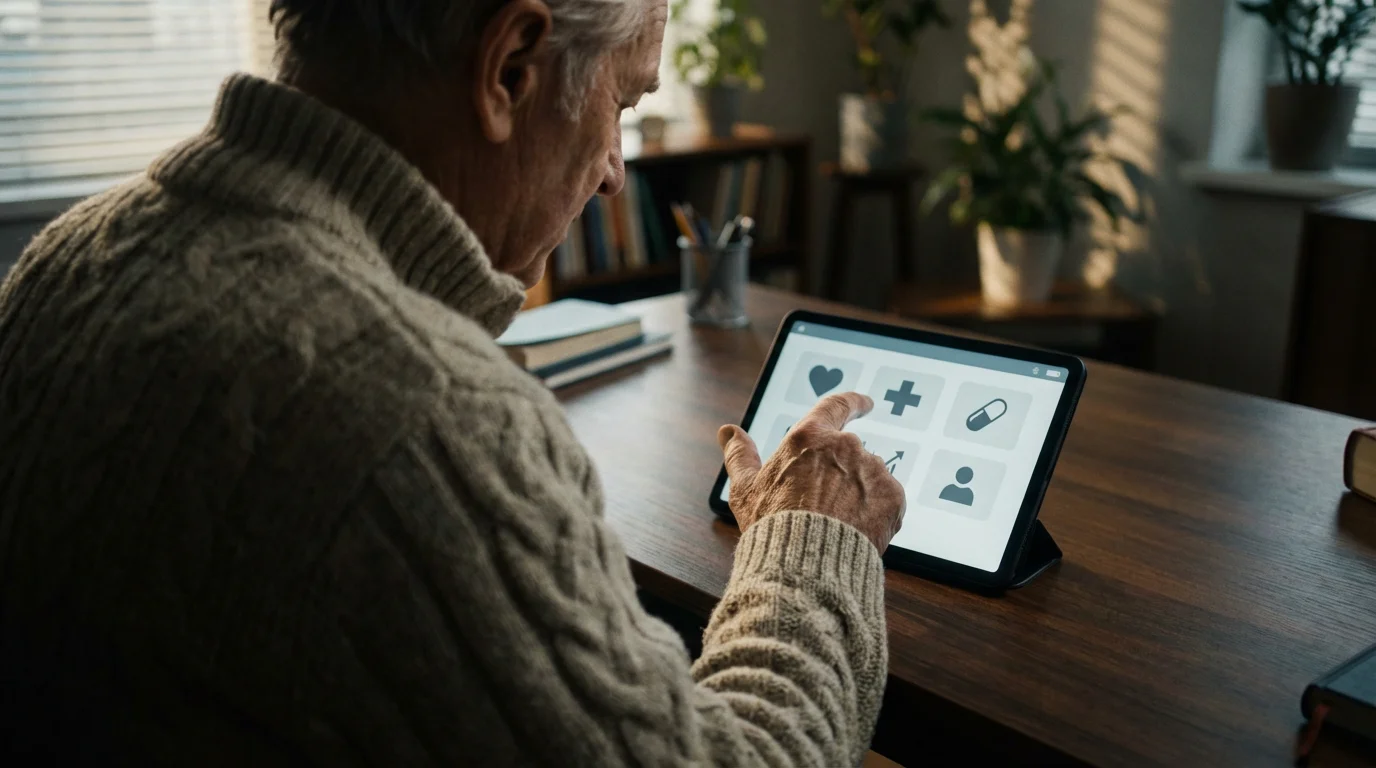
Common Telehealth Platforms and How They Work
Several platforms facilitate telehealth appointments. Your doctor’s office usually specifies which one they use. You do not need to be an expert in all of them; understanding the basics of a few common ones will suffice. Knowing how does telehealth work for seniors across these platforms boosts your readiness.
- Zoom: A popular video conferencing tool. You usually receive a link via email or text. Clicking the link downloads a small program or opens the Zoom app, connecting you directly to the meeting. It often prompts you to test your audio and video before joining.
- FaceTime: This is a video calling app exclusive to Apple devices (iPhones, iPads, Mac computers). If your doctor’s office uses FaceTime, they will call your Apple device directly. You simply answer the incoming video call.
- Provider-Specific Portals: Many healthcare systems use their own secure patient portals with built-in telehealth capabilities. You typically log into your patient account on their website or app. You will find an option to “Join Virtual Visit” or similar wording when your appointment is due. These portals often offer stronger privacy features.
- Google Meet/Microsoft Teams: These are other video conferencing tools similar to Zoom. You receive a link to join the call, which usually works through your web browser or a dedicated app.
Most platforms are designed to be user-friendly. When in doubt, call your doctor’s office beforehand for specific instructions. They can often guide you through the process, even over the phone. For general tech help, resources like GCFGlobal Digital Literacy provide excellent free tutorials on using various applications and devices.

Troubleshooting Common Telehealth Problems
Even with preparation, you might encounter a technical hiccup during your telehealth visit. Do not worry; many common problems have simple solutions. Staying calm and trying these steps helps resolve issues quickly.
- “I cannot hear my doctor, or they cannot hear me.”
- Check your volume: Ensure your device’s volume is turned up. On most devices, you will see physical volume buttons on the side.
- Check microphone settings: In the video call app, look for a microphone icon. Ensure it is not muted (it often has a line through it when muted). Tap it to unmute.
- Check headphone connection: If you use headphones, make sure they are fully plugged in or properly connected via Bluetooth. Sometimes audio routes incorrectly.
- Restart the app: Close the telehealth app completely and reopen it. Sometimes this refreshes the audio connection.
- “My doctor cannot see me, or my video is frozen.”
- Check camera settings: In the video call app, look for a camera icon. Ensure it is turned on (it often has a line through it when off).
- Check device permissions: Your device asks for permission for apps to access your camera and microphone. If you denied these permissions accidentally, go into your device’s settings (look for the icon that looks like a gear ⚙️) and grant permission for the telehealth app.
- Check your internet connection: A weak Wi-Fi signal often causes video problems. Try moving closer to your Wi-Fi router.
- Restart the app or device: If the video freezes completely, closing and reopening the app or even restarting your entire device can often fix the issue.
- “My internet connection keeps dropping.”
- Move closer to your router: The closer you are to your Wi-Fi router, the stronger your signal will be.
- Minimize other internet use: If other family members are streaming videos or playing online games, this can slow down your connection. Ask them to pause for the duration of your appointment.
- Restart your router: Unplug your internet router from its power source for 30 seconds, then plug it back in. Wait a few minutes for it to fully restart. This often resolves minor connection issues.
- “I accidentally got disconnected.”
- Do not panic: This happens. Simply click the original link or open the app again to rejoin the meeting.
- Wait for a call: If you cannot reconnect, your doctor’s office might call you directly on your phone to continue the appointment over the phone.
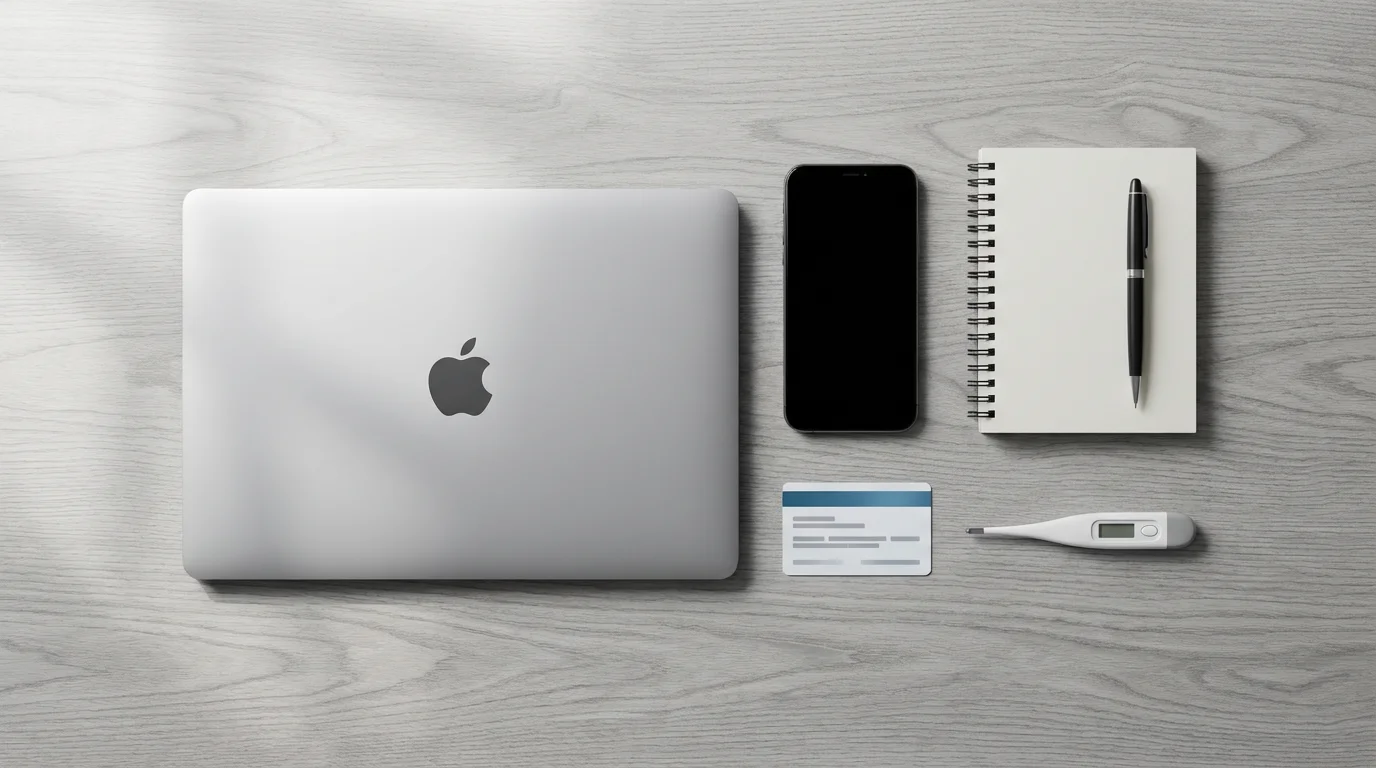
Quick Reference: Your Telehealth Checklist
To help you remember the key steps for your next virtual visit, use this quick reference checklist. This ensures you cover all the bases for a smooth remote healthcare experience.
- Confirm Appointment: Double-check the date, time, and joining instructions.
- Charge Device: Ensure your smartphone, tablet, or computer is fully charged or plugged in.
- Find Quiet Space: Choose a private, well-lit area free from distractions.
- Gather Information: Have medications, symptoms, and questions ready.
- Test Setup: Check your internet connection, audio, and video before the call.
- Join Early: Log in 5-10 minutes before your scheduled time.
- Communicate Clearly: Speak directly to the camera and listen carefully.
- Take Notes: Write down important advice and follow-up steps.
Frequently Asked Questions
Is telehealth covered by my insurance?
Most insurance plans, including Medicare, now cover telehealth services. Coverage varies by plan and the type of service. Always check with your insurance provider or your doctor’s office beforehand to understand your specific benefits and any potential costs.
What if I am not comfortable with technology?
Many seniors feel hesitant about new technology, and that is completely normal. Telehealth platforms are often designed to be user-friendly. You can ask a trusted family member or friend to help you set up and practice before your first appointment. Your doctor’s office staff can also provide guidance. Resources like OATS Senior Planet offer free online courses and workshops specifically for seniors learning technology.
Can I get a prescription refill through telehealth?
Yes, many routine prescription refills are handled through telehealth appointments. Your doctor evaluates your condition and determines if a refill is appropriate without an in-person visit. However, certain medications or new prescriptions may still require an in-person consultation.
Is my privacy protected during a telehealth call?
Healthcare providers use secure, encrypted platforms for telehealth appointments to protect your privacy. These platforms comply with strict privacy regulations, like HIPAA in the United States, ensuring your medical information remains confidential. Always use the link or app provided by your doctor’s office to ensure you are on a secure platform.
What kind of appointments can I do via telehealth?
Telehealth is suitable for a wide range of appointments. These include follow-up visits, medication management, chronic disease management, mental health counseling, minor illness consultations (like colds or rashes), and reviewing test results. For emergencies or conditions requiring a physical examination or procedure, an in-person visit is necessary.
What if I need help setting up my device for telehealth?
If you need help setting up your device, consider asking a tech-savvy family member or friend for assistance. You can also contact your doctor’s office; many have dedicated staff who can walk you through the process over the phone. Additionally, community centers or libraries sometimes offer free tech support workshops for seniors.
Disclaimer: This article is for informational purposes only. Device interfaces and features may vary depending on your device model and software version. Screenshots and steps are based on common versions but your experience may differ slightly. When in doubt, consult your device manufacturer’s official support resources.




Leave a Reply