
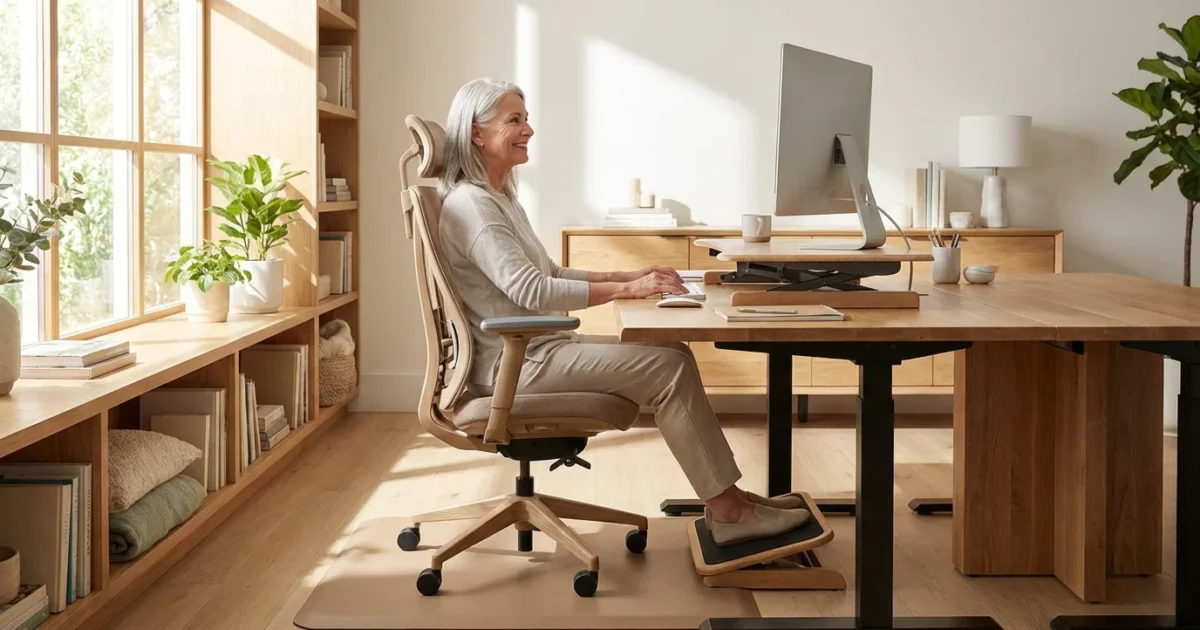
A well-designed home office provides more than just a place to pay bills or manage correspondence. It offers a dedicated space for hobbies, remote work, or connecting with family online. For seniors, ensuring this space is comfortable, functional, and ergonomic is key to maintaining independence and preventing common health issues like back pain or eye strain. You can create an efficient and safe home office environment that supports your well-being for years to come.
A dedicated office also provides a focused environment for exploring free online courses and continuing your education.
This guide offers practical, actionable insights for setting up or refining your home office. We cover everything from selecting the right chair to optimizing your technology. Prioritizing ergonomics helps you work or pursue your interests without discomfort, making your daily routines easier and more enjoyable.
Why an Ergonomic Home Office Matters for Seniors
An ergonomic home office setup significantly impacts your health and productivity. As you age, your body experiences natural changes that make proper posture and support even more critical. Ignoring these needs leads to chronic pain, fatigue, and reduced enjoyment of your activities.
Investing in ergonomics means you proactively prevent problems. It helps you avoid musculoskeletal issues, reduce eye strain, and maintain good circulation. This proactive approach supports your overall health and allows you to use your home office comfortably for longer periods.
Common Challenges Seniors Face in Non-Ergonomic Setups:
- Back and Neck Pain: Improper chair and desk height force unnatural postures, straining your spine and neck muscles.
- Joint Stiffness: Static, uncomfortable positions restrict blood flow and contribute to stiffness in your hips, knees, and shoulders.
- Eye Strain and Headaches: Poor lighting or an incorrectly positioned monitor causes you to squint, leading to fatigue and discomfort.
- Fatigue: Continuous discomfort and effort to maintain position deplete your energy, making you tire quickly.
- Carpal Tunnel Syndrome: Incorrect keyboard and mouse positioning puts undue pressure on your wrists.
- Fall Risks: Cluttered workspaces or poorly placed cords create tripping hazards, increasing your risk of falls.
Addressing these issues upfront empowers you to maintain your independence and enjoy your home office activities without unnecessary pain or risk.
Choosing the Right Ergonomic Chair
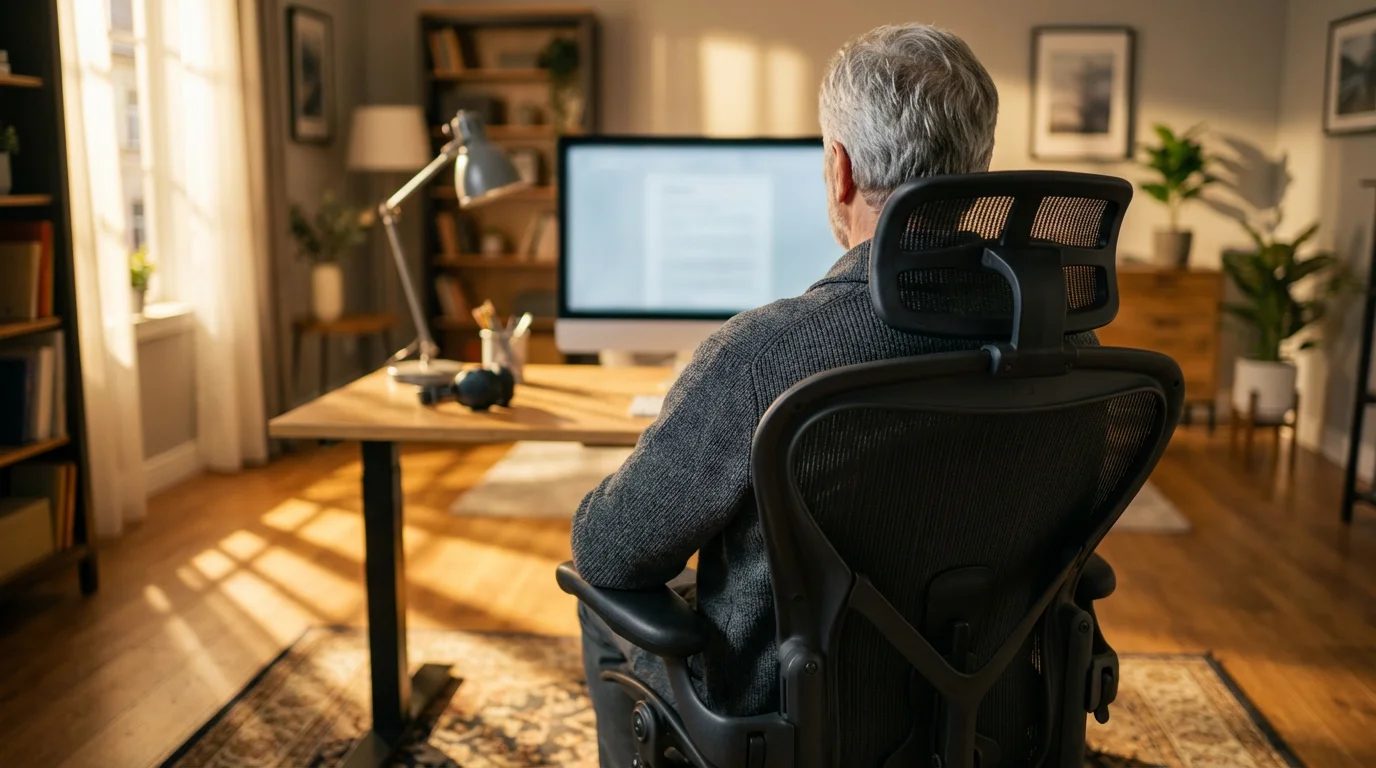
Your ergonomic chair forms the foundation of a comfortable home office. A good chair supports your spine, reduces pressure points, and allows for proper posture. Do not view this as an extravagance, but as an essential health investment.
Making these types of home improvements can sometimes lead to homeowners insurance discounts for seniors who prioritize safety and maintenance.
Key Features to Look For:
- Adjustable Height: Your feet should rest flat on the floor or a footrest, with your knees forming a 90-degree angle.
- Lumbar Support: The chair back should support the natural curve of your lower back. Many chairs offer adjustable lumbar support.
- Armrests: Adjustable armrests allow you to keep your forearms parallel to the floor while typing, relieving shoulder and neck tension.
- Seat Depth and Width: Ensure the seat is deep enough to support most of your thighs, leaving a few inches between the seat edge and the back of your knees. It should also accommodate your hips comfortably.
- Swivel and Wheels: These features facilitate movement and reduce strain when reaching for items around your workspace. Consider stability with wheels; some prefer glides for less movement.
- Material: Choose a breathable fabric for comfort, especially if you spend extended periods in your chair.
An ounce of prevention is worth a pound of cure. Investing in a good ergonomic chair prevents discomfort before it becomes chronic pain.
You can find quality ergonomic chairs ranging from $200 for basic models to over $1,000 for advanced options. Consumer Reports Home offers excellent unbiased reviews and buying guides for various office furniture, helping you make an informed choice.
Optimizing Your Desk Setup and Workspace
After choosing your chair, focus on your desk setup. The goal is to arrange your equipment so you maintain a neutral body posture. This means your joints are not bent awkwardly and your muscles are relaxed.
Assembling furniture or adjusting desk heights are simple home maintenance tasks that many seniors can handle with the right tools.
Desk Height and Monitor Placement:
- Desk Height: Adjust your desk so your arms form a 90-degree angle at the elbows when your hands rest on the keyboard. If your desk is not height-adjustable, use blocks or risers to elevate it, or find a lower chair with a footrest if the desk is too high.
- Monitor Position: Place your monitor directly in front of you, about an arm’s length away. The top of the screen should be at or slightly below eye level. This prevents neck strain from looking up or down too much. Use a monitor stand or a stack of sturdy books to achieve the correct height.
- Dual Monitors: If you use two monitors, center them for equal viewing or place your primary monitor directly in front and the secondary monitor beside it.
Keyboard and Mouse Ergonomics:
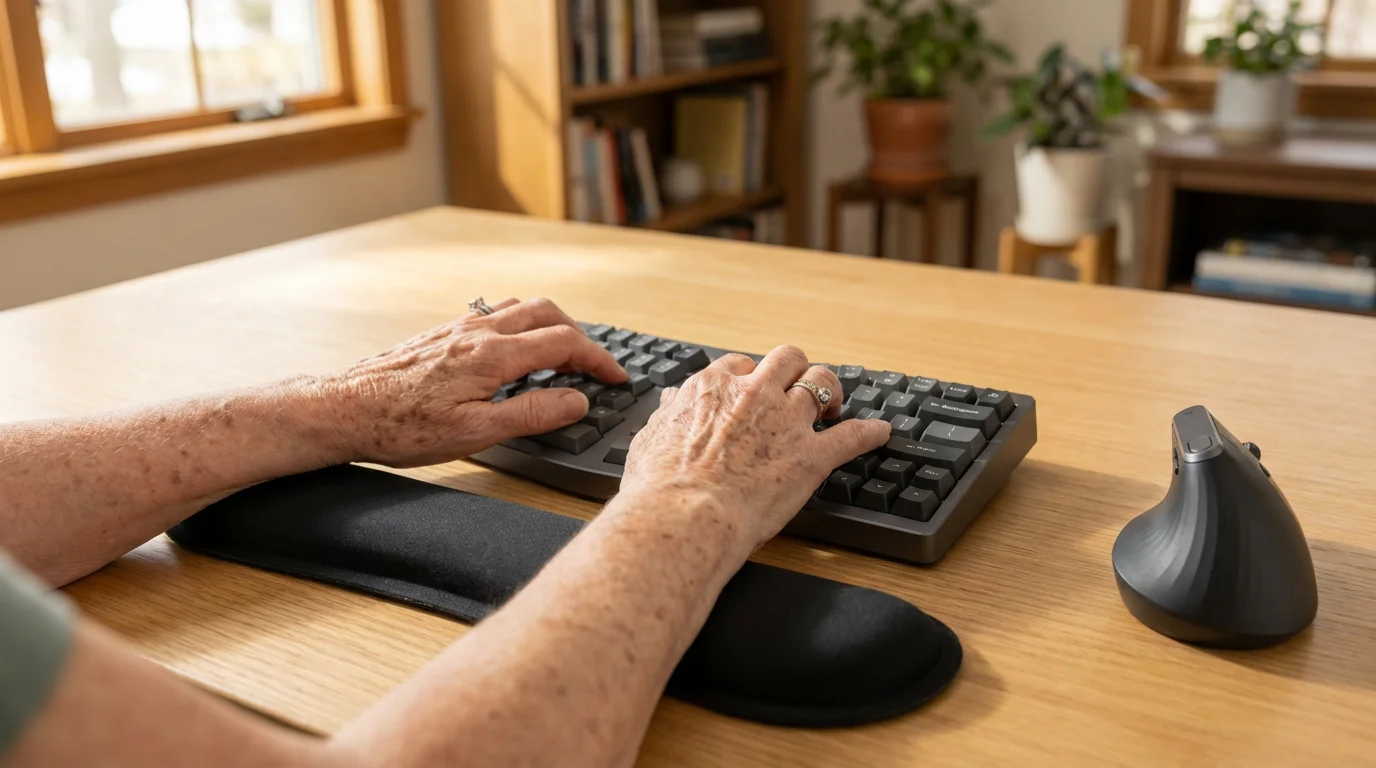
Proper placement of your keyboard and mouse prevents wrist and arm discomfort. You want to maintain a straight wrist alignment as much as possible.
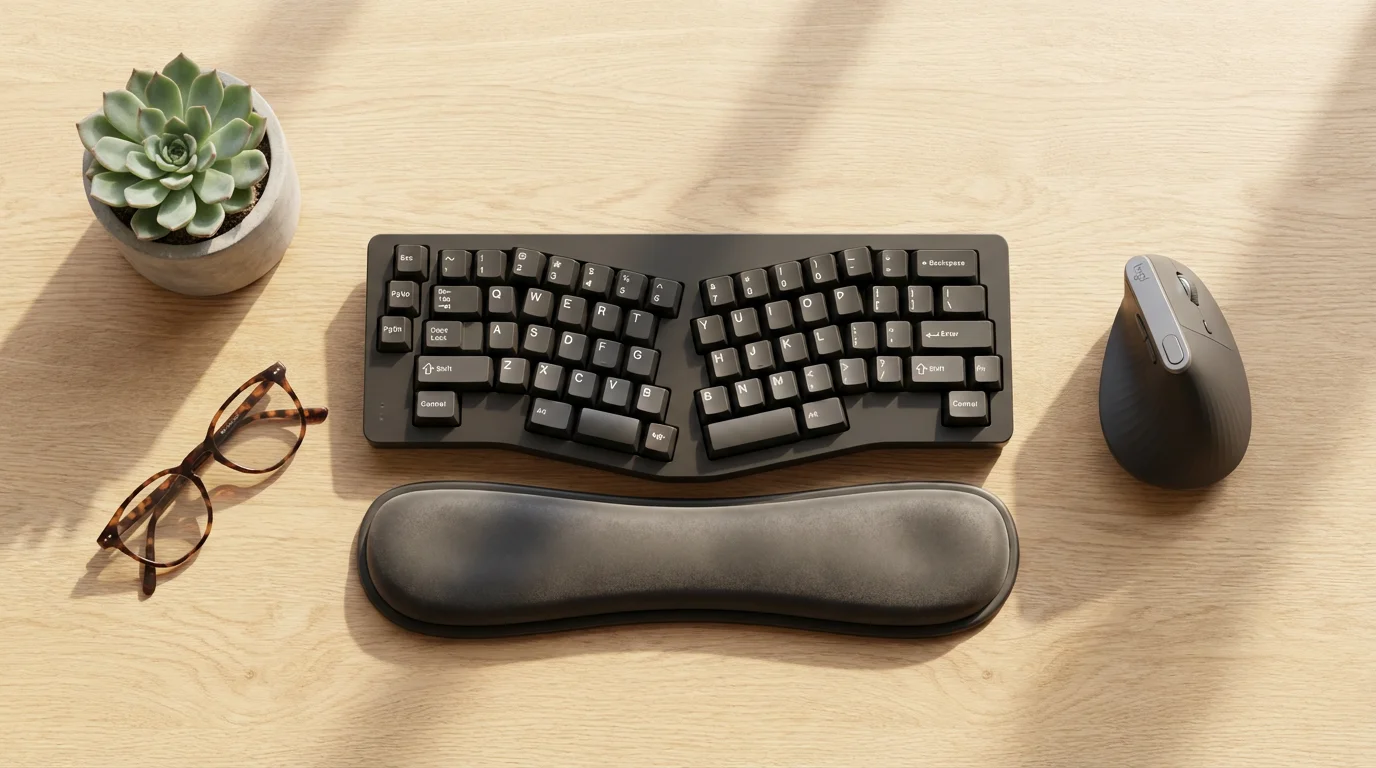
- Keyboard Position: Place your keyboard directly in front of you, allowing your wrists to stay straight. Consider an ergonomic keyboard, which often features a split design or a slight angle to improve wrist comfort.
- Mouse Placement: Keep your mouse close to your keyboard to avoid overreaching. An ergonomic mouse, designed to fit your hand’s natural curve, reduces wrist strain.
- Wrist Rests: Use a gel or foam wrist rest for your keyboard and mouse. These support your wrists and keep them in a neutral position, reducing pressure on nerves and tendons.
Enhancing Lighting and Visual Comfort
Good lighting reduces eye strain, improves focus, and creates a more pleasant work environment. As eyes age, they require more light to see clearly and are more susceptible to glare. Thoughtful lighting choices are crucial.
Integrating smart home lighting systems allows you to adjust brightness with simple voice commands, further reducing eye fatigue.
Optimizing Your Office Lighting:
- Natural Light: Position your desk to maximize natural light without direct glare on your screen. A window to your side often works best. If your window faces directly, use blinds or curtains to diffuse intense sunlight.
- Overhead Lighting: Ensure your room has adequate ambient lighting. Avoid single, harsh overhead lights that create shadows or glare.
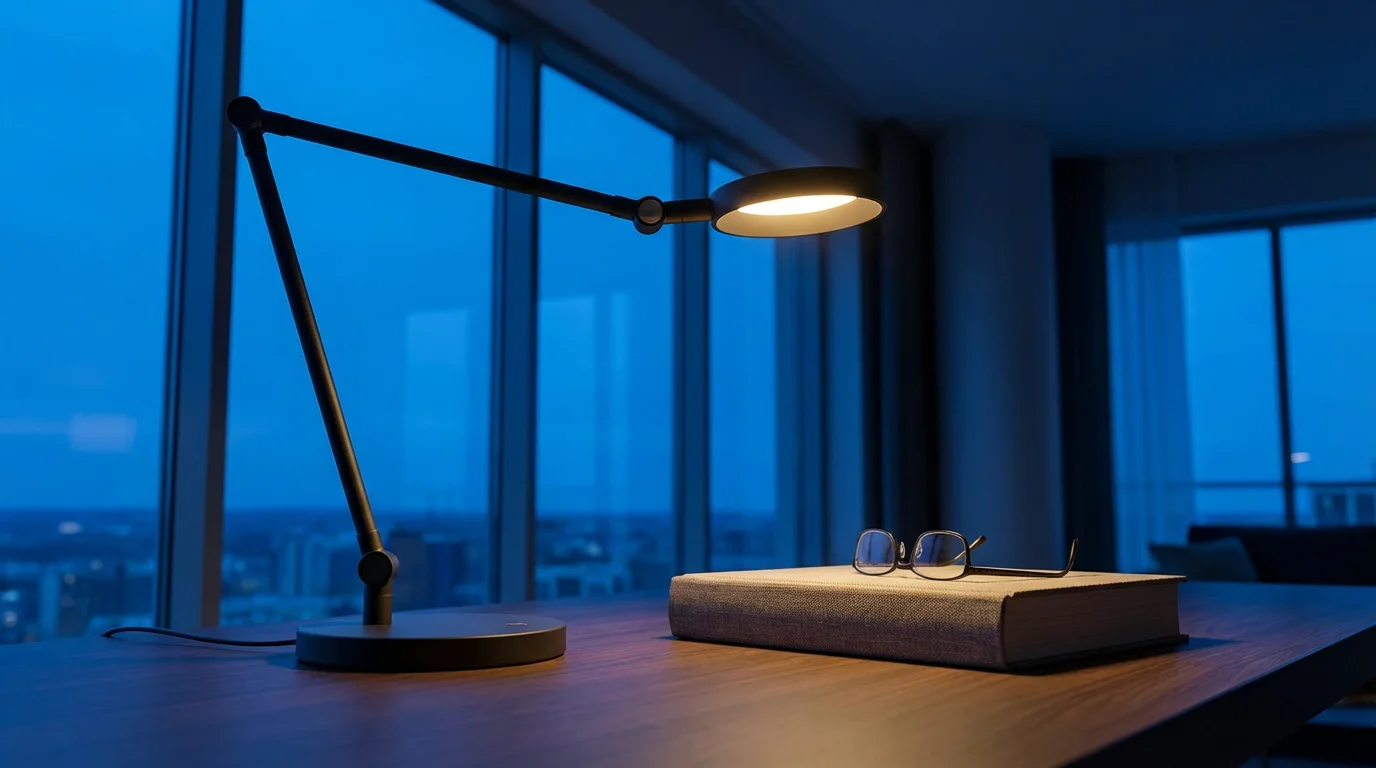
- Task Lighting: A good desk lamp is essential. Choose one with adjustable brightness and a movable arm, allowing you to direct light exactly where you need it. LED lamps are energy-efficient and offer various color temperatures.
- Reduce Glare: Anti-glare filters for your monitor help reduce reflections. Position light sources to avoid direct reflection on your screen.
Proper lighting also contributes to overall home safety. Well-lit spaces reduce the risk of trips and falls, especially when navigating around furniture or cables in your office area.
Tips for Visual Comfort:
- Adjust Monitor Settings: Customize your screen brightness, contrast, and font size for optimal readability. Most operating systems offer accessibility settings for larger text.
- Take Breaks: Follow the 20-20-20 rule: Every 20 minutes, look at something 20 feet away for at least 20 seconds. This helps your eyes refocus and reduces strain.
- Hydrate: Drink plenty of water to prevent dry eyes, which can exacerbate discomfort. Consider using artificial tears if you experience persistent dryness.
Good lighting fixtures, including task lamps and brighter LED bulbs, typically cost between $30 to $150, depending on features and quality.
Accessible Technology and Peripherals
Modern technology offers many features that enhance usability for seniors. You can customize your devices to fit your needs, making them easier to see, hear, and operate.
If a desktop computer feels too restrictive, choosing a senior-friendly tablet can provide an accessible and ergonomic alternative for light office work.
An ergonomic setup also makes it much easier to access telehealth services comfortably from home.
Computer and Software Adjustments:
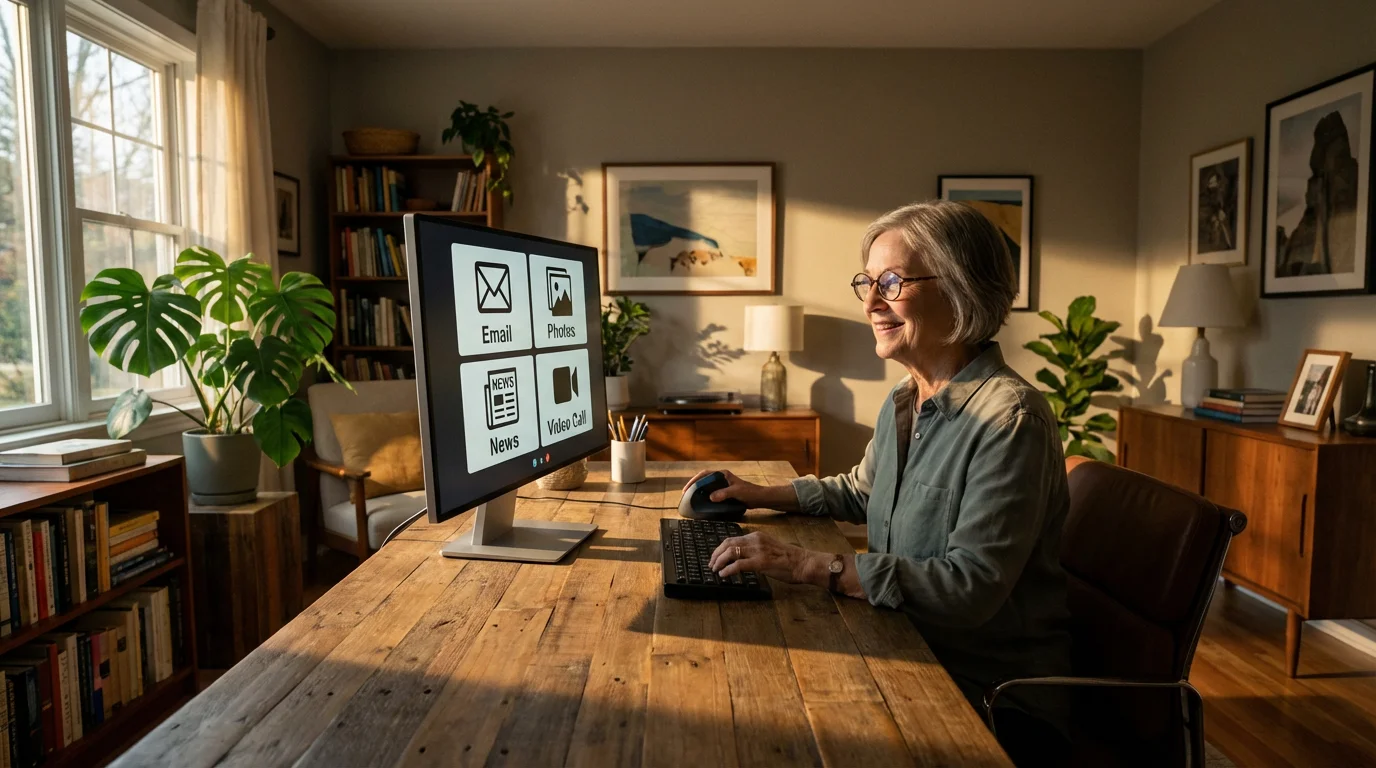
- Larger Fonts and Icons: Adjust your operating system settings to display larger text, icons, and cursors. This reduces squinting and makes navigation simpler.
- Zoom Features: Most browsers and applications include zoom functions. Learn to use them for closer inspection of content.
- High-Contrast Themes: Enable high-contrast display settings on your computer if standard colors cause strain. This increases readability for many users.
- Voice Control and Dictation: Explore built-in voice command features or third-party dictation software. These tools allow you to control your computer and type documents using your voice, reducing strain on your hands and wrists.
Helpful Peripherals:
- Large Print Keyboard: Keyboards with larger, bolder characters are much easier to see. Some also offer backlighting for better visibility in dim light.
- Ergonomic Mouse Alternatives: If a standard mouse is uncomfortable, consider a trackball mouse, vertical mouse, or even a touchpad. These options require different hand movements, potentially relieving strain.
- Headsets: Use a comfortable, lightweight headset with a microphone for video calls or online conversations. This frees your hands and improves audio clarity.
- Document Holder: A document holder positions papers at eye level next to your monitor. This prevents neck strain from looking down repeatedly.
Many of these accessibility features come standard with your computer operating system, costing nothing extra. Specialized keyboards or mice generally range from $25 to $100.
Organizing for Safety and Efficiency
An organized home office is a safe home office. Clutter and poorly managed cables create tripping hazards, a significant concern for seniors. A tidy space also boosts efficiency and reduces stress.
Decluttering and Storage Solutions:
- Regular Decluttering: Regularly go through your papers and supplies. Keep only what you actively use. Digitize documents where possible to reduce physical paper clutter.
- Smart Storage: Use drawers, shelves, and filing cabinets to store items neatly. Label everything clearly so you find what you need quickly. Consider easy-access storage options that do not require bending or reaching too high.
- Vertical Space: Maximize vertical storage with shelves or wall-mounted organizers. This keeps your desk clear and utilizes often-unused space.
Managing Cables and Cords for Safety:
Loose cables are a major fall risk. Taking a few steps to manage them protects you and your visitors.
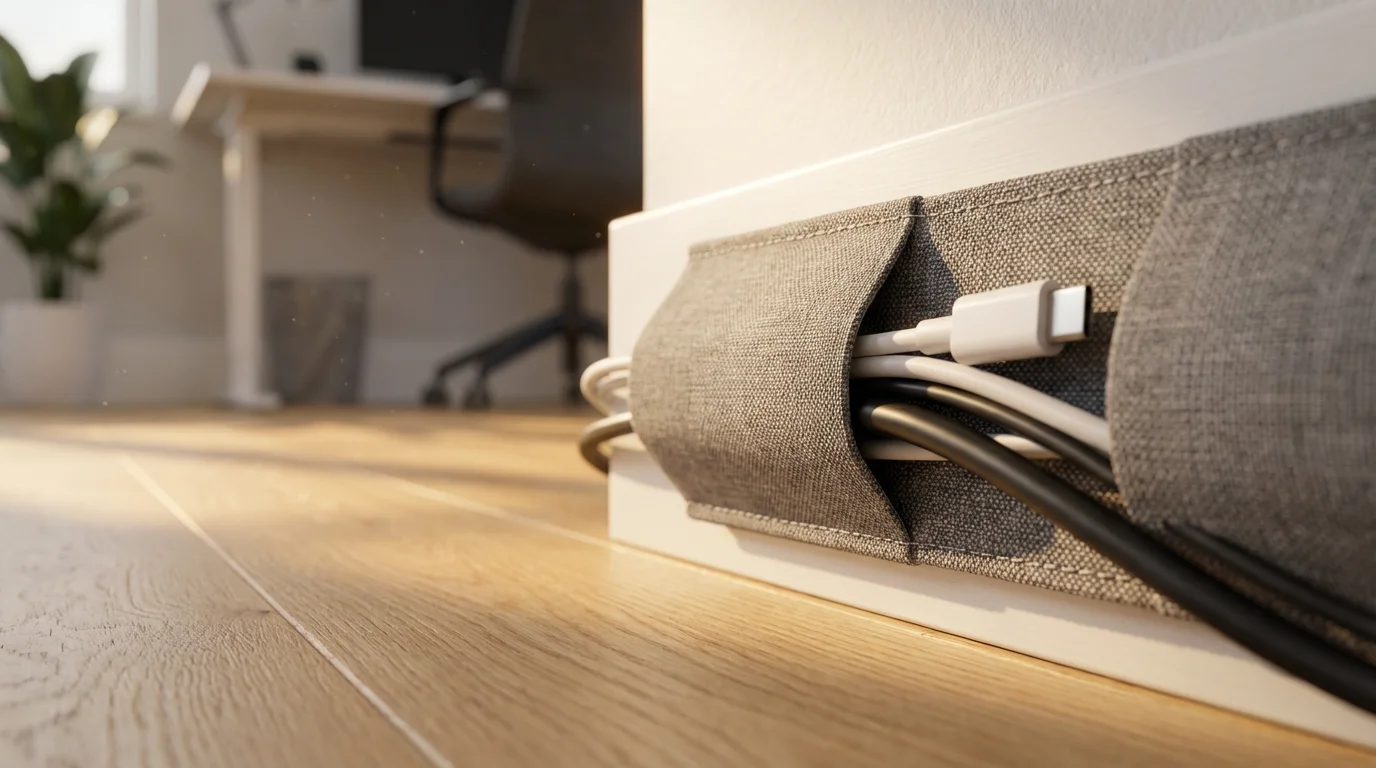
- Cable Management Sleeves: Bundle multiple cables together using fabric sleeves or plastic tubes. This reduces tangles and makes them less visible.
- Cable Clips and Ties: Secure loose cords to the underside of your desk or along baseboards using adhesive clips or hook-and-loop ties.
- Power Strips with Surge Protection: Use a power strip to consolidate plugs and protect your electronics. Mount it securely under your desk to keep cords off the floor.
- Avoid Traffic Areas: Route cables away from doorways and walking paths. If a cord must cross a walkway, use a flat cable cover or tape it securely to the floor.
Cable management accessories are inexpensive, often costing $10 to $50 for a complete setup.
Considering Professional Assistance for Your Setup
While many home office adjustments are DIY-friendly, certain situations benefit from professional expertise. Recognizing when to call for help ensures your setup is truly safe and optimized.
When to Call a Professional:
- Complex Ergonomic Needs: If you have specific physical limitations or chronic conditions, an occupational therapist or ergonomic specialist provides personalized recommendations. They assess your posture and movements to suggest tailored solutions.
- Extensive Electrical Work: If you need new outlets or dedicated circuits for your office equipment, hire a licensed electrician. Do not attempt complex electrical installations yourself.
- Custom Furniture Modifications: For built-in shelving, custom desk heights, or other structural changes, a handyman or carpenter ensures the work is done safely and correctly.
- Advanced Tech Setup: If you feel overwhelmed by setting up new computers, networks, or complex accessibility software, a tech support professional can configure everything for you. Many local senior centers or community organizations offer low-cost tech assistance programs.
Professional services vary greatly in cost. An ergonomic consultation might cost $150-$300. An electrician or handyman charges $50-$100 per hour, plus materials. Always obtain multiple quotes before committing to a service.

Budgeting for Your Ergonomic Home Office
Creating an ergonomic home office does not necessarily require a large budget. You can make significant improvements with thoughtful planning and strategic purchases. Prioritize items that address your most pressing comfort or safety needs.
Cost Estimates for Key Items:
- Ergonomic Chair: $200 – $800 (mid-range, good quality)
- Adjustable Monitor Stand/Riser: $20 – $70
- Ergonomic Keyboard and Mouse: $50 – $150
- Desk Lamp (LED, adjustable): $30 – $100
- Cable Management Solutions: $10 – $50
- Footrest: $20 – $60
- Anti-glare Monitor Filter: $25 – $75
- Professional Consultation (optional): $150 – $300
Tips for Smart Spending:
- Prioritize: Identify the most critical areas needing improvement first. For many, an ergonomic chair is the best initial investment.
- Research: Read reviews from reputable sources like Consumer Reports Home before buying. Look for durability and adjustability.
- DIY Where Possible: Simple solutions like using sturdy books as a monitor riser save money.
- Look for Sales: Office supply stores and online retailers frequently offer discounts on office furniture and accessories.
- Check Community Resources: Some senior centers or aging services agencies offer programs or grants to assist with home modifications or technology access. The Eldercare Locator can help you find resources in your area.
Remember, the goal is long-term comfort and safety. A well-planned budget helps you achieve this without overspending.
Frequently Asked Questions
Can I make my existing chair more ergonomic?
You can improve your existing chair’s ergonomics with accessories. A good lumbar support pillow helps reinforce the natural curve of your lower back. A seat cushion adds comfort and sometimes height. You can also add armrest pads for softer support. However, these are temporary fixes, and a dedicated ergonomic chair offers superior adjustability and support.
How often should I take breaks from my home office?
Regular breaks are crucial for preventing stiffness and fatigue. Aim for a short break, 5-10 minutes, every hour. During your break, stand up, stretch, walk around, or simply change your focus. Incorporate eye exercises, like the 20-20-20 rule, into these breaks to reduce visual strain.
What are the signs of a poor ergonomic setup?
Common signs of a poor ergonomic setup include persistent back, neck, or shoulder pain. You might also experience tingling or numbness in your hands and wrists, frequent headaches, or general fatigue. Increased eye strain, characterized by dry, irritated eyes or blurred vision, also indicates a need for adjustment. Address these symptoms promptly to prevent them from becoming chronic issues.
Disclaimer: This article is for informational purposes only. Home modifications, safety equipment, and services mentioned may vary in availability and suitability for individual circumstances. For significant home modifications, consult with qualified professionals. For health-related safety concerns, consult with healthcare providers.




Leave a Reply