

For many of us, the idea of adding a new piece of technology like a tablet to our lives can feel daunting. You might wonder if it is too complicated, or if you truly need another screen. The good news is that tablets are incredibly versatile and user-friendly devices. They offer a fantastic way to connect with family, explore new hobbies, manage your health, and stay entertained, all within a simple, portable design.
This guide helps you navigate the options available and confidently choose the best tablet for your specific needs. We focus on ease of use, practical features, and reliable performance, ensuring your new device enhances your daily life without unnecessary complexity. Many seniors find a tablet to be a comfortable bridge between a smartphone and a full computer, offering the best of both worlds.

Understanding What a Tablet Offers You
A tablet functions like a larger version of a smartphone without the phone call capabilities, though you can still make video calls. It also works as a lighter, simpler version of a laptop. This makes it a powerful yet easy to use device for many common tasks. Many people looking for senior tablets appreciate this balance.
Many seniors also use their tablets to learn a new language, which is a fantastic way to keep the mind sharp and active.
Your tablet can also serve as a central hub for monitoring home security systems, allowing you to view camera feeds and check locks from anywhere.
Beyond these tasks, a tablet can serve as a convenient remote control for various smart home devices, allowing you to manage lights or thermostats with ease.
Here are some of the practical benefits a tablet brings into your life:
- Easier Communication: Connect with loved ones through video calls on apps like FaceTime, Zoom, or Skype. Send emails with larger on-screen keyboards, making typing more comfortable. Share photos and videos effortlessly.
- Entertainment at Your Fingertips: Stream movies and TV shows from services like Netflix or YouTube. Listen to audiobooks or podcasts. Play simple games that stimulate your mind. Read e-books with adjustable font sizes, reducing eye strain.
- Information and Learning: Browse the internet to research topics that interest you. Read news articles from around the world. Access online courses or tutorials to learn new skills. Your tablet can become a window to endless knowledge.
- Photo and Video Management: Store thousands of photos and videos, keeping your memories organized. Easily view your photo albums on a larger screen. Share your favorite moments with family and friends through email or messaging apps.
- Health and Wellness Tools: Track medications with reminder apps. Access telehealth appointments with your doctor. Monitor fitness goals or simply read up on health information from reliable sources.
- Online Shopping and Banking: Safely manage your finances, check account balances, and pay bills through secure banking apps. Shop for groceries, clothing, or gifts from the comfort of your home. Always ensure you are on a secure connection when handling sensitive information.
- Portability and Convenience: Carry your tablet anywhere in your home, on trips, or during appointments. Its lightweight design makes it ideal for reading in bed, watching a recipe video in the kitchen, or keeping grandchildren entertained.
For many seniors, a tablet proves to be one of the best investments for staying connected and engaged. It offers a stepping stone into the digital world without the perceived complexities of a full computer.
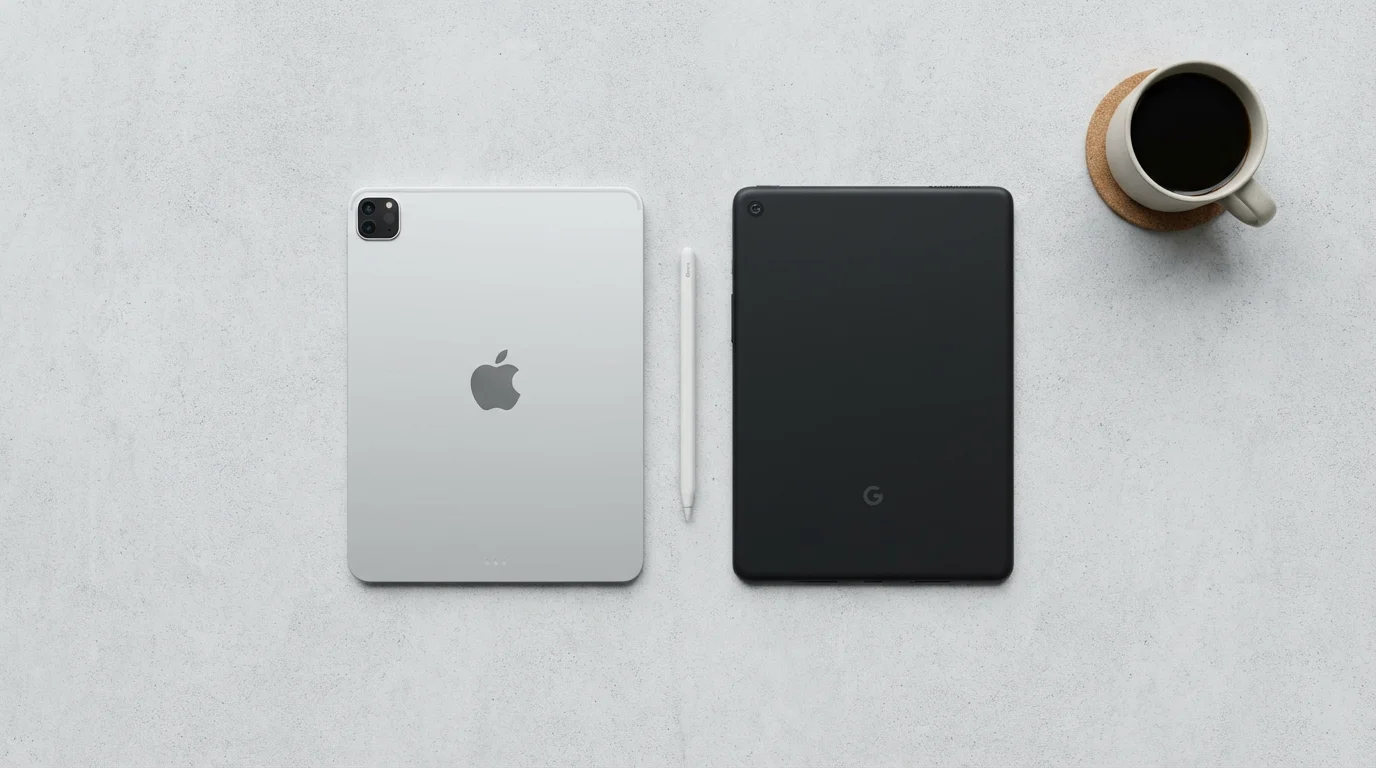
Tablet Operating Systems: iPadOS vs. Android
When you consider tablet buying, you mainly choose between two operating systems. An operating system is the core software that makes your device work and determines how you interact with it. Understanding these differences helps you decide what tablet is best for your preferences.
If you plan on using your tablet while traveling, you might consider looking into the best cell phone plans for seniors to see which providers offer the best data sharing options.
Apple iPads (Using iPadOS)
Apple iPads run on iPadOS. This system is known for its simplicity, consistency, and strong security features.
Pros for Seniors:
- User-Friendly Interface: iPadOS offers a very intuitive experience. Apps are arranged in a grid on the home screen, and navigation is straightforward. Most actions involve simple taps or swipes.
- Excellent Accessibility Features: Apple prioritizes accessibility. You find features like adjustable text sizes, screen magnifiers, spoken content options, and guided access to simplify the device.
- Robust Security and Privacy: Apple maintains a secure ecosystem. This reduces your risk of encountering malware or viruses. The App Store vets all applications, ensuring they meet strict safety standards.
- Consistent Performance: iPads are known for their smooth performance and reliability. They usually receive software updates for many years, keeping them current and secure.
- Strong Support Ecosystem: Apple provides extensive online support, in-store assistance at Apple Stores, and a large community of users. This makes finding help easy if you encounter an issue.
Cons to Consider:
- Higher Price Point: iPads generally cost more than comparable Android tablets.
- Less Customization: While simple, iPadOS offers fewer options for personalization compared to Android.
Android Tablets (Using Android OS)
Android tablets come from various manufacturers, including Samsung, Amazon, and Google. They use the Android operating system, which is also found on many smartphones.
Pros for Seniors:
- Wide Range of Options and Prices: You find Android tablets at almost every price point, from budget-friendly models to premium devices. This offers more flexibility for your budget.
- More Customization: Android allows for greater personalization of your home screen, widgets, and settings. You can tailor the interface more precisely to your liking.
- Open Ecosystem: Android devices often integrate more easily with non-Apple products and services. They provide more flexibility for connecting different devices or using various cloud services.
Cons to Consider:
- Varying User Experience: Because many manufacturers make Android tablets, the user experience can differ greatly from one brand to another. Some interfaces may feel less polished than iPadOS.
- Security Concerns: While Android has improved its security significantly, the open nature of the system means you must exercise more caution with app downloads. Not all apps come from a rigorously vetted source.
- Software Updates Vary: The frequency and duration of software updates depend on the tablet manufacturer. Some cheaper models may receive fewer updates, potentially leading to security vulnerabilities or outdated features over time.
For many seniors seeking an easy to use device, an iPad often provides a more consistent and reassuring experience. However, a well-chosen Android tablet, particularly from a reputable brand like Samsung, also offers excellent value and functionality.
You don’t have to be young to be tech-savvy—you just need patience and practice.

Key Features to Look For in a Senior-Friendly Tablet
When deciding what tablet is best for you, consider specific features that enhance usability for seniors. Focusing on these aspects helps ensure your new device is truly easy to use.
If you plan to use your tablet for long sessions at a desk, consider setting up an ergonomic home office space to maintain good posture and comfort.
- Screen Size:
- Recommendation: Look for a screen between 9 and 11 inches.
- Why it matters: A larger screen makes text, images, and videos much easier to see. This reduces eye strain and makes navigating the tablet simpler. Smaller tablets, like 7-8 inches, can feel cramped, while very large tablets, over 12 inches, may be heavy and less portable.
- Screen Quality and Brightness:
- Recommendation: Choose a tablet with good resolution and brightness settings.
- Why it matters: A clear, bright screen improves visibility in various lighting conditions. High resolution means sharper images and text. You want to adjust brightness easily for comfort.
- Ease of Use and Interface:
- Recommendation: Prioritize an intuitive operating system.
- Why it matters: Both iPadOS and some Android interfaces offer simplicity. Look for large, clear icons, easy navigation, and minimal clutter. Consider a tablet that allows you to enlarge text and icons in the settings.
- Battery Life:
- Recommendation: Aim for 8-10 hours of active use.
- Why it matters: A long battery life means less frequent charging. This provides more freedom to use your tablet throughout the day without worrying about finding an outlet. A good battery keeps your tablet ready when you are.
- Storage Capacity:
- Recommendation: Start with at least 64GB, or 128GB if you plan to store many photos or videos.
- Why it matters: Storage determines how many apps, photos, videos, and documents you can keep on your tablet. While cloud storage can help, having ample internal storage is convenient. Some Android tablets allow you to add more storage with a microSD card.
- Sound Quality:
- Recommendation: Test the speakers or read reviews regarding sound.
- Why it matters: Clear audio is important for video calls, watching movies, or listening to music. Some tablets offer better speaker quality than others. Consider if you prefer to use headphones or a Bluetooth speaker for better sound.
- Camera Quality:
- Recommendation: A decent front-facing camera for video calls.
- Why it matters: For video calls with family, a clear front camera (the one facing you) is crucial. While a rear camera is nice for photos, most tablet use for seniors focuses on the front camera.
- Accessibility Features:
- Recommendation: Look for robust accessibility options.
- Why it matters: Features like text-to-speech, screen magnifiers, inverted colors, and simplified modes make tablets much more usable for individuals with visual or auditory impairments. Apple iPads excel in this area.
- Wi-Fi Connectivity:
- Recommendation: Ensure it has reliable Wi-Fi.
- Why it matters: Wi-Fi is the wireless internet connection in your home. All tablets connect via Wi-Fi. Some models also offer cellular data, like a smartphone, but this requires an additional monthly plan and is usually not necessary if you primarily use your tablet at home.
By keeping these features in mind, you are better equipped to find the best tablet for seniors to use, one that truly meets your individual requirements.

Recommended Tablets for Seniors: Our Top Picks
When considering senior tablets, specific models consistently stand out for their reliability, ease of use, and strong support. These choices address common needs for ease of navigation, clear visuals, and dependable performance.
1. Apple iPad (Standard Model)
The standard Apple iPad offers an excellent balance of features and value. It remains a top recommendation for many seniors.
Why it is great for seniors:
- Intuitive iPadOS: Its operating system is remarkably simple to learn and navigate. Icons are clear, and gestures are consistent. You quickly become comfortable using it.
- Stunning Retina Display: The screen provides sharp text and vibrant colors. This makes reading, viewing photos, and watching videos a pleasure.
- Excellent Accessibility: Apple’s built-in accessibility features are industry-leading. You can easily adjust text size, enable spoken content, or zoom into specific areas of the screen.
- Reliable Performance: iPads are known for their speed and smooth operation. Apps open quickly, and multitasking feels seamless.
- Long-Term Software Support: Apple typically provides many years of software updates. This keeps your iPad secure and equipped with the latest features.
- Strong Ecosystem: If you already use an iPhone, an iPad integrates seamlessly. Access to the vast Apple App Store means you find an app for almost anything.
Ideal User:
The Apple iPad suits those who prioritize extreme ease of use, a consistent experience, strong security, and excellent accessibility features. It is a fantastic choice for beginners and those wanting a reliable device that just works. Many people find this is the best tablet for seniors to use when simplicity is key.
2. Samsung Galaxy Tab A Series (e.g., Galaxy Tab A8 or A9+)
Samsung offers a range of Android tablets, with the Galaxy Tab A series being particularly suitable for seniors due to its balance of features and affordability.
Why it is great for seniors:
- Clear Display: Samsung tablets often feature bright and clear screens, perfect for reading and media consumption.
- Good Value: These tablets offer many useful features at a more accessible price point compared to iPads. This makes tablet buying more affordable.
- Expandable Storage: Many Samsung Galaxy Tab A models include a microSD card slot. This allows you to add more storage for photos and videos as your collection grows. You purchase a small memory card and insert it into a designated slot on the tablet.
- Familiar Android Interface: If you use an Android smartphone, the tablet’s interface will feel familiar. Samsung also offers its own simplified “Easy Mode” in settings for a less cluttered experience.
- Google Services Integration: Full access to the Google Play Store means a vast selection of apps. You also get seamless integration with Google Photos, Gmail, and Google Maps.
Ideal User:
The Samsung Galaxy Tab A series is great for seniors seeking a capable and versatile Android tablet at a reasonable price. It is ideal if you already use an Android phone or prefer the flexibility and customization options of the Android operating system.
3. Amazon Fire HD Tablets (e.g., Fire HD 10)
Amazon Fire tablets run on a customized version of Android called Fire OS. They offer an extremely budget-friendly entry into the tablet world, especially if you are an Amazon Prime member.
Why it is great for seniors:
- Very Affordable: Fire tablets are often significantly less expensive than iPads or even other Android tablets. This makes them an attractive option for first-time tablet owners or those on a tight budget.
- Simple Interface: Fire OS is designed to be very straightforward. It prioritizes Amazon services like Prime Video, Kindle books, and Amazon Music, making it easy to access these if you are a Prime member.
- Durable Design: Amazon offers sturdy cases and even kids’ editions that come with enhanced durability.
- Integrated Alexa: You can use Amazon’s voice assistant, Alexa, directly on the tablet. This allows for voice commands to play music, check the weather, or open apps, which can be very helpful for hands-free operation.
Cons to Consider:
- Limited App Store: Fire tablets use Amazon’s Appstore, not the Google Play Store. While it has many popular apps, the selection is not as broad as on standard Android or iPad devices.
- Ad-Supported Option: To keep costs down, some Fire tablets come with “special offers” which display ads on the lock screen. You can often pay a small fee to remove these.
Ideal User:
Amazon Fire HD tablets suit seniors primarily interested in consuming media like e-books, movies, and music, especially if they are already Amazon Prime members. They are excellent for those looking for an extremely easy to use, budget-friendly device for basic tasks and entertainment.
Before making your final choice, consider visiting a store that displays these tablets. You can feel their weight, test their screens, and try navigating their interfaces. This hands-on experience helps you confirm what tablet is best for your personal comfort and preference.
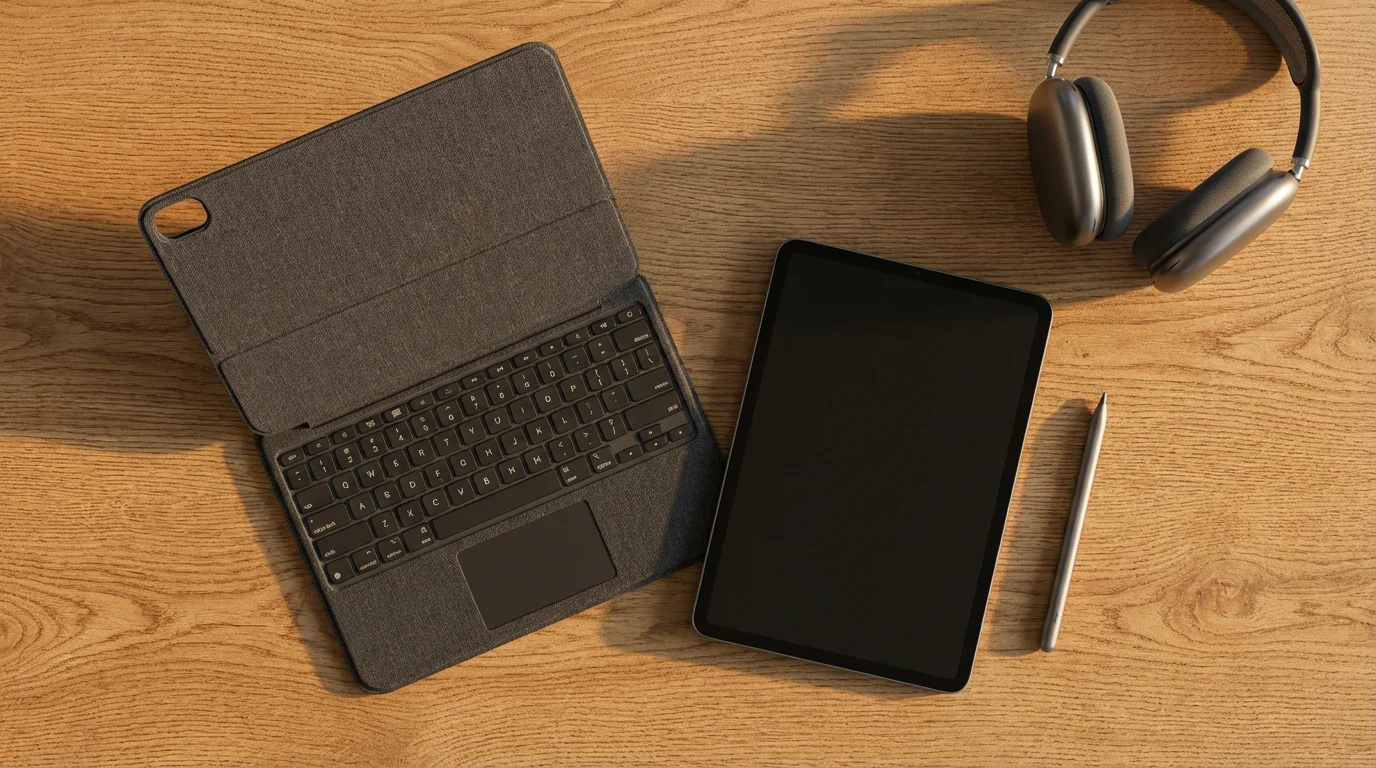
Considering Accessories for Your Tablet
Once you choose a tablet, certain accessories can greatly enhance your experience, making your device even more functional and easy to use. These additions protect your investment and add convenience.
- Protective Case:
- Why you need it: A sturdy case protects your tablet from accidental drops, bumps, and scratches. Many cases also feature a built-in stand, allowing you to prop up your tablet for comfortable viewing during video calls or while watching movies.
- What to look for: Choose a case specifically designed for your tablet model to ensure a snug fit and access to all buttons and ports. Materials range from silicone to rugged plastic or faux leather.
- Screen Protector:
- Why you need it: A thin layer of tempered glass or plastic film applied to the screen helps prevent scratches and cracks. This offers an extra layer of defense against everyday wear and tear.
- What to look for: Tempered glass protectors offer superior protection and a smooth feel, almost like the original screen. Ensure you purchase one specific to your tablet model.
- Stylus or Digital Pen:
- Why you need it: A stylus allows for more precise tapping and drawing than your finger. This proves especially useful for those with dexterity challenges or who enjoy drawing, writing notes, or signing documents digitally.
- What to look for: Basic rubber-tipped styluses work with any touchscreen. For iPads and some premium Android tablets, a dedicated digital pen (like Apple Pencil or Samsung S Pen) offers advanced features like pressure sensitivity and palm rejection, but these are optional.
- Bluetooth Keyboard:
- Why you need it: If you plan to type long emails, write documents, or engage in extensive online communication, a physical keyboard is much more comfortable than the on-screen keyboard.
- What to look for: Bluetooth keyboards connect wirelessly to your tablet. Some cases come with integrated keyboards. Look for comfortable key spacing and responsive keys.
- Headphones or Earbuds:
- Why you need it: For private listening of music, audiobooks, or videos, or for clearer audio during video calls, headphones are essential.
- What to look for: Consider wireless Bluetooth headphones for convenience, avoiding tangled wires. If you prefer wired, ensure your tablet has a headphone jack, or you may need an adapter.
- Tablet Stand:
- Why you need it: A dedicated stand holds your tablet at an optimal viewing angle. This is great for hands-free video calls, following recipes, or watching content at a desk or table.
- What to look for: Simple, sturdy stands are widely available. Some are adjustable, allowing you to change the viewing angle.
Investing in a few thoughtful accessories ensures your tablet is protected and even more comfortable to use.

Where to Buy Your Tablet and What to Ask
The process of tablet buying involves more than just picking a model. Where you purchase your device and the questions you ask can significantly impact your overall experience, especially regarding support.
Where to Buy:
- Electronics Stores (Best Buy, Micro Center, etc.):
- Pros: You can physically see and test different models. Sales associates are often available to answer questions and offer immediate advice. These stores often provide setup services or extended warranty options.
- Cons: Prices might be slightly higher than online retailers. Selection might be limited to what’s in stock.
- Recommendation: This is often the best option for seniors, especially if you are a first-time buyer. The ability to touch, feel, and ask questions directly is invaluable.
- Manufacturer’s Stores (Apple Store, Samsung Experience Store):
- Pros: Expert staff specializing in that brand. You receive dedicated support and often complimentary setup assistance or workshops. They carry the full range of accessories.
- Cons: Limited to one brand of tablet. Can be busy.
- Recommendation: If you have decided on a specific brand like Apple, an Apple Store offers unparalleled support and hands-on experience.
- Online Retailers (Amazon, B&H Photo, BestBuy.com):
- Pros: Wider selection, competitive pricing, often includes free shipping. Customer reviews provide useful insights.
- Cons: You cannot physically inspect the tablet before buying. Returns can sometimes be more cumbersome. Lack of in-person assistance for setup or troubleshooting.
- Recommendation: Only consider buying online if you are comfortable with technology and have a clear idea of the specific model you want. Always check the seller’s return policy.
What to Ask Before You Buy:
Before you complete your tablet buying decision, ask these important questions. This ensures you get the best tablet for seniors to use in your situation and adequate support.
- “What is your return policy?” Understand the timeframe and conditions for returns or exchanges. Keep your receipt and original packaging.
- “Does this tablet come with a warranty? What does it cover, and for how long?” Standard manufacturer warranties typically cover defects for one year. Consider if an extended warranty is worthwhile for you.
- “Do you offer setup assistance or training?” Some stores provide basic setup help or even free classes. This can be very helpful for getting started with your new device.
- “Can you show me how to adjust the text size and screen brightness on this model?” This helps you evaluate the tablet’s accessibility features on the spot.
- “Is there a simple mode or accessibility settings on this tablet that can make it easier to use?” This is particularly relevant for Android tablets, which sometimes have simplified home screen options.
- “What accessories do you recommend for this tablet, like a case or screen protector?” Get recommendations for essential protective gear.
- “How do I transfer my contacts or photos from my old device?” While you may not do this in the store, understanding the process helps you plan.
A well-informed purchase sets the stage for a positive experience with your new tablet.
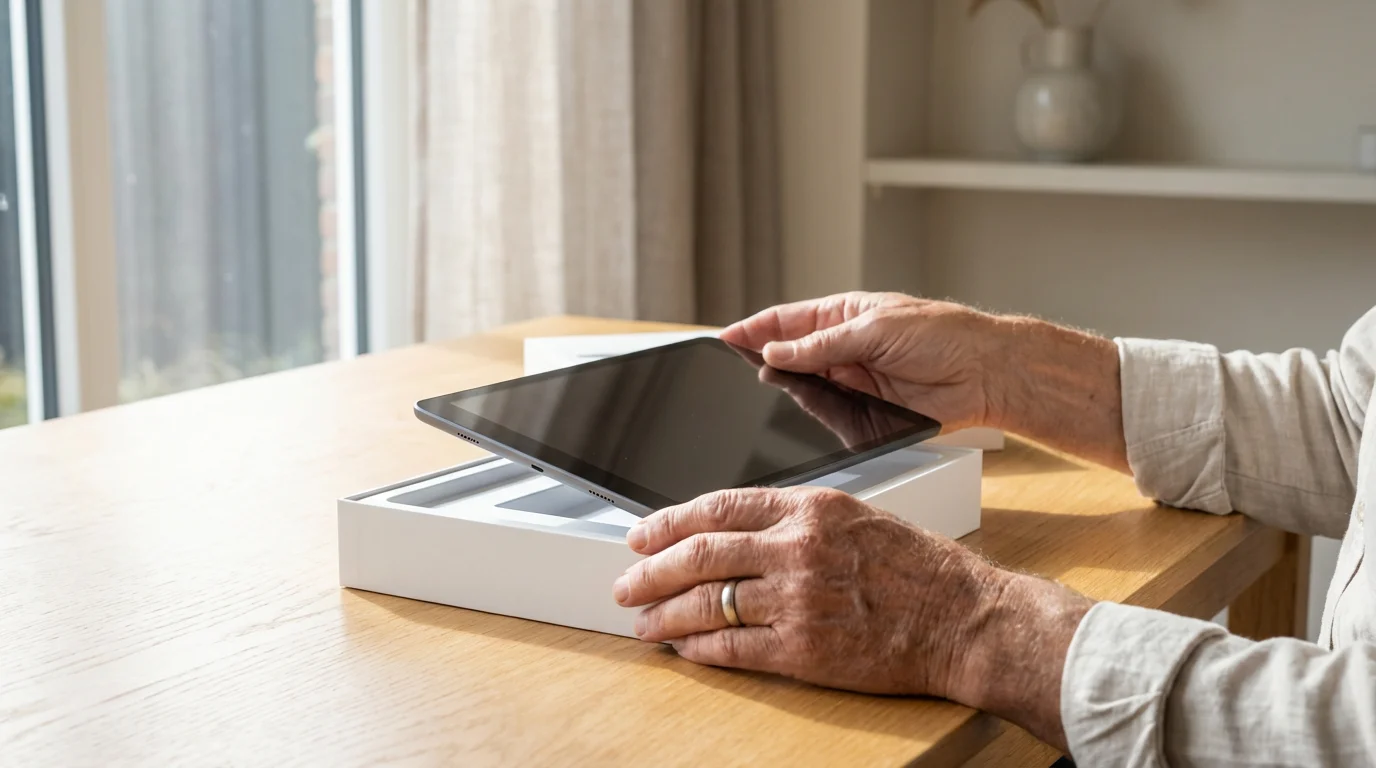
Setting Up Your New Tablet: First Steps
Once you bring your new tablet home, the initial setup might seem like a lot of steps. Approach it patiently, one step at a time. The device guides you through most of the process. Remember, you do not have to do everything perfectly the first time.
- Charge Your Tablet Fully:
Before you begin, plug your tablet into a power outlet using the charger provided in the box. Let it charge completely. This ensures the tablet does not power off during the setup process.
- Power On and Select Language:
Press and hold the power button, usually located on the side or top edge of the tablet, until the screen lights up. You will see a welcome screen. Follow the on-screen prompts to select your preferred language, for example, “English (United States).”
- Connect to Wi-Fi:
Your tablet needs to connect to the internet. It automatically scans for available Wi-Fi networks, which are your wireless internet connections. You will see a list of network names (SSIDs).
- Step 1: Tap on your home Wi-Fi network name. If you do not know your network name, it is often found on a sticker on your internet router.
- Step 2: Enter your Wi-Fi password. This is also usually on a sticker on your router. It is case-sensitive, meaning capital letters must be typed as capitals.
- Step 3: Tap “Connect” or “Join.” A small Wi-Fi icon (which often looks like a series of curved lines radiating upwards, 📶) will appear at the top of your screen, indicating a successful connection.
- Sign In or Create an Account:
- For iPads (Apple ID): You need an Apple ID. If you have an iPhone, use that same Apple ID. If not, tap “Create a Free Apple ID” and follow the prompts. This involves entering your name, birthdate, and creating an email address and password.
- For Android Tablets (Google Account): You need a Google Account. If you have an Android phone, use that same Google Account. If not, tap “Create account” and follow the prompts. This involves entering your name, birthdate, and creating a Gmail address and password.
- For Amazon Fire Tablets (Amazon Account): Use your existing Amazon account. If you do not have one, tap “Create a new Amazon account.”
Your account links your tablet to app stores, cloud storage, and other services. Keep your account information (username and password) in a safe place.
- Review and Accept Terms and Conditions:
The tablet displays various terms of service and privacy policies. Scroll through them and tap “Agree” or “Accept” to proceed.
- Set Up Passcode or Biometrics:
- Passcode: Create a 4-digit or 6-digit number to unlock your tablet. This protects your personal information.
- Touch ID/Face ID (iPads) or Fingerprint/Face Unlock (Android): Many tablets offer biometric security. You can set up your fingerprint or face to unlock the device quickly. You will still need a passcode as a backup.
Choose the option you prefer and follow the on-screen instructions carefully. We strongly recommend setting up some form of lock screen security for your protection.
- Adjust Basic Settings (Optional but Recommended):
- Text Size: Navigate to “Settings” (look for the icon that looks like a gear ⚙️) then “Display” or “Accessibility.” Look for “Text Size” or “Font Size” and adjust it to your comfort.
- Brightness: Most tablets have a quick setting for brightness, often accessed by swiping down from the top of the screen. Adjust it so the screen is comfortable for your eyes.
- Notifications: Decide which apps can send you notifications. You can always change this later.
- Start Exploring!
Once setup is complete, your tablet is ready to use. Do not be afraid to tap around and explore. You cannot break anything by simply touching the screen. Take your time to discover all your new tablet offers. If something does not work the first time, that is okay. You are learning a new skill.
This initial setup ensures your tablet is secure and personalized for you.
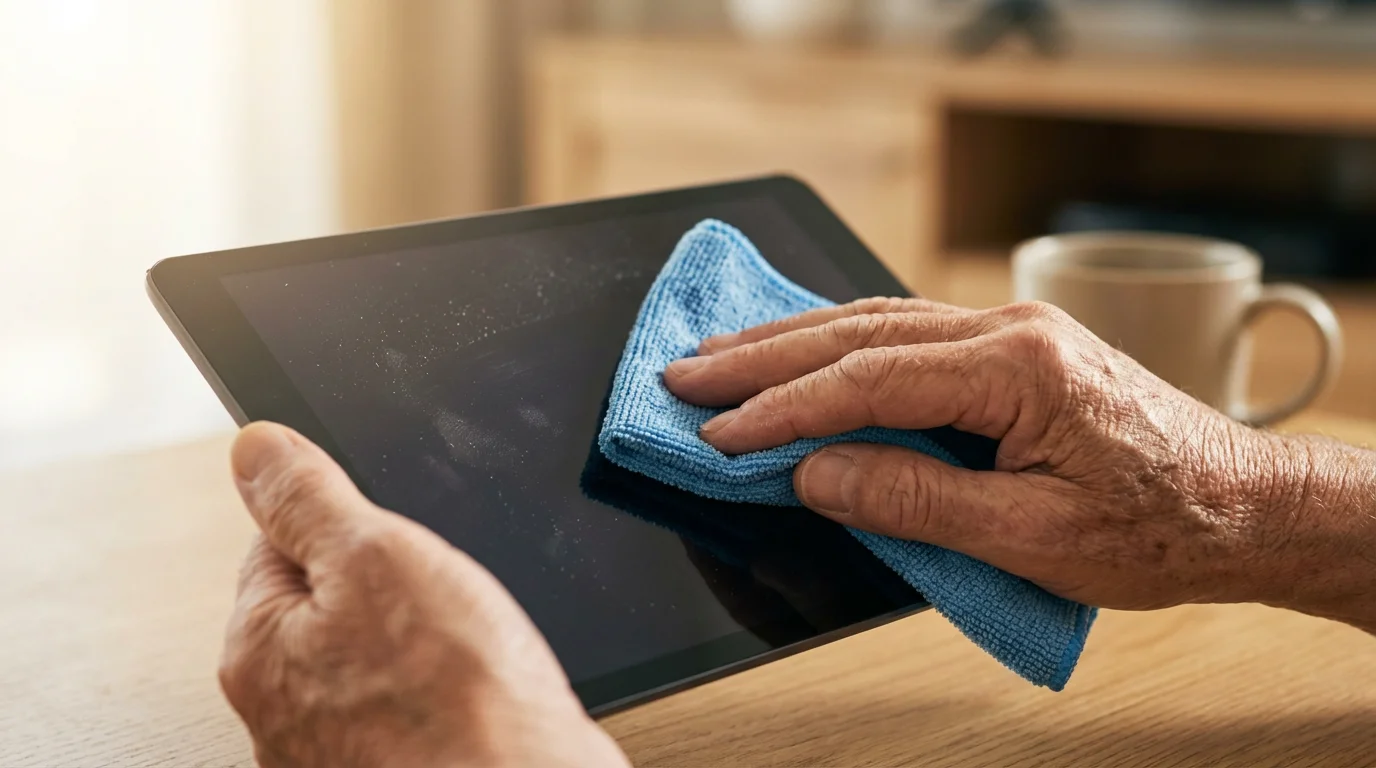
Troubleshooting Common Tablet Problems
Even the best tablet for seniors to use can occasionally encounter a minor hiccup. Do not get frustrated. Many common issues have simple solutions. Here are steps to troubleshoot some frequent problems.
- The Tablet is Not Responding or Frozen:
- Step 1: Press and hold the power button for about 30 seconds. This forces the tablet to restart.
- Step 2: If that does not work, for iPads, press and quickly release the Volume Up button, then press and quickly release the Volume Down button, then press and hold the Power button until the Apple logo appears. For most Android tablets, hold the Power and Volume Down buttons simultaneously for about 10-15 seconds.
A forced restart often resolves temporary software glitches.
- Wi-Fi Is Not Connecting or Is Slow:
- Step 1: On your tablet, go to “Settings” (⚙️ icon) then “Wi-Fi.” Turn Wi-Fi off, wait 10 seconds, then turn it back on.
- Step 2: Forget the network and reconnect. Tap on your network name, select “Forget This Network” or “Remove Network,” then tap on it again and re-enter your password.
- Step 3: Restart your Wi-Fi router. Unplug your internet router from the power outlet, wait 30 seconds, then plug it back in. Wait 2-3 minutes for it to fully restart before trying to connect your tablet again.
- Step 4: Ensure you are close enough to your Wi-Fi router. Walls and distance can weaken the signal.
- An App Is Crashing or Not Opening:
- Step 1: Close the app completely. On iPads, swipe up from the bottom of the screen and swipe the app’s window upwards to close it. On Android, tap the square “Recent Apps” button (often looks like two overlapping squares) and swipe the app away.
- Step 2: Reopen the app. Sometimes a simple restart of the app resolves the issue.
- Step 3: Check for app updates. Go to your App Store (Apple App Store or Google Play Store), search for the app, and see if an “Update” button is available. App updates often fix bugs.
- Step 4: Restart your tablet. If an app continues to misbehave, a full tablet restart can help clear out temporary software issues.
- Step 5: Delete and reinstall the app. If all else fails, delete the app from your tablet and download it again from the App Store. This gives you a fresh installation.
- Battery Is Draining Quickly:
- Step 1: Reduce screen brightness. A bright screen uses more power. Go to “Settings” (⚙️ icon) then “Display” to adjust brightness.
- Step 2: Close unused apps. Apps running in the background can consume battery. Regularly close apps you are not actively using.
- Step 3: Check which apps use the most battery. In “Settings” (⚙️ icon), look for “Battery” usage. This tells you which apps are power hogs. You might consider limiting their background activity or uninstalling them if they are not essential.
- Step 4: Turn off location services if not needed. Many apps use your location. Go to “Settings” (⚙️ icon) then “Privacy” or “Location Services” to manage these.
- Step 5: Keep your software updated. Software updates often include battery optimizations.
- Tablet Storage is Full:
- Step 1: Delete unnecessary apps. Go to your home screen, press and hold an app icon, then select “Remove App” or “Uninstall.”
- Step 2: Delete old photos and videos. Go to your “Photos” or “Gallery” app and remove duplicates or items you no longer need. Consider backing up important memories to a cloud service like Google Photos or iCloud.
- Step 3: Clear app caches. In “Settings” (⚙️ icon) go to “Apps,” select a large app, and look for “Storage & cache” options to clear the cache. This removes temporary data.
- Step 4: For Android tablets, if your device has a microSD card slot, move photos and videos to the external card.
Remember, online resources like Google Android Help or Apple iPhone Support offer detailed troubleshooting guides for specific issues. Do not hesitate to use these valuable tools.

Building Confidence: Practical Ways to Use Your Tablet Daily
The key to feeling comfortable with your new tablet is regular practice. Integrate it into your daily routine. You will quickly discover how easy to use these devices are and how much they enhance your life.
Here are practical, actionable ways to use your tablet every day:
- Start with Video Calls: Make it a habit to call family members using apps like FaceTime (for iPads) or Zoom/Google Meet (for both). This is a highly rewarding way to connect. Practice answering incoming calls and initiating calls yourself. You will see a button that says “Join” or “Answer” when someone calls you.
- Explore Your Photos: Spend a few minutes each day looking through your photo albums. Learn how to zoom in on pictures with a two-finger pinch gesture. Practice sharing a favorite photo with a friend or family member via email or text message. You usually see a “Share” icon (which looks like a box with an arrow pointing upwards or sideways) when viewing a photo.
- Read the News or a Book: Use a news app or the Kindle app to read articles or books. Experiment with adjusting the font size to find what is most comfortable for your eyes. This offers a much more pleasant reading experience than small phone screens.
- Check the Weather: Open a weather app to see the daily forecast. This is a simple, practical task that helps you familiarize yourself with opening and closing apps.
- Play a Simple Game: Download a puzzle game like Sudoku or a word game. Games are a fun way to interact with the touchscreen and improve your dexterity. They are low-stakes ways to build comfort.
- Listen to Music or Podcasts: Open a music streaming app like Spotify or Pandora, or a podcast app. Learn to search for your favorite artists or topics. This enhances your relaxation or provides background entertainment.
- Look Up Information: Use the internet browser (Safari on iPad, Chrome on Android) to search for things you are curious about. Look up a recipe, research a travel destination, or find out more about a hobby. Typing your questions into the search bar is a great way to practice using the on-screen keyboard.
- Send an Email or Text: Practice composing and sending short messages to friends. Use the larger keyboard for easier typing. Many messaging apps, like Messages or WhatsApp, also support sending photos.
Technology is just a tool. It is how you use it that matters.
Remember, consistency is key. Even 10-15 minutes of daily interaction makes a significant difference in building your confidence with your tablet. You are not just learning to use a device; you are opening up new avenues for connection and enjoyment. For more learning resources, AARP’s technology guides offer excellent support for seniors navigating new devices.
Quick Reference Guide: Making the Most of Your Tablet
This quick guide offers key takeaways and actions to remember as you use your new tablet. These tips help you maintain an easy to use experience and enjoy your device to its fullest.
- Charge Regularly: Plug in your tablet every night or when the battery drops below 20% to ensure it is always ready when you need it.
- Explore Settings: Do not be afraid to open the “Settings” app (⚙️ icon). This is where you adjust screen brightness, text size, and sound to personalize your experience.
- Use Accessibility Features: Both iPads and Android tablets offer powerful accessibility options. Adjusting text size, enabling spoken content, or using magnifiers can significantly improve usability.
- Keep Apps Updated: Regularly check your device’s App Store (Apple App Store, Google Play Store, or Amazon Appstore) for updates to your installed apps. Updates often fix bugs and improve performance.
- Back Up Your Photos: Consider using a cloud service like Google Photos or Apple iCloud to automatically save your photos. This protects your memories even if your tablet is lost or damaged.
- Practice Security: Always use a passcode or biometric security (fingerprint, face unlock) to protect your tablet. Be cautious about clicking on suspicious links or downloading apps from unknown sources. For more cybersecurity tips, visit CISA’s cyber-safety for seniors page.
- Restart When Needed: If your tablet acts strangely, freezes, or an app misbehaves, perform a simple restart. This resolves many common issues.
- Ask for Help: If you get stuck, ask a tech-savvy friend or family member for help. Many online tutorials exist, and official support pages from Apple or Google provide detailed assistance.
Your tablet provides a gateway to a world of information, connection, and entertainment. Embrace the learning process, and enjoy the benefits it brings.
Frequently Asked Questions
What is the difference between a tablet and a laptop?
A tablet is primarily a touchscreen device. It is thinner and lighter than a laptop. Tablets run mobile operating systems (like iPadOS or Android) and focus on touch input, making them very easy to use for quick tasks, media consumption, and video calls. Laptops have a built-in physical keyboard and a more powerful operating system (like Windows or macOS). They are designed for more intensive tasks like document creation, complex software, and extensive typing.
Do I need an internet connection to use a tablet?
You need an internet connection (Wi-Fi or cellular data) for most tablet functions, such as browsing the web, checking email, streaming videos, or using social media. However, you can still use some apps offline, like reading downloaded e-books, playing certain games, or viewing photos you have saved on the device.
Can I make phone calls on a tablet?
Most tablets do not have traditional phone call capabilities like a smartphone. However, you can make video calls using apps like FaceTime, Zoom, Skype, or Google Meet, which use your internet connection. Some Android tablets with cellular connectivity can make traditional calls, but this is less common and usually requires a separate phone plan.
How do I protect my tablet from viruses or malware?
The best protection involves a few simple steps. First, only download apps from official app stores like the Apple App Store, Google Play Store, or Amazon Appstore, as these are vetted for security. Second, avoid clicking on suspicious links in emails or messages. Third, keep your tablet’s software updated, as updates often include security patches. For iPads, malware is rare due to Apple’s closed system. Android tablets may benefit from reputable antivirus apps, though cautious usage is often sufficient. The FTC Online Security provides good advice on protecting your devices.
What if I forget my tablet’s passcode?
If you forget your tablet’s passcode, you typically need to reset the device to its factory settings. This erases all data on the tablet, so it is crucial to back up your important information regularly. For iPads, you connect to a computer and use iTunes/Finder to restore it. For Android tablets, you perform a factory reset via the recovery menu. Always write down your passcode and keep it in a secure location.
How often should I update my tablet’s software?
You should update your tablet’s software whenever a new update is available. These updates often include important security patches, bug fixes, and new features. Your tablet usually notifies you when an update is ready. Simply follow the on-screen prompts to install it. Ensure your tablet is charged and connected to Wi-Fi during the update process.
Disclaimer: This article is for informational purposes only. Device interfaces and features may vary depending on your device model and software version. Screenshots and steps are based on common versions but your experience may differ slightly. When in doubt, consult your device manufacturer’s official support resources.





Leave a Reply